Card
Create a visually distinct group of logically related information using the card containers.
Cards have four variants:
- regular cards let users browse through information. These cards aren't interactive, but they can contain interactive elements such as buttons, links, and etc.
- clickable cards are used for expansion or as a link to another screen. The entire surface is interactive.
- expandable display only the main information when collapsed and full content when expanded.
- selectable allow users to make single or multiple selections.
You can use card as stand-alone, or in modal/side panel, or on top of other cards.
 View in Storybook
Size and spacing
Each card type includes five padding sizes (S, M, L, XL, and 2XL) plus a recommended title size.
Use these sizes to build a visual hierarchy that guides users through the page content. Pay attention to how the main title interacts with the card’s content and other cards on the page.
Anatomy
Title
Titles in cards are optional, but we recommend adding one. Just try to keep it short—for instance, by using a sentence fragment.
Body content
Since you can use cards for multiple purposes, the card body can display anything from metadata to plain text or images. If you're using images, align them to the left or center within the content container.
Variants
Regular card
Use regular cards to group information into flexible containers to enable users to browse through related items and actions.
The surface of these card types is not interactive by default. Any interactive elements you add to the card should hover over the card.
You can nest regular cards within other regular cards. The nested card background should be grey.
Examples
Clickable card
Use clickable cards to enable users to interact with the card surface and trigger its primary action, like expanding a link or going to a different page.
The surface of clickable card changes upon interaction. If these cards contain actions, they hover separately from the card.
You can nest clickable cards within regular cards.
Examples
Expandable card
Use expandable cards to hide content under an accordio, improving overall page navigation and readability.
In the collapsed state, expandable cards display the card title and summary. They expand on click to show the card content and enable users to review, add, and edit information.
You can nest expandable cards within other regular cards. The nested expandable card background should be grey.
Anatomy
Expandable cards consist of a card and nested accordion, which you can configure separately. In the expanded state, they have a content area where you can place content.
Examples
Selectable card
Use selectable cards to wrap and highlight content as a single- or multiple-choice selection.
The minimum number of selectable cards you can use is two.
Selection levels
You can nest selectable cards within other selectable cards.
Examples
Best practices
Make the card content easy to read and understand
 Do
Do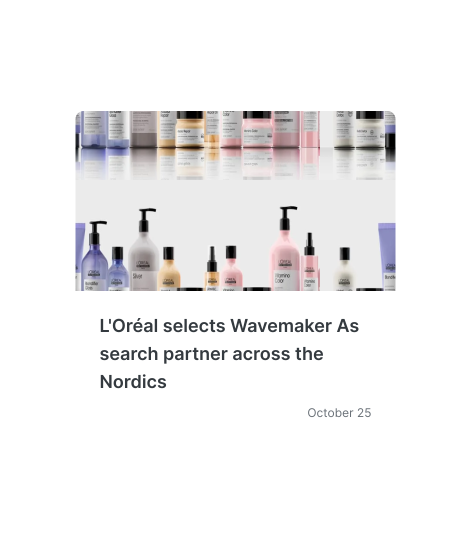
 Don't
Don't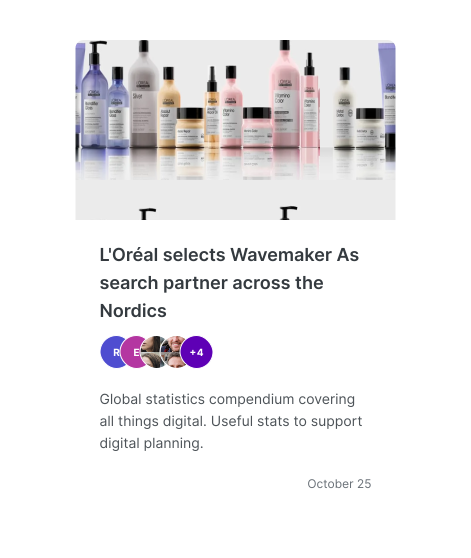
Build and maintain a visual hierarchy with typography
Do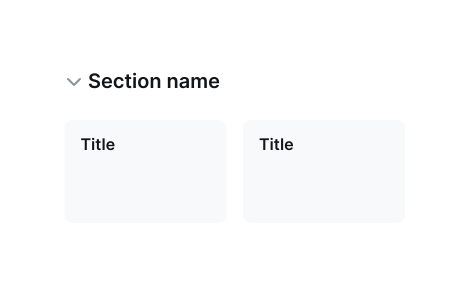 Don't
Don't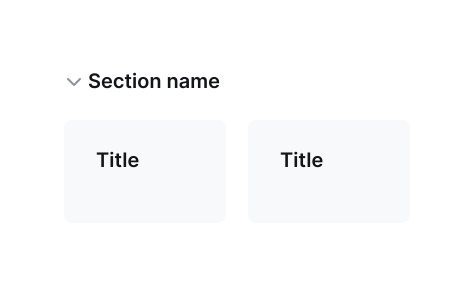
Display information consistently
Do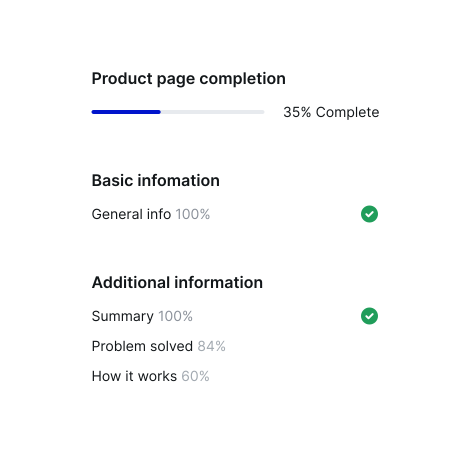 Don't
Don't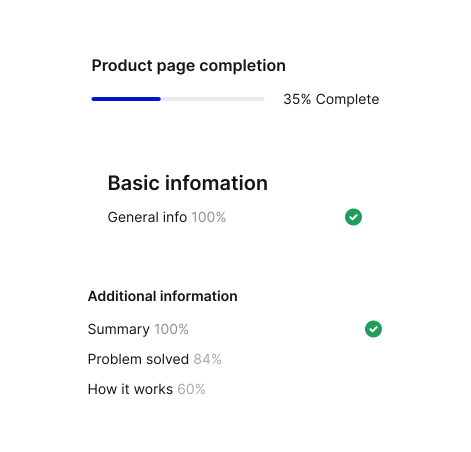
Make the card content clear to users
Do Don't
Don't
Accessibility
Keyboard focus
Regular card
The keyboard focus triggers only the interactive parts of the Card, not the whole Card. The focus state changes based on the specific element it is currently on.
Clickable card
When the Clickable Card acts as a link, the keyboard focus adds a 2px ring to its hover state. If the card includes an action, the keyboard focus activates that action when you hover over the card.
Expandable card
The keyboard focus triggers the Accordion within the Expandable card and adds a 2px ring to its hover state.
Selectable card
Selectable cards' behaviour is similar to Checkbox and Radio button components.
The keyboard focus adds a 2px ring to the selected state of a Single Selection Card. For a Multiple Selection Card, it adds a 2px ring to its hover state.
Keyboard interactions
Keyboard interaction through the cards depends on the elements placed within these cards. We recommend to follow ARIA authoring practice: Patterns to build interactions for the particular components.
Resources
Refer to Understanding 2.1.1 Keyboard for more information on expectations, intent, benefits, and techniques.