Text input
Enter and edit free-form text.
 View in Storybook
Usage
- Label optional fields with "(Optional)" after the field name.
- Make sure not to use asterisks for required fields.
- Use an info icon with a tooltip to clarify more nuanced fields.
- Use helper text under the field to give context about its input.
Best practices
-
Keep the input field empty to prevent users from mistaking placeholders for actual input. Use info icons and helper text for guidance instead.
 Do
Do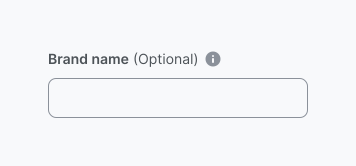
 Don't
Don't
-
Provide meaningful and actionable messages to help users avoid errors and easily fix them if they occur.
Do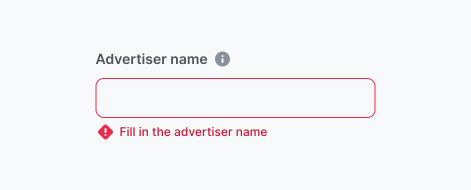 Don't
Don't
-
Adjust the field width to match the expected input length, giving users a visual cue for the expected input.
Accessibility
Keyboard focus
- The keyboard focus state replicates the Input's active state and adds a 2px ring. If the Input is filled, the focus will highlight the entered data within the component.
- For the focus ring, use a colour from the Brand primary palette (default: Primary/500).
- Ensure the focus state has a minimum contrast ratio of 3:1 against the background for accessibility compliance.
Keyboard interactions
The text input supports the common keyboard interactions, using the Tab key to select the element and using the Enter key to activate an in-focus element.
Resources
Refer to Understanding 2.1.1 Keyboard for more information on expectations, intent, benefits, and techniques.