Tree
Create a hierarchical data structure.
Trees come in two types: single and multiple selection.
 View in Storybook
Behavior
-
On click, parent items can either display content associated with them or expand to display their children. Clicking an expanded parent item collapses it.
-
In multiple-selection trees, users can select items only by clicking their associated checkbox. When a parent item is selected, its children are also selected.
-
Action buttons are displayed on hover and only for the hovered item. If you want to include more than two actions, use a More button.
-
Users can customise tree items with tags for highlights, avatars for assignees or collaborators, and text for additional info.
-
When users apply filters to a tree, it displays the entire path to the filtered items.
-
Pay attention to the component width so that all node titles are displayed correctly; we recommend providing at least 120 px for the titles.
-
Titles that don't fit the modal width overflow to the following line by default. If your tree has only one long title, consider truncating it to preserve the vertical rhythm.
-
A low-fidelity placeholder indicates that the content is still loading.
Usage
Use trees to represent a parent-child relationship among data elements.
Best practices
Avoid using trees for main app navigation—consider using Sidebar instead.
 Do
Do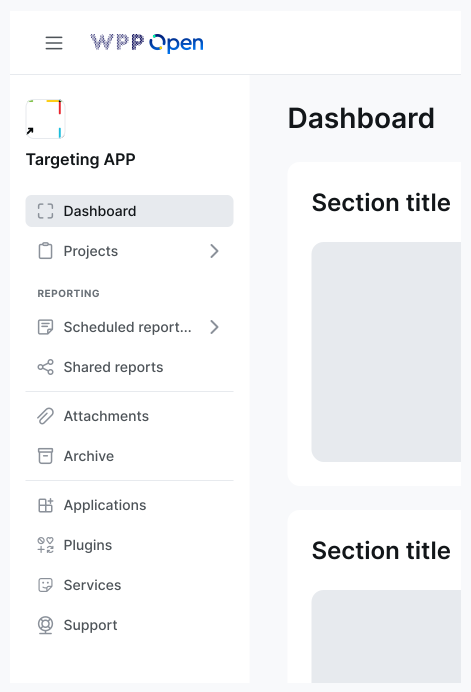
 Don't
Don't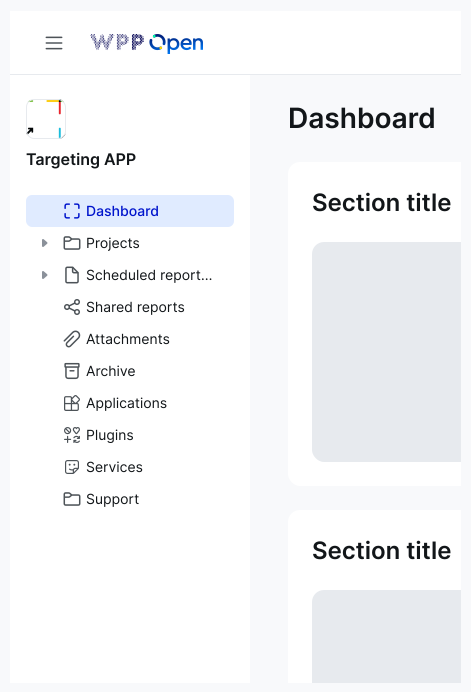
Accessibility
Keyboard focus
- The keyboard focus state uses the tree item’s visual pressed state with the Primary/200 background fill for active items.
Keyboard interactions
See the ARIA Authoring Practices Guide: Treegrid Pattern for guidance on expected keyboard interactions, including roles, states, and properties.
Resources
Refer to Understanding 2.1.1 Keyboard for more information on expectations, intent, benefits, and techniques.