Autocomplete
Select items from a dynamically filtered dropdown list based on the user queries.
 View in Storybook
Variants
Autocomplete comes in two variants:
- Regular
- Expanded
Behavior
- Autocomplete dynamically displays available options as the user types their query, showing results only after typing begins. When the user clears the search with the backspace key, the input field reactivates.
- The system displays suggested options immediately when users focus on the autocomplete input, eliminating the need to type a query. These suggestions include popular, recent, or contextually relevant items to enhance user experience.
- Once an option is selected, it is highlighted in the results and either pinned to the top of the list for compact view or displayed below the input field for expanded view. In multi-select configurations, focus should automatically return to the input field after each selection by default.
- Clicking outside the input field exits the autocomplete's active state and displays selected options. The regular variant shows selected items directly in the input field. The expanded variant displays a count of selected items in the input, with individual selections appearing as pills below it.
- If selected items match the query, they also appear in the search results, allowing users to easily identify and deselect them if needed.
- A pill's label must not exceed the dropdown container's width. If truncated, a tooltip displays the full name on hover.
- A configurable option allows users to create a new record if no matching results are found. The behavior triggered by the "Create" button may vary depending on the specific use case.
- A configurable option allows disabling the label in both component variants to maintain a compact layout.
Usage
Use autocomplete in situations where the number of options becomes too large to display efficiently in a standard single or multi-select component.
- Regular variant: Best suited for compact use cases or when only a single item selection is allowed.
- Expanded variant: Ideal when all selected items need to be visible on the page—useful for scenarios requiring clear visualization and quick editing of the selected list.
By default, once five rows of selected items are reached, a “Show more” button appears to expand the list. Both the row limit and the display of the button are configurable.
Best practices
Consider adding more context to the input field placeholder if you're using autocomplete without a label.
 Do
Do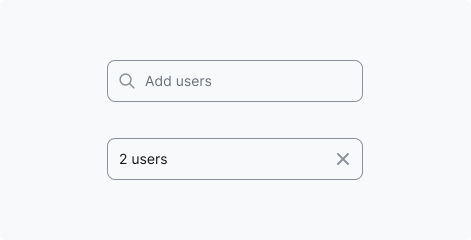
 Don't
Don't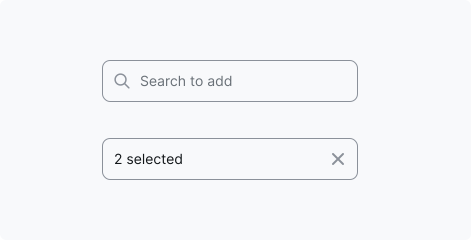
Accessibility
Keyboard focus
The keyboard focus state takes the Autocompleter’s active state and adds a 2px ring. When move the focus across dropdown items, the Autocomplete remains active. The Dropdown follows the List’s keyboard accessibility guidelines.
For the focus ring we recommend to use colour from the Brand primary palette (Primary/500 by default). Focus should have at least a 3:1 colour contrast ratio against the background.
Keyboard interactions
See the ARIA Authoring Practices Guide: Combobox Pattern for guidance on expected keyboard interactions, including roles, labels, and properties.
Resources
Refer to Understanding 2.1.1 Keyboard for more information on expectations, intent, benefits, and techniques.