Overview of Open Authorization
Overview
Open OS features a built-in authorization and permissions management module, Open Authorization, which allows you to control user access to different functions and data in your product. You can create roles and permissions that can be assigned to users, providing them access to your product.
A role is a named container for permissions and typically represents a user type (guest, editor, admin, etc.) DevHub enables you to establish roles and permissions in tandem with Open Authorization.
Unified scope of access
Open Authorization reflects the Open OS workspaces (agencies, clients, etc.) in a tree-like hierarchy called Accounts. Each workspace has a sub-account called Organisations, which encompasses the hierarchy of entities that belong to that workspace.
Every entity in this hierarchy (Workspace, Client, Market, etc.) is represented as a separate Open Authorization account with a unique ID. Authorized Workspace Admins can assign permissions to other users for the entire workspace or part of its hierarchy by granting one or more roles to the corresponding Open Authorization accounts.
Roles and permissions in Open Authorization work based on inheritance: if a user has a role in a specific account, they also have this role and its underlying permissions in all sub-accounts, which cascades down the hierarchy.
Configure authz, roles, and permissions
Open OS features a built-in authorization and permissions management service called Alpha Zulu (AZ). AZ's goal is to determine if a user has specific permissions in an account. It achieves this by using abstractions for users, permissions, and accounts, eliminating the need to manually define all rules for each case.
Applications integrated with AZ in Open OS can send authorization requests to verify if an authenticated user is allowed to perform a specific action. Users must have configured access permissions in AZ's database to interact with such applications.
Role-based access control
DevHub allows you to create roles and permissions that can be assigned to users, granting them access to your product.
Roles: A role is a named container for permissions and typically represents a user type, such as guest, editor, or admin.
Permissions: Permissions define what actions a user is allowed to perform.
DevHub works with AZ to help you establish and manage roles and permissions efficiently.
Manage roles and permissions separately for every product version in DevHub, as they are not identical entities in the context of Open Authorization.
How authorization works in Open
Workspace
The workspace serves as the highest level of hierarchy. Assignments at this level propagate downward to all descendant scopes. Permissions granted at the workspace level are inherited by all accounts and projects under it.
Hierarchy
Open OS employs a hierarchical structure akin to a file system. The hierarchy consists of directories and subdirectories, such as Agencies, Clients, Markets, or Brands.
Projects
These groups are integrated with Alpha Zulu and roles are assigned to corresponding groups to, enableing consistent access control across all projects.
Orchestration automatically creates default groups for each project, such as:
- Project viewers
- Project contributors
- Project owners
These groups are integrated with Alpha Zulu and roles are assigned to corresponding groups to, enableing consistent access control across all projects.
Open OS meta roles
Open OS also has three special Open OS meta roles: Viewer, Contributor, and Owner, which represent standard user roles in Open Orchestration. Meta Roles are predefined roles assigned to an account when you create an account type—Application.
Viewer
Can view your product within a business flow.
Contributor
Same as Viewer, and can also edit your product within a business flow.
Owner
Same as Contributor, and can also edit the project in which the specific business flow operates.
When configuring roles and permissions in DevHub, you must map product roles to Open OS Meta Roles.
Meta Roles are inheritable and available only within the scope of the created account. Also, they are protected from modifications—users can’t change their descriptions, type, or other fields. Meta roles assigned to the account are deleted when the account itself is deleted.
Accounts
Accounts define the hierarchy of an organization and reflect different business structures, such as agencies, clients, markets, or brands. Assignments at the account level determine permissions for associated projects and applications.
Key features of accounts
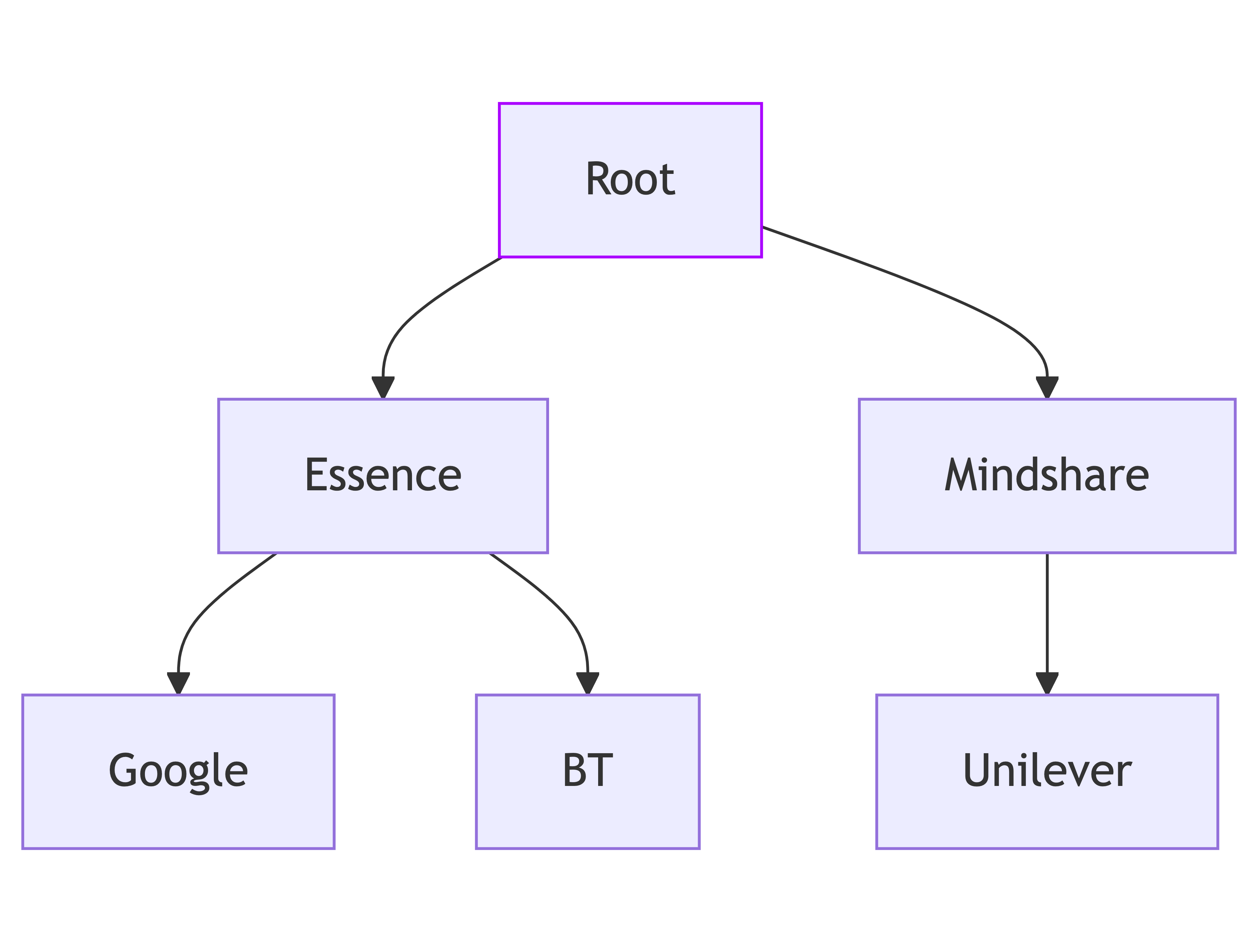
- Parent-child relationship: Sub-accounts inherit permissions and structures from their parent accounts. For instance:
- Users with EDIT_AUDIENCE permission for Essence also inherit this permission for Essence’s children (Google, BT).
- Assets: Resources (e.g., groups, roles, permissions) tied to an account.
- Assets have no restrictions on which account they can be created.
Root account
The Root account is at the top of the hierarchy, and it’s the only account without a parent.
Account types
Accounts are identified by their type—a user creates an account with a type to uniquely identify them.
What does authorization look like for apps?
When app is launched from hierarchy
When an application is launched within a specific scope, Alpha Zulu evaluates permissions based on the hierarchy. It traverses the hierarchy to provide the permissions assigned to the user within the relevant context.
When app is lauched from project
Applications launched from projects rely on project-level group memberships, as well as the user’s hierarchy permissions if the project is associated to the hierarchy.
Roles and permissions: workspace, DevHub, and application scoping
Workspace
A user assigned with a role at the workspace level obtains permissions on all descendant accounts of organisation hierarchy i.e., client -> market -> brand.
DevHub
DevHub provides a self-service portal for developers to define and manage permissions.
At the workspace level, developers are granted access to DevHub to create their own applications.
This portal offers developers a UI for creating and managing access to these apps.
Permissions are defined and managed through the DevHub interface, where developers can configure the scope and roles for each application.
Native/iframe
Both Native and iframe are product types that allow developers to define roles and permissions. Permissions are scoped based on where the application is launched in the hierarchy.
For iframe
Similar to native apps, permissions for iframe-based apps are scoped to the level of the hierarchy where the app is launched.
Application versions
Both Native and iframe are product types that allow developers to define roles and permissions. Permissions are scoped based on where the application is launched in the hierarchy. For iframe: Similar to native apps, permissions for iframe-based apps are scoped to the level of the hierarchy where the app is launched.
Conversion example
"PERMISSION_CODE" -> "NAMESPACE:PERMISSION_CODE"
Using permissions
Permissions are identified by unique codes, such as AZ_USERS_CREATE. By convention, these codes include a prefix that indicates the application or module the permission is associated with. For example, AZ_USERS_CREATE uses the prefix AZ_, which signifies it is part of the core AZ permissions. However, this naming convention is not mandatory; you can create permissions with any code format.
Permissions are account-specific, meaning users must be granted specific permissions for their account to manage other permissions.
Workspace admins are responsible for assigning correct roles to their respective users. As a developer, you are responsible for creating roles and permissions in DevHub and validating user permissions against the workspace or some entities in the workspace hierarchy.
After receiving a request to your product's back end, you must ensure that the permissions necessary to resolve this request align with the users’ permissions for the workspace or entities within the workspace hierarchy.
The flow of validating permissions typically involves the following steps:
- A request from the front-end part of your app (or another service) is received. This request includes an Authorization header with a bearer token used to identify the user by their email. This request also contains context information, like what resource the user wants to access.
- From the Open OS perspective, the context is often represented by the Open Authorization ID (OA ID) of the Organisations account of the user's workspace (for users with access to multiple workspaces, this should be the current workspace). If the request scope relates to some specific entities in the workspace hierarchy (Client, Market, Brand, etc.), the request should also include the corresponding OA IDs.
Since your product can contain its data or other objects for access verification, which are not directly related to the Open OS structure, you can combine the validation of corresponding permissions for the workspace's Open Authorization hierarchy account with the verification logic that targets your product data.
Sending user permissions from the front to back end is not recommended for security reasons, as this data can be easily intercepted and manipulated.
Permission hierarchy to work on a project
Each person inside WPP can see their projects in the Projects widget, however only users with Platform Admin, Workspace Admin orInternal Users roles are allowed to create a project.
Project-level permissions
Workspace admin assigns the 'internal' user role. Internal users can create new projects, and the project creator automatically becomes the owner.
Project owners perform the following actions:
- Invite members to collaborate.
- Assign the following roles to members:
- Project owner––full capabilities,
- Contributor, and
- Viewer––view-only rights.
- View the project overview, workflow, and members.
- Update the project details.
- Assign members to the project.
- Create and manage the workflow.
- Configure what data is shown in the workflow & use predefined viewing presets.
- Search for workflow templates and check their details.
- Create, view, and move activities on Canvas as well as edit, delete activity, add an external link or application to an activity.
- Save the project as a template.
- Assign members to the applications.
Assign auto roles in projects using orchestration
If an application utilizes AlphaZulu for authorization, Projects can automatically assign the appropriate roles to users invited to the project.
Setting up auto-roles
- Meta Role Assignment: Product teams set up their products in DevHub and map application roles to one or more of the OS meta roles.
- Automatic Role Assignment: When users are invited to a project, they are automatically assigned roles based on these meta roles.
- Project Role Types: Currently, the available project role types are Owner, Contributor, and Viewer.
Handle product context
When a product is launched from a project, Open OS passes the Context object to the product. It has workspace-specific data, such as:
Project: project object provides the identifier of the project. The project value is null if app is not launched from inside a project. It also provides items associated with the application instance.
Additional: additional object provides additional project app launch context information.
For more details on the OS context, see the key values explanation.
Querying Alpha Zulu for app permissions
Here's how you can get user permissions from the Open Authorization API using projectAzId:
POST https://alpha-zulu-prd-one.os.wpp.com/api/v20/users/permissions/query
Include the following details in the request body:
{
  "filters": {
    "limit": 100,
    "offset": 0,
    "account_id": "projectAzId",
    "user_id": "requestUserId",
    "permission_codes": ["your_app_permission_codes"]
  }
}
A typical response might look like this:
{
  "total_count": 0,
  "data": [
    {
    "account_id": "3fa85f64-5717-4562-b3fc-2c963f66afa6",
    "permissions": ["READ", "EDIT", "DELETE"]
    },
    {
    "account_id": "2961f676-145e-11ee-be56-0242ac120002",
    "permissions": ["READ", "ADD_REVIEW"]
    },
  ],
  "limit": 0,
  "offset": 0
}
- To retrieve user permissions on stage, please use the endpoint
POST https://alpha-zulu-ch-stage.os-dev.io/api/v20/users/query. - Use our Swagger documentation and test the permission APIs.
Retrieve user permissions
Retrieve a list of user permissions assigned to an account using the following endpoint:
POST https://alpha-zulu-prd-one.os.wpp.com/api/v20/users/permissions/query
To request user permissions, the following keys must be included in the request body:
account_id- either
user_idoruser_email.
A typical request body might look like this:
{
  "filters": {
    "limit": 100,
    "offset": 0,
    "account_id": "3fa85f64-5717-4562-b3fc-2c963f66afa6",
    "account_type": "APPLICATIONS",
    "account_namespace": "string",
    "depth": 0,
    "include_ancestors": false,
    "user_id": "3fa85f64-5717-4562-b3fc-2c963f66afa6",
    "user_email": "[email protected]",
    "permission_codes": [
      "string"
    ],
    "permission_code_prefixes": [
      "Diw4JAgFKxQKPAIC-0YqL2E3_nXaT9FJ/A_V6ki3zI9nmJ2LBxenpq8Fkvm465W0/zucKe941aXZtfzk8fC"
    ]
  }
}
You'll not be able to request Open Authorization API without providing the following query headers:
-
AuthorizationYour user's bearer token, which you can take from the inbound request.
-
X-Client-IdIdentifier of your service or application making the request.
-
X-Client-SecretA shared secret between the application and the server for additional security. Currently, we don't have a specific validation for client secret——it could be dummy or a mirror of the client id.
A typical response might look like this.
{
  "total_count": 0,
  "data": [
    {
      "account_id": "3fa85f64-5717-4562-b3fc-2c963f66afa6",
      "permission_codes": [
        "string"
      ]
    }
  ],
  "limit": 0,
  "offset": 0
}
- For detailed information on the query parameters and headers, please take a look at the documentation on Configuration.
- To retrieve user permissions on stage, please use the endpoint POST https://alpha-zulu-ch-stage.os-dev.io/api/v20/users/permissions/query.
- Use our Swagger documentation to test the APIs.
Use of account_namespace
Account_namespace is a special filter to get permissions for your product only. DevHub enables you to manage roles and permissions through individual product versions or profiles. Every permission is created with a namespace. In this way, the account_namespace key allows differentiating permissions. When you request roles and permissions from Open Authz, please include the account_namespace key in your request to ensure that the response contains the necessary data only.
Where to find the account_namespace
- Open your product version in DevHub.
- Copy the Namespace by selecting the Copy icon.

Users can get app permissions via the account_namespace only if they are assigned the corresponding role for the app within Open OS by the workspace admin.
Example request with account_namespace
After receiving a request for version-specific permissions, Open Authz returns a response that includes the list of associated permissions and account_id.
- Request body
- Response
{
  "filters": {
    "limit": 100,
    "offset": 0,
    "account_id": "85ff67c0-0f9c-4e31-ae9f-4c7cb10fb05f",
    "account_type": "APPLICATIONS",
    "account_namespace": "APP_VERSION_85ff67c0-0f9c-4e31-ae9f-4c7cb10fb05f",
    "depth": 0,
    "include_ancestors": false,
    "user_id": "3fa85f64-5717-4562-b3fc-2c963f66afa6",
    "user_email": "[email protected]",
    "permission_codes": [
      "string"
    ],
    "permission_code_prefixes": [
      "oO/tMTOG3ZS/VQt:XZJOTKsA2vTT:nEI9qieIWxrd:P5tQ44tXJn3sgatOPr9Y7ep2S1WF67QZHhxlOF4FEDDLMsPGA8uoLXFaqkL7zeC/gN1K3OXXg03dtAPbqvvZO3YVSFbwQ"
    ]
  }
}
{
  "total_count": 0,
  "data": [
    {
      "account_id": "85ff67c0-0f9c-4e31-ae9f-4c7cb10fb05f",
      "permission_codes": [
      'DMTR_JOB_REPORT',
      'DMTR_METADATA_VIEW',
      'DMTR_RUN_VIEW',
      'DMTR_SPEC_EDIT',
      'DMTR_SPEC_RUN',
      'DMTR_SPEC_VIEW',
      ]
    }
  ],
  "limit": 0,
  "offset": 0
}
Once you've configured roles and permissions, test your product thoroughly, deploy the updated version of your product to your infrastructure, and update the product configuration in DevHub before enabling access for the necessary workspaces.
At this point, workspace admins can see the roles configured in your product and start assigning them to users and user groups within their workspace hierarchies.
Use of account_id and depth
In the Open Authorization API, the account_id is the OA ID of the account to get permissions from. The depth key defines the depth of the subtree of accounts to get permissions for. It can be any integer >= 0. Set 0 to get permissions for a single account.
If you want to retrieve permissions for a single account, you should set depth to 0 and provide the relevant OA ID value to the account_id key.
 "account_id": "85ff67c0-0f9c-4e31-ae9f-4c7cb10fb05f",
   "depth": 0,
This returns the list of permissions for the account specified in the OA ID.
However, suppose you need permissions for more than one account (for instance, several brands, markets, or any other combination of entities from the workspace hierarchy). In that case, you can retrieve permissions for the entire subtree on the workspace's Organisations account.
To do that, set account_id to the OA ID of the necessary Organisations account and set depth to -1 (this setting represents unlimited tree depth).
    "account_id": "85ff67c0-0f9c-4e31-ae9f-4c7cb10fb05f",
   "depth": -1,
The response will contain separate permission arrays for each account within the workspace hierarchy. You can then filter the permission sets by their respective OA IDs.
To verify user permissions using the Open Authorization API, you need:
- AlphaZulu Account ID (AZ Account ID) → Identifies the account within the system.
- Namespace → Specifies the product version or profile.
- Permission Code → The specific permission to check.
Where to find the AZ account ID?
The AZ Account ID is required to check permissions and is unique to each account. You can retrieve it from:
- Context Object → If the app is launched from a hierarchy or project, the account ID will be present.
- DevHub → For applications, the AZ Account ID is linked to the registered workspace.
- API Calls → Use the Open Authorization API to fetch account details.
Example of an account ID in a request:
{
  "account_id": "85ff67c0-0f9c-4e31-ae9f-4c7cb10fb05f"
}
Context object for application launch
The context object helps developers understand the environment and level of operation for the app.
Context object when launched from a hierarchy
The hierarchy property provides information about the hierarchical context in which the application was launched. Workspaces are configured with one or more hierarchy levels, and each level is identified by an azId. This property also includes details about parent accounts.
Example of the context object (hierarchy launch)
{
  "hierarchy": [
    {
      "azId": "8ab649d7-26f3-48eb-8f58-688c3c158f88",
      "mapping": {
        "azId": "8ddc2220-92ef-4262-95f5-24395f5ba8de",
        "name": "Choreograph Organisations",
        "type": "TENANT",
        "customTypeName": null,
        "parentAzId": "ea35bf45-0773-4dbd-a93b-a3e3e2ad9b08"
      }
    },
    {
      "azId": "ea35bf45-0773-4dbd-a93b-a3e3e2ad9b08",
      "name": "Paws & Tails Co",
      "type": "CLIENT",
      "customTypeName": null,
      "parentAzId": "8ddc2220-92ef-4262-95f5-24395f5ba8de"
    },
    {
      "azId": "70e4ba44-d2ea-49ee-9ddd-48456c58fe1e",
      "name": "United Kingdom of Great Britain and Northern Ireland",
      "type": "MARKET",
      "customTypeName": null,
      "parentAzId": "ea35bf45-0773-4dbd-a93b-a3e3e2ad9b08"
    },
    {
      "azId": "8ab649d7-26f3-48eb-8f58-688c3c158f88",
      "name": "Paws & Tails Dog Snacks",
      "type": "BRAND",
      "customTypeName": null,
      "parentAzId": "70e4ba44-d2ea-49ee-9ddd-48456c58fe1e"
    }
  ]
}
In this example, the app was launched from the Brand hierarchy level named Paws & Tails Dog Snacks. This brand level belongs to the United Kingdom of Great Britain and Northern Ireland market level, which is part of the Paws & Tails Co client account. The azId uniquely identifies each level in the hierarchy.
Context object when launched from a project
The project property provides information about the project context in which the application was launched. Project is null if the app is not launched from inside a project.
Example of the context object (project launch)
{
 "project": {
   "azId": "e05e6879-43ae-4127-bb8d-d888ce5dbcee"
   "id": "375a2ef0-2fba-4f7d-9395-51b6002be772",
   "name": "ABC Project test",
   "type": "CAMPAIGN",
   "itemId": "0f4f6195-3a75-4f6d-b83f-1dec5930d225",
   "itemCompleteState": "TO_DO"
 }
}
In this example, the app was launched from a project named ABC Project test, which is associated with a campaign. The project object provides details about the project and its associated item.