Create Google Drive integration
This guide provides instructions on configuring the Google Drive integration in the Platform Admin UI. It is intended for the WPP Open Support Team and outlines the steps necessary to set up and complete integration after the client has provided the required Client ID, Client Secret, and Service Account.
Important notes
- If a Google integration already exists, it cannot be added a second time. Its creation will only be possible after the previous Google integration is removed.
- If the tenant is already configured for the File Manager to use a different integration, the current integration must be unlinked — this can only be done by the development team. The WPP Open Support Team must contact the File Management team. This is temporary; in the future, the unlinking process may be available in the UI.
- If Google Drive is enabled, GCP integration cannot be used (only the development team can disable it).
- If a client decides to switch to Google Drive integration, note that there is no automatic migration of existing files. This transition must be coordinated directly with the client.
They are responsible for manually downloading any files stored in the current system and uploading them to their connected Google Drive environment.
Configure Google Drive integration
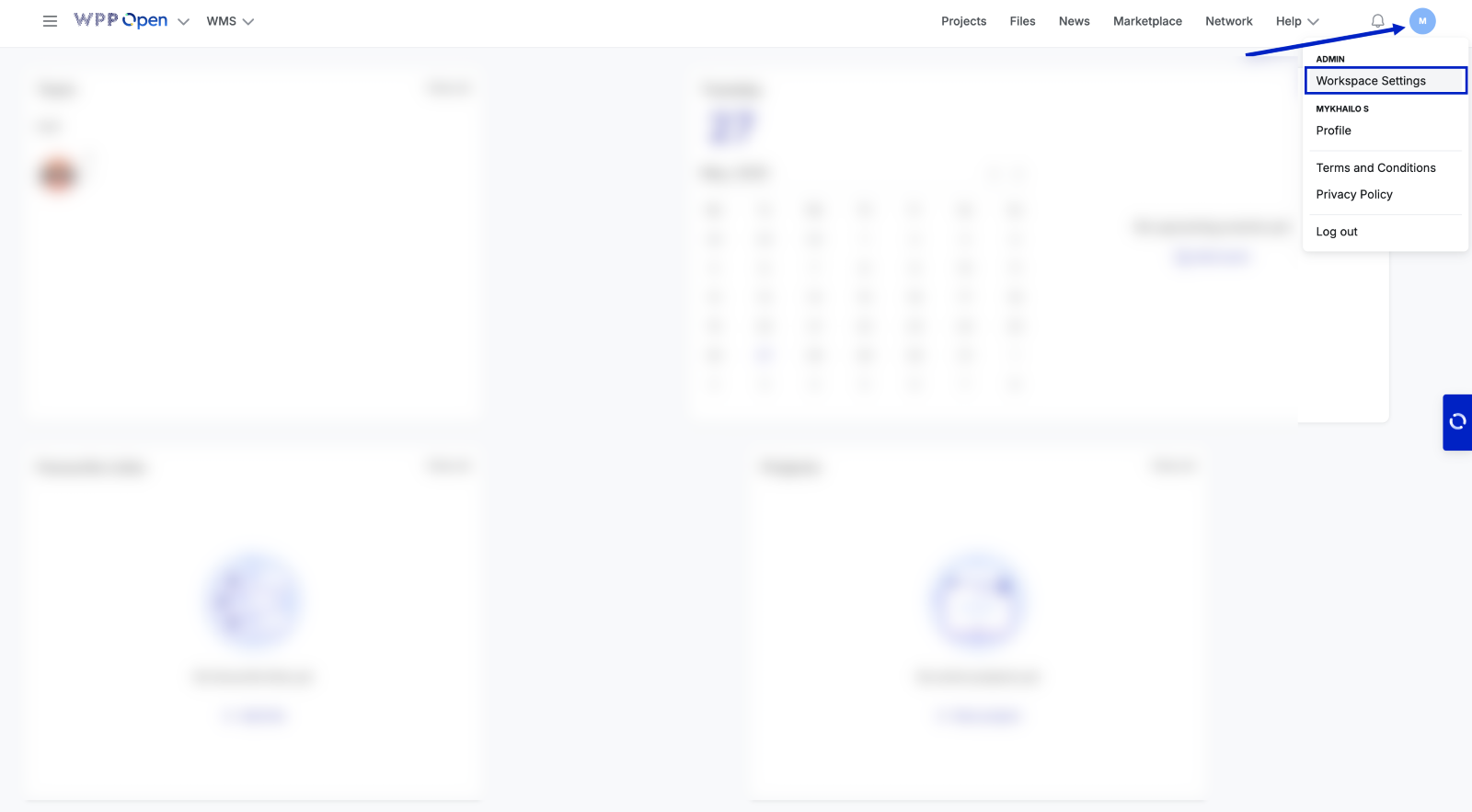
- In the upper-right corner of the screen, click your Profile icon, and then select Workspace Settings from the dropdown.
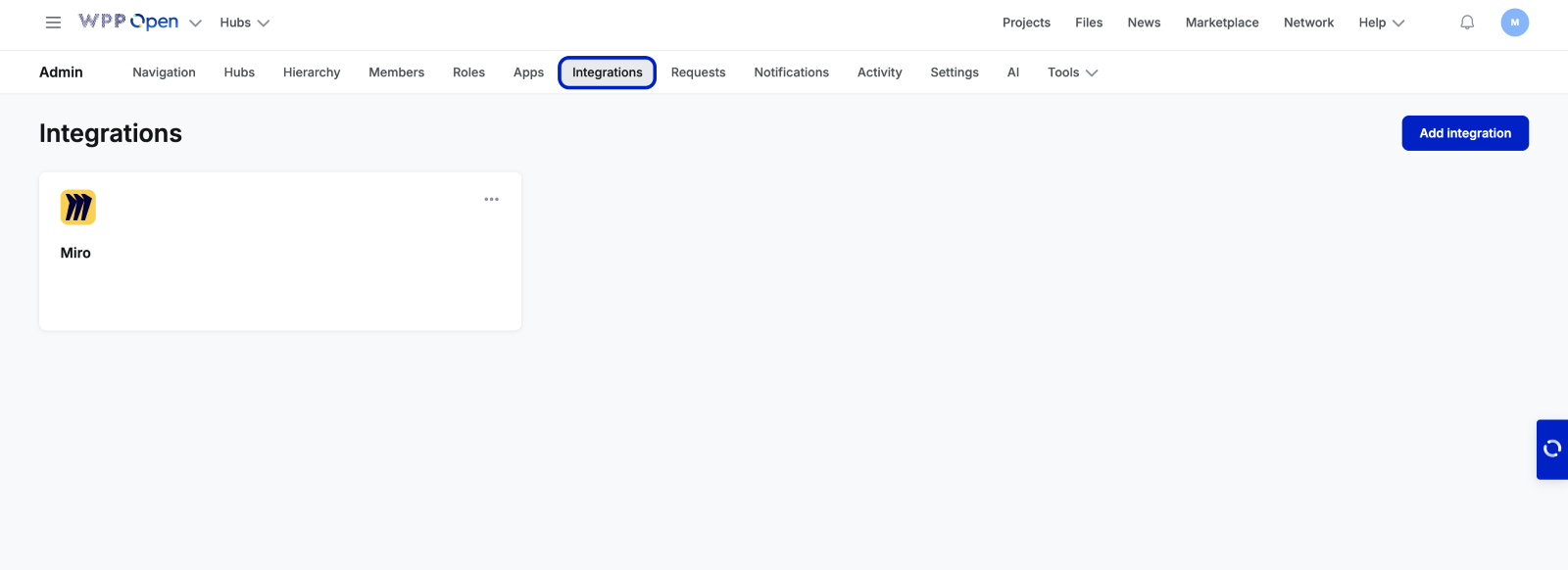
- In the horizontal admin menu, select Integrations.
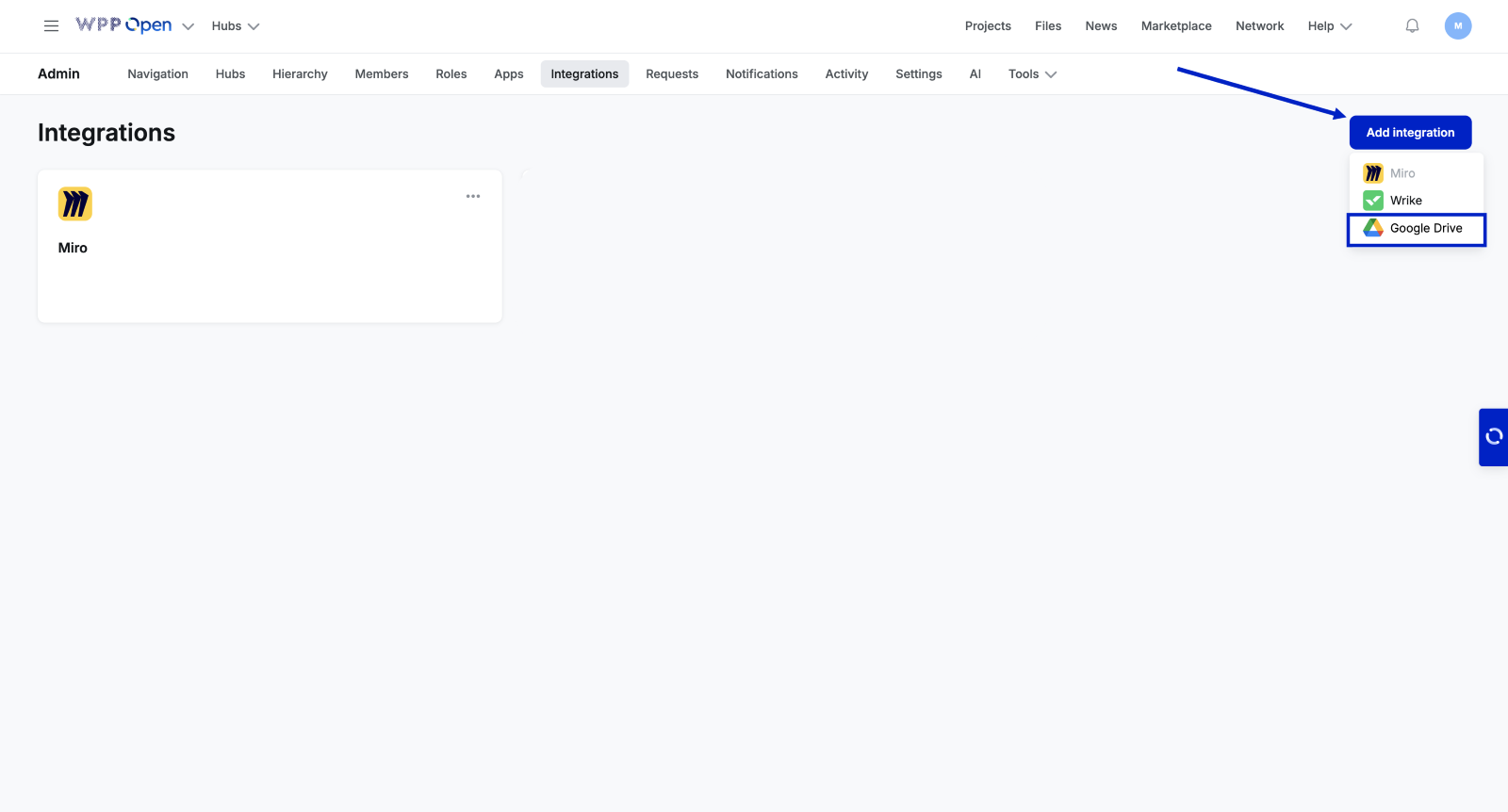
- Click the Add integration button, and then select Google Drive from the dropdown.
- In the side panel, enter the following:
- Description (optional)
- Client ID
- Client Secret
- Service Account (in JSON format)
note
The Client ID, Client Secret, and Service Account will be shared by the client. Please see the tutorial on configuring the G-Drive integration shared with the client.
- After filling in all the fields, click Add integration.
The added Google Drive integration will appear in the list of integrations.