Publish native products
Open Marketplace is a catalog for exploring, sharing, and managing products across WPP Open. Each product listed in Open Marketplace has its dedicated page, designed to offer comprehensive insights into its features, highlights, and potential benefits.
For a more detailed view of Open Marketplace, visit WPP Open Knowledge Base.
DevHub works together with Open Marketplace to help WPP teams share projects. It enables you to easily create and manage user-facing product details, including the category, features and highlights, marketing materials, and contact points.
This guide offers a brief overview of the details you can provide to help your products stand out in Open Marketplace.
Ensure that each file or image you upload is under 15 MB. The accepted formats include:
- Files: .pdf, .ppt, .pptx, .key, .doc, .docx, .xls, .xlsx.
- Images: .png, .jpeg, .jpg.
You can save your progress at any time—it's not necessary to fill in all the required fields in the Product Details section to save the content.
Add marketplace details
To add marketplace details, select +Add under the Marketplace Details section.
Select the required fields, such as Short Description and Category, in the Core Details section to directly edit a specific required field.
The Product card essentials section lets you provide a brief product overview, that helps potential users quickly understand the product.

Navigate to required fields
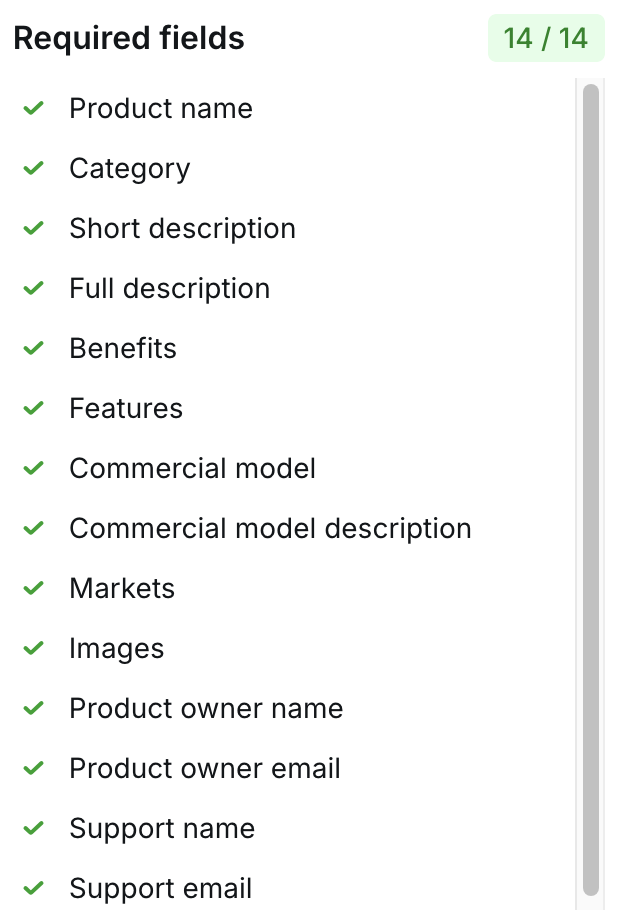
To publish your product on Open Marketplace, complete the required fields. The left panel serves as a navigation guide—allowing you to click on parameters to jump directly to the required fields in the form.
Select a category
In the Product card essentials section, you can select a suitable category for your product from the Category dropdown.

| Category name | Description | Subcategory |
|---|---|---|
| Media Studio | Assist media professionals in planning, executing, and analyzing their campaigns across different channels to maximize impact and return on investment (ROI). | Subcategories for Media Studio: Discover, Plan, Activate, Measure |
| Production Studio | Streamline the creation and management of multimedia content. | Subcategories for Production Studio: Ideate, Generate, Make, Adapt, Optimise, Publish |
| Brand Studio | Help creative and brand professionals manage and enhance clients’ brand identity, reputation, and messaging across channels. | No Subcategories |
| Commerce Studio | Help businesses optimize their online stores, streamline the shopping experience, and increase sales. | No Subcategories |
| Creative Studio | Leverage multiple generative AI models to enhance the creative process and improve the efficiency of design workflows. | No Subcategories |
| Experience Studio | Help businesses manage customer interactions, automate sales processes, and gain insights into customer behavior to improve engagement and retention | No Subcategories |
| PR Studio | Help professionals monitor media coverage, track brand mentions, and analyze sentiment to optimize their public relations strategies and improve brand reputation. | No Subcategories |
| WPP’s Data Studio | Provide access to a wide range of data sets and insights into customer behavior, market trends, and campaign performance, enabling businesses to make data-driven decisions and optimize their strategies for maximum impact. | No Subcategories |
| Other apps | Offer a range of third-party tools and additional features designed to help you complete tasks more efficiently and quickly. | No Subcategories |
Select only one Studio type in DevHub. It will be displayed as a label on a product card, such as "Media Studio", "Production Studio", "Brand Studio", "Commerce Studio", etc. Note that a product card doesn't contain subcategories. Subcategories also don't extend to filters.
For native apps, the system automatically assigns a default logo based on the selected category instead of using a custom logo.
Describe your features
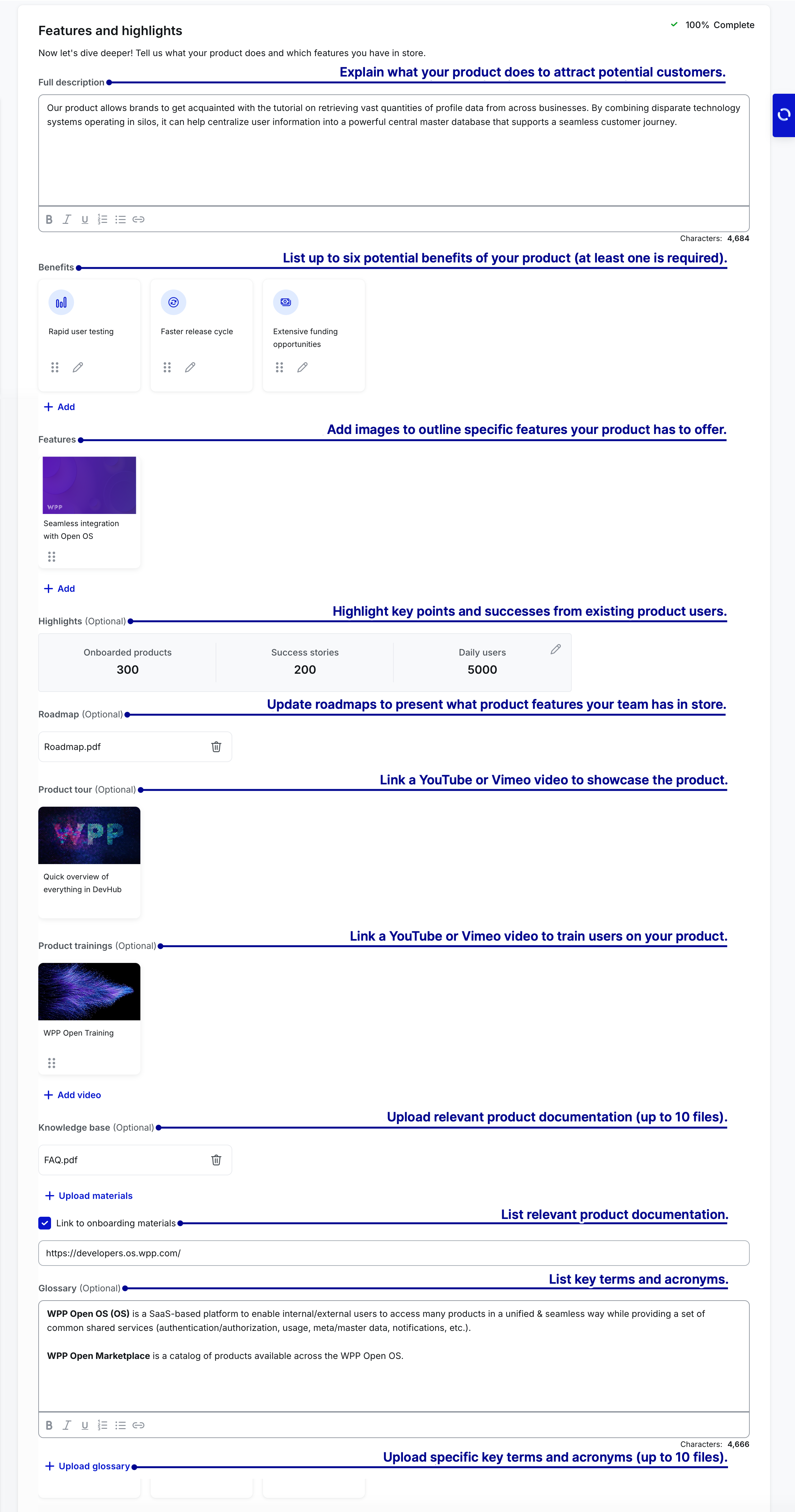
The Features and highlights section lets you spotlight the most exciting aspects of your product.
The information you provide establishes a comprehensive overview of your product's existing functionality and any upcoming features. It's also an ideal space to include practical resources like video tutorials to facilitate a smooth user onboarding experience.
To publish your product on Open Marketplace, please complete these required fields: Full description, Benefits, and Features (at least one feature).
Specify marketing info
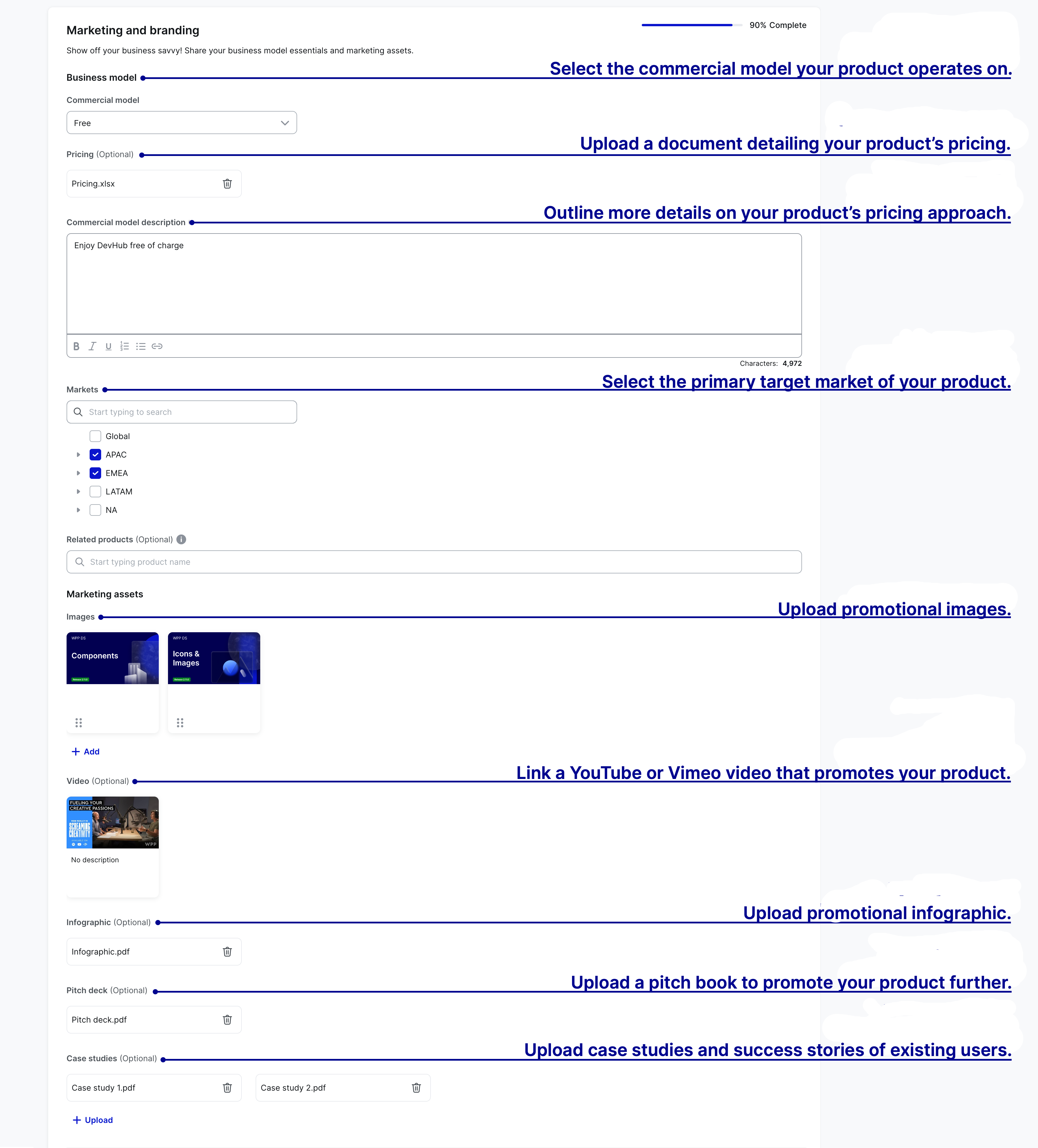
The Marketing and branding section is crucial in promoting your product on Open Marketplace. This is where you can upload various promotional materials like images, videos, infographics, etc. Most importantly, this section lets you specify your product's categories and target markets.
To publish your product on Open Marketplace, please complete these required fields: Commercial model, Commercial model description, Markets, and Images (at least one image)—all affect your product in Open Marketplace.
Offer contact points
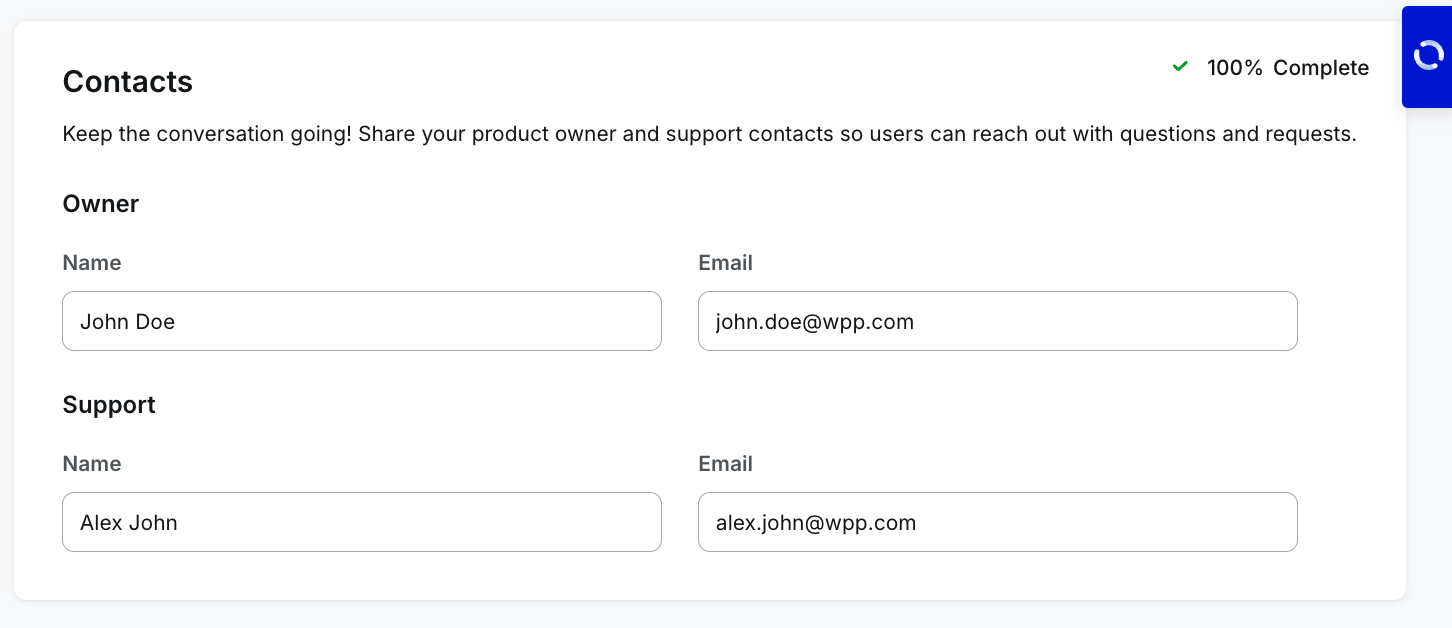
The Contacts section lets you provide your product owner's and support teams' contact details. These details serve as the primary contacts for your product. In this section, we recommend adding the contact information of the product owner or other person users can contact if they need to add an app to their workspace, get more information about the product, or request assistance.
To publish your product on Open Marketplace, please complete these required fields: Product owner name, Product owner email, Product support name, and Product support email.
Publish in one click
Once you've filled out the required and relevant fields, select Save in the upper-right corner of Product details, and then select Publish to Marketplace to publish your product to Open Marketplace. The Publish to Marketplace button becomes enabled only if you fill in all the required fields.
To update the details of already published products, re-publish your product from DevHub selecting Publish changes.

You can publish products to Open Marketplace before completing the technical configuration. In this case, your product will display the Coming soon status on Open Marketplace.
Unpublish native products
Once a product has been published to the Marketplace, you can opt to unpublish it. This action removes the product from the Marketplace and reverts its state to its pre-published status.
Before you proceed with unpublishing a product, kindly ensure that you deactivate its version for all workspaces except the current one. Failing to meet this requirement prevents you from unpublishing the product.
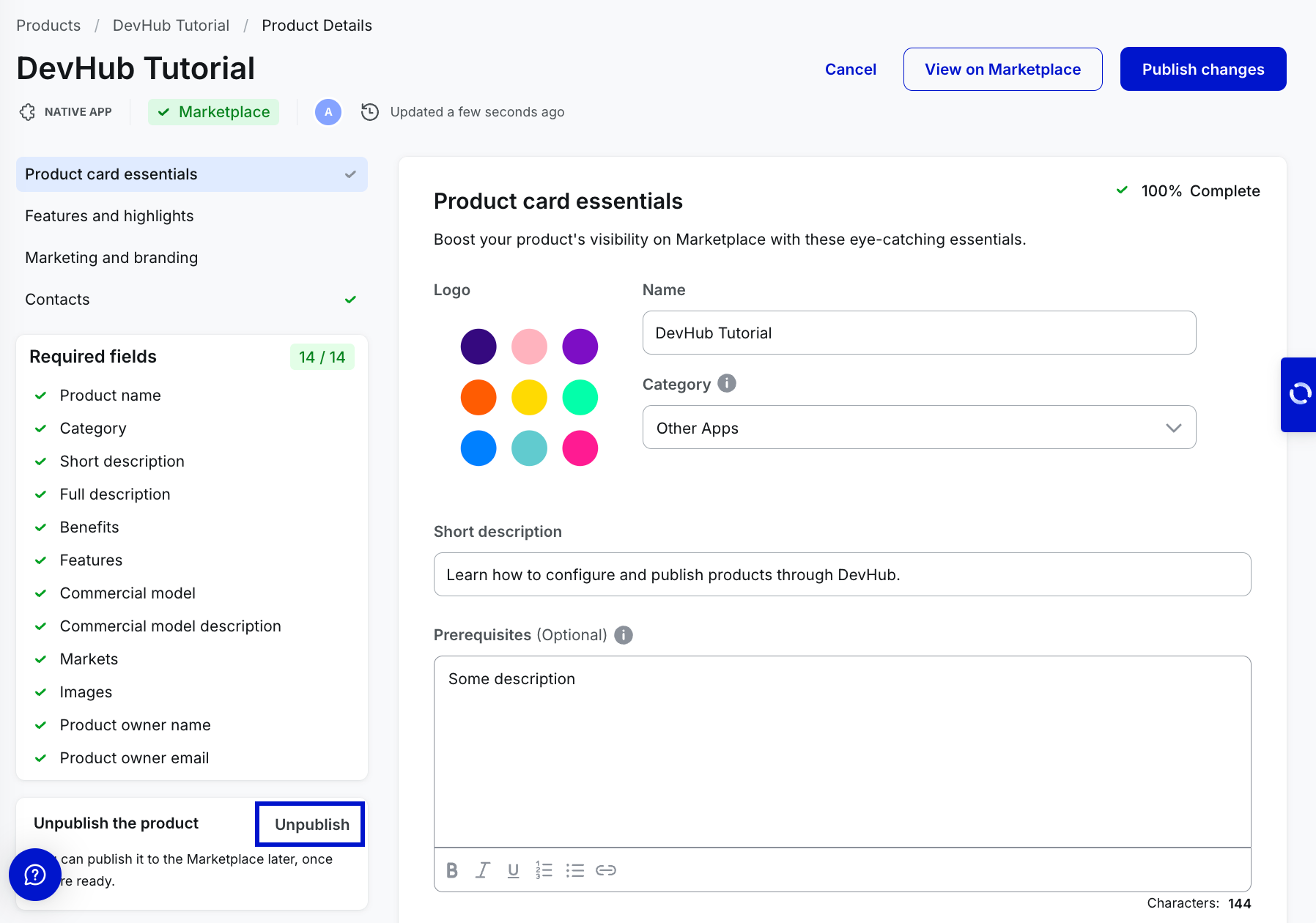
Steps to unpublish
To unpublish a product, select Unpublish on the left panel of the Product Details. The Unpublish button appears only after a product is published to Marketplace.

Review the status of unpublished products
Upon unpublishing a product, the status of the product changes immediately:
-
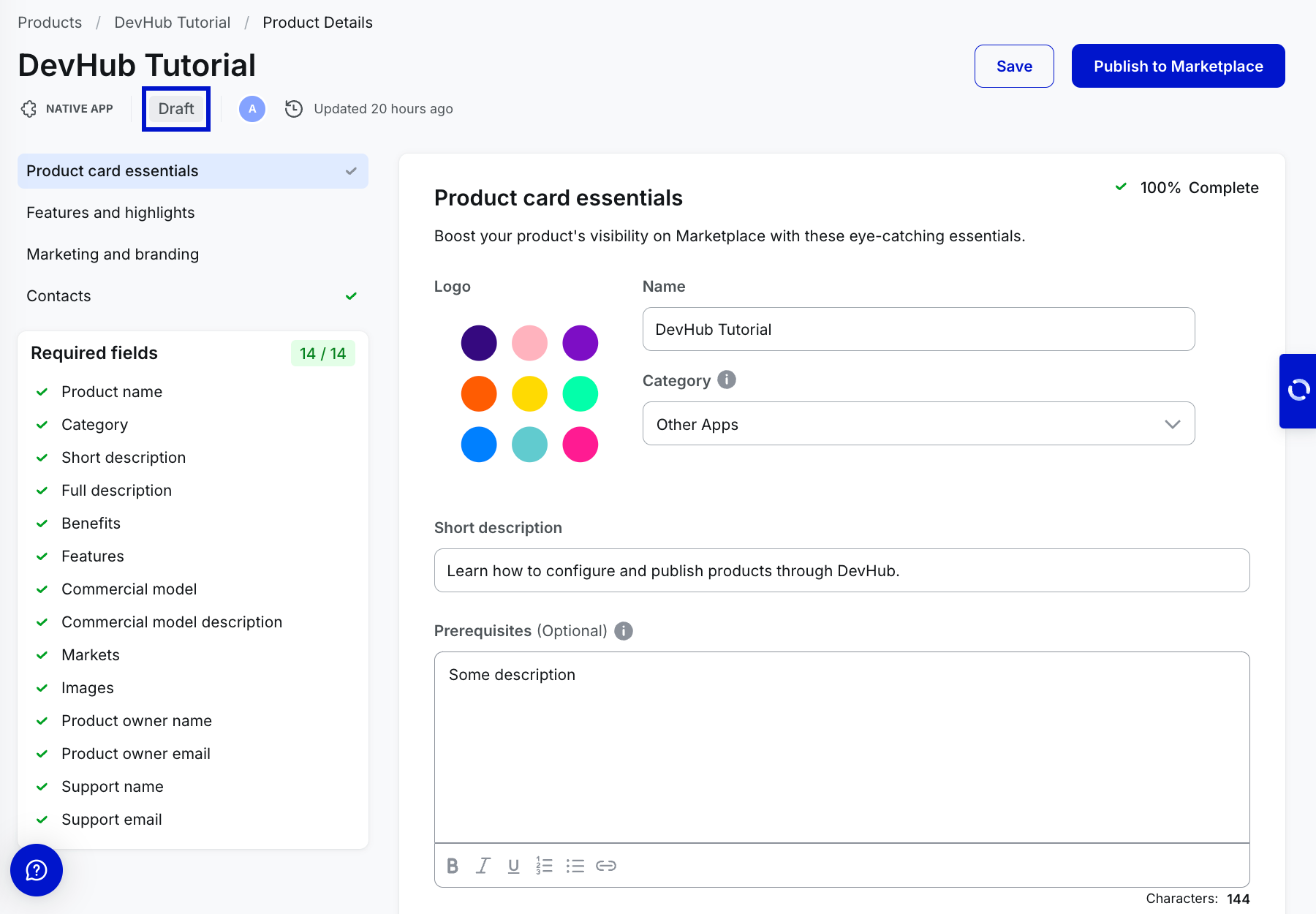
If the product isn't activated on OS workspaces, the status switches from Marketplace to Draft.
-
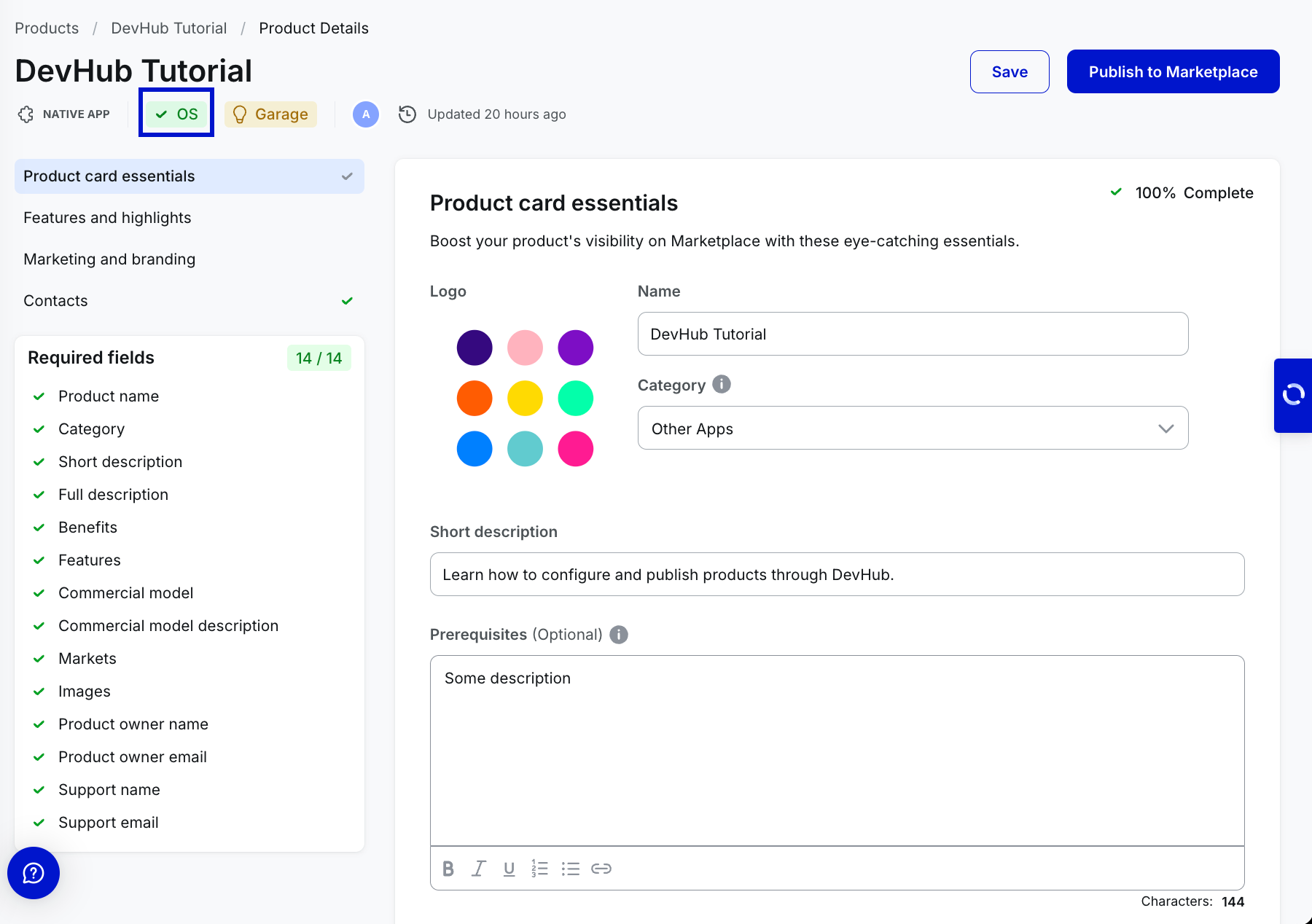
If activated on OS workspaces, the status changes to OS.
- The product creator can unpublish a product by default.
- The product owner can unpublish a product when invited through Collaboration mode.
- Content managers, developers, and guest internal roles can't unpublish a product when invited through Collaboration mode.