Manage profiles with roles & permissions
Profiles serve for managing roles and permissions and handling authorization centrally across different versions. A profile can be linked to a version providing another option for roles and permissions assignment.
This functionality is useful for specific business use cases and supports a new flow for native apps within DevHub. For example, when multiple versions share the same roles and permissions, profiles allow applying specific rules to all versions simultaneously and managing them centrally.
Profiles
In Product configuration, profiles appear on the same level as versions and follow a similar structure in terms of the authorization. Settings available in the profile have the same logic and actions as their replicas in the ordinary version setup.
To create a new profile
-
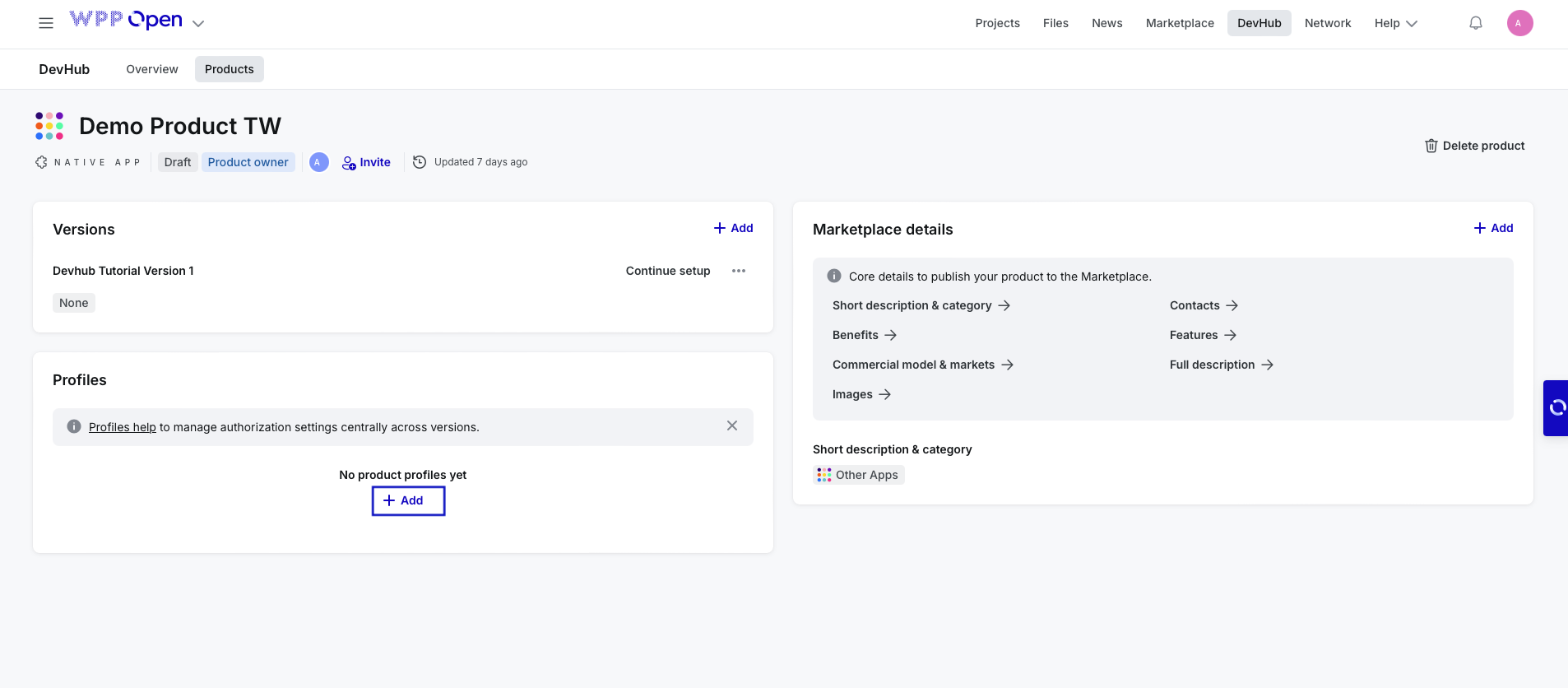
Go to Product configuration and select + Add under Profiles.
-
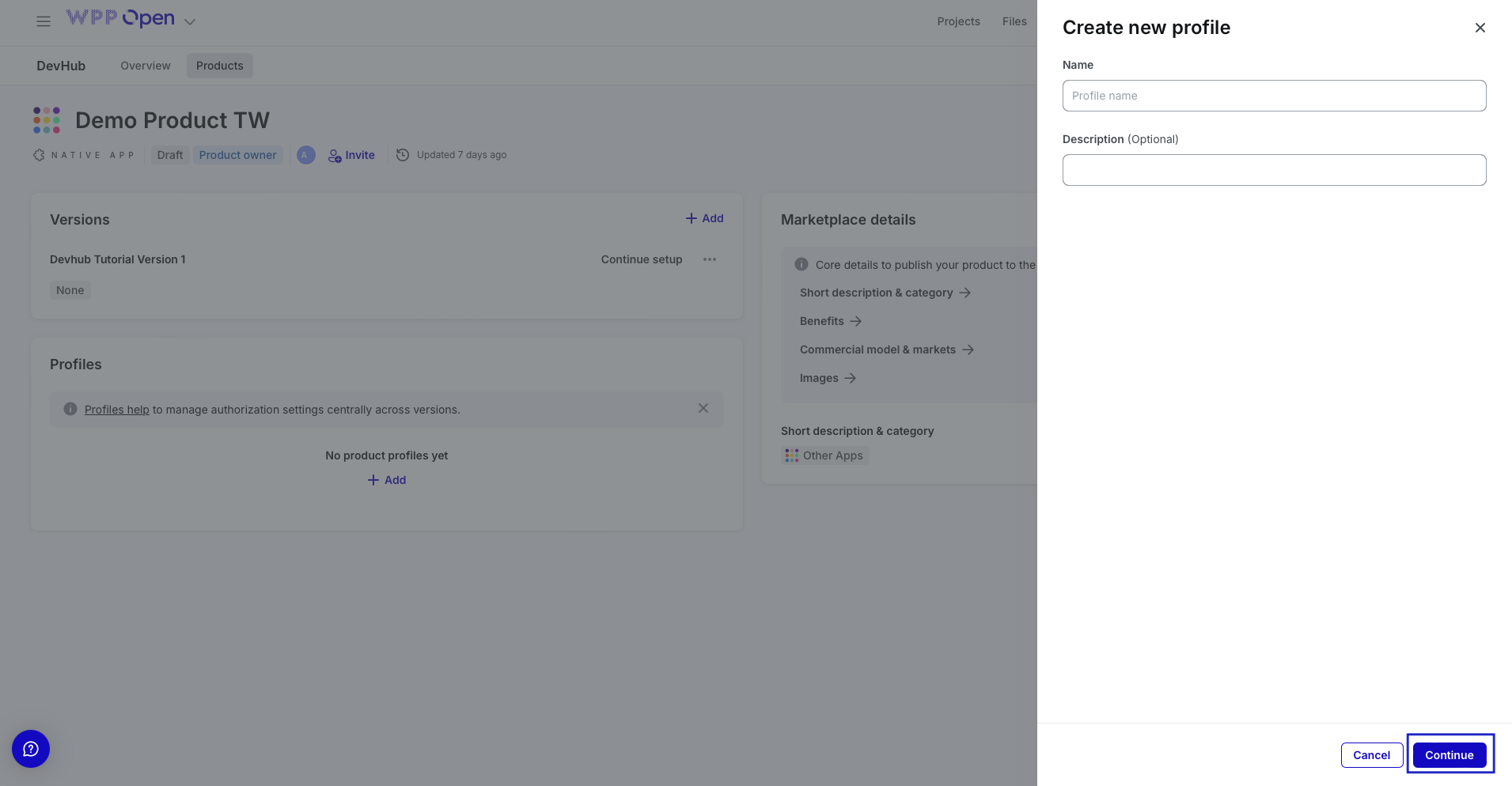
In the opened side panel, enter Name and Description of a new profile, and select Continue.
-
Configure Permissions, Roles, and Availability following the versions example. On the Availability tab, select the tenants (workspaces) on which the profile should be active.
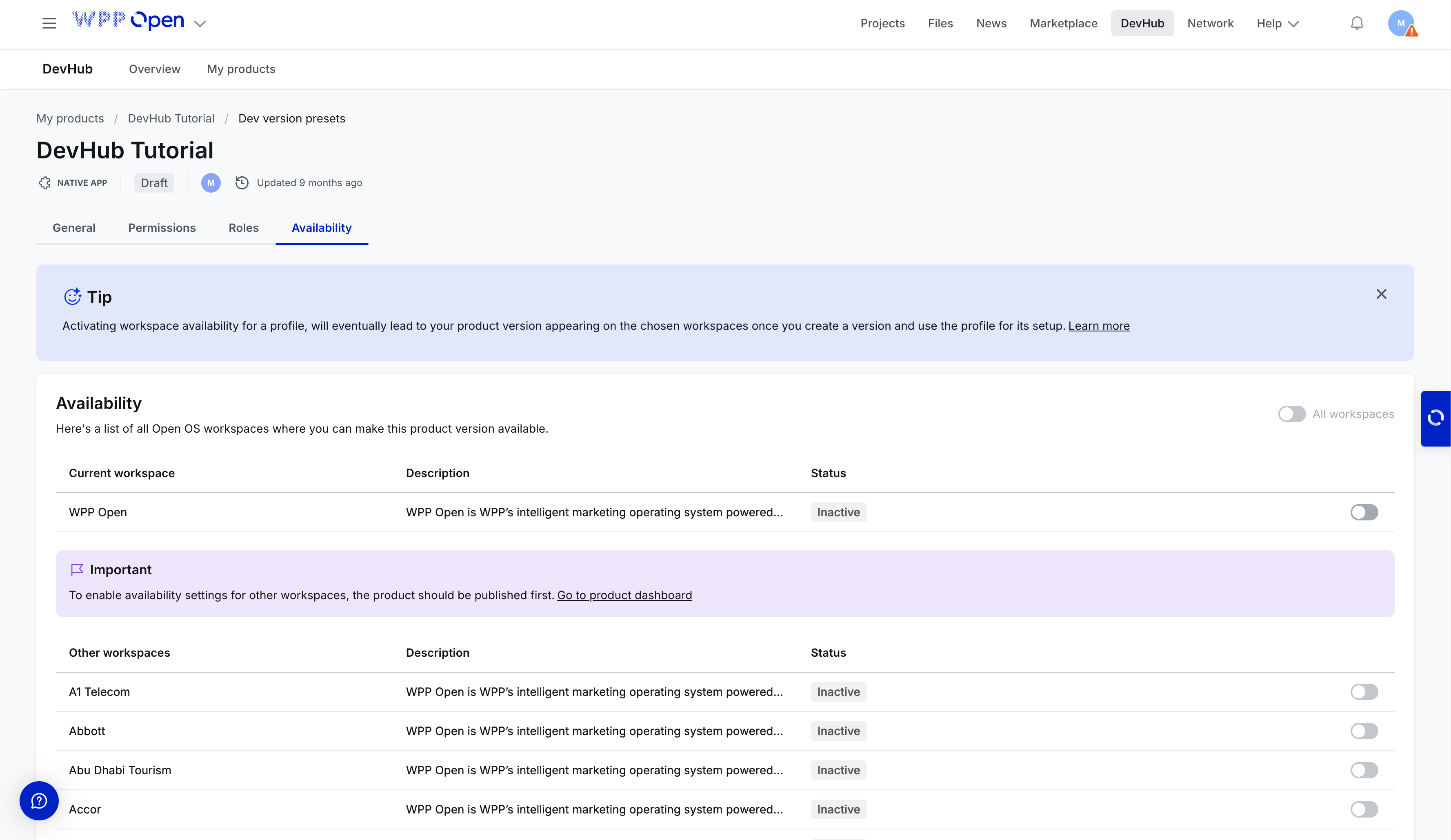
If you make the profile active on specific workspaces, the parameters are configured and saved for the future. You’ll need to assign the profile to the version and set up this version to ensure settings are applied.
Assigning versions to profiles
Once you create a profile, you can optionally assign it to a new or existing version. Assignment to a new version can be done even if a profile isn't fully set up. However, users can’t activate the version on workspaces if it’s associated with the incompletely configured profile.
To assign a profile to the existing version
-
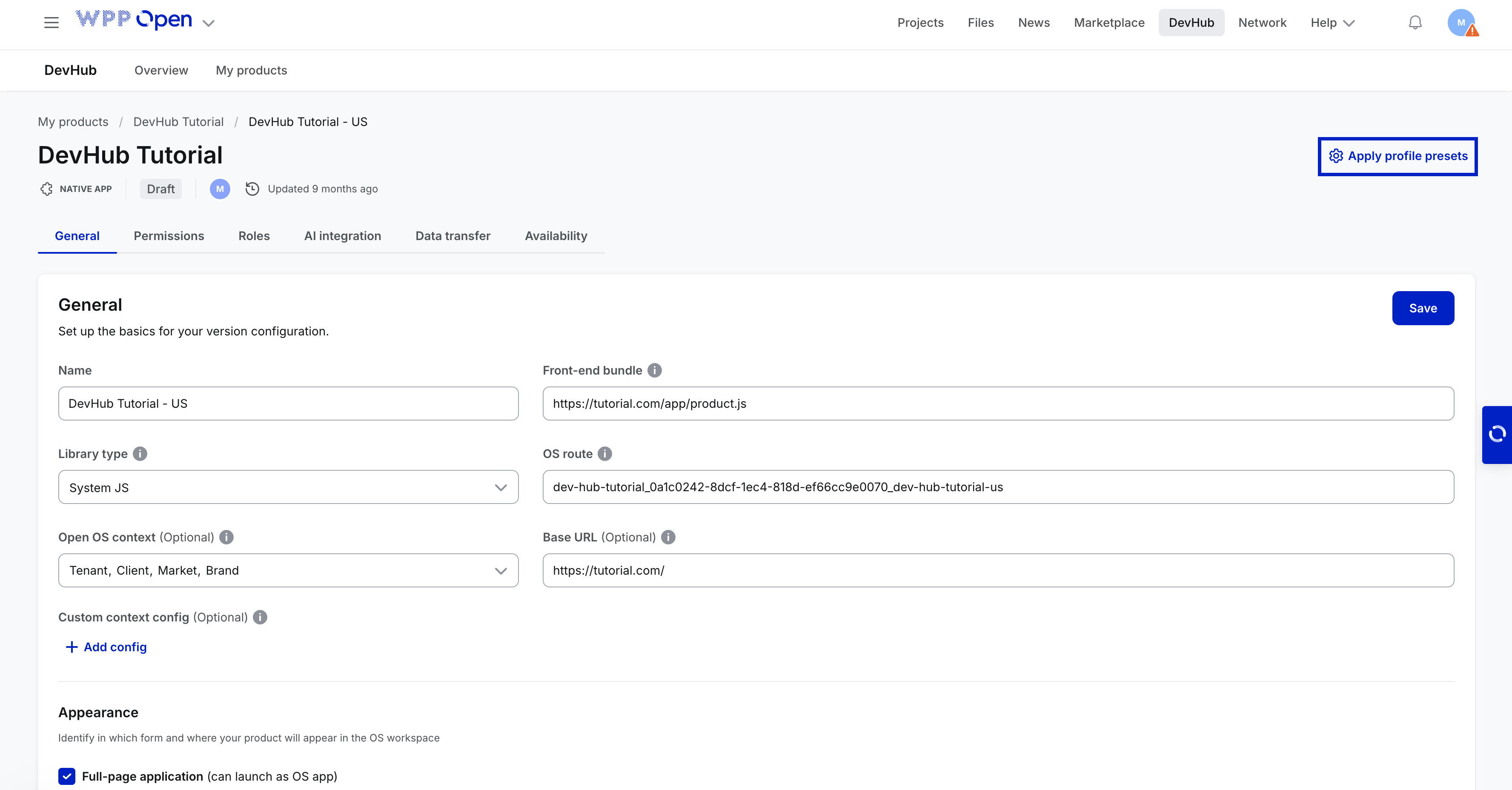
Open the existing version and select Apply profile presets.
-
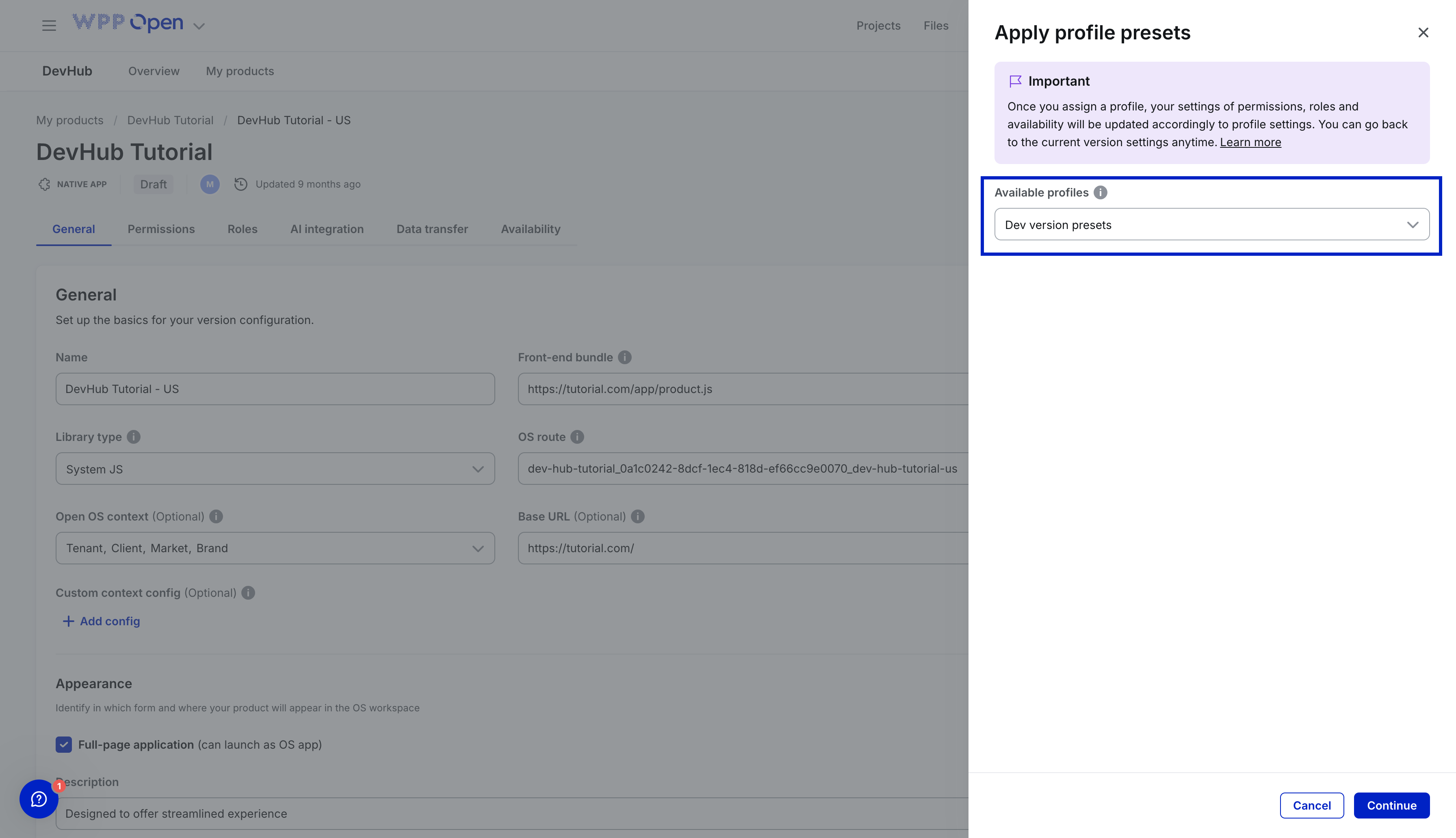
In the opened side panel, select a profile from the list of available profiles.
-
Select Continue.
Once the version has the profile assigned, its configuration tabs are still in place:
- The General and Data transfer tabs act as usual, as they are not connected to the profile flow.
- The Permissions, Roles, and Availability tabs work as view-only (with all actions disabled) as they've inherited all auth settings from the profile setup. To change profile settings, you need to go to a specific profile.
To remove or reassign profile
-
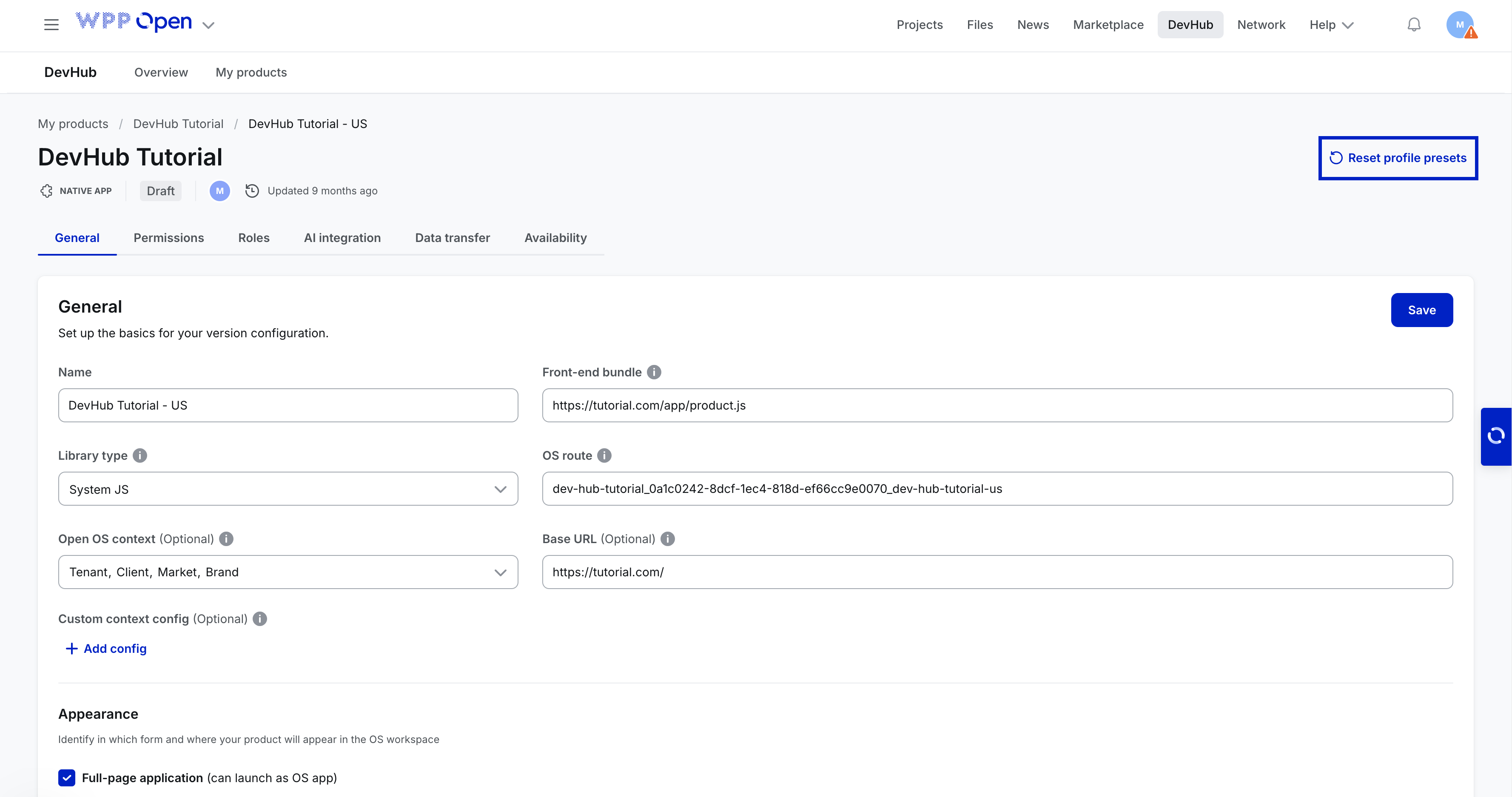
Open the product version and select Reset profile presets.
-
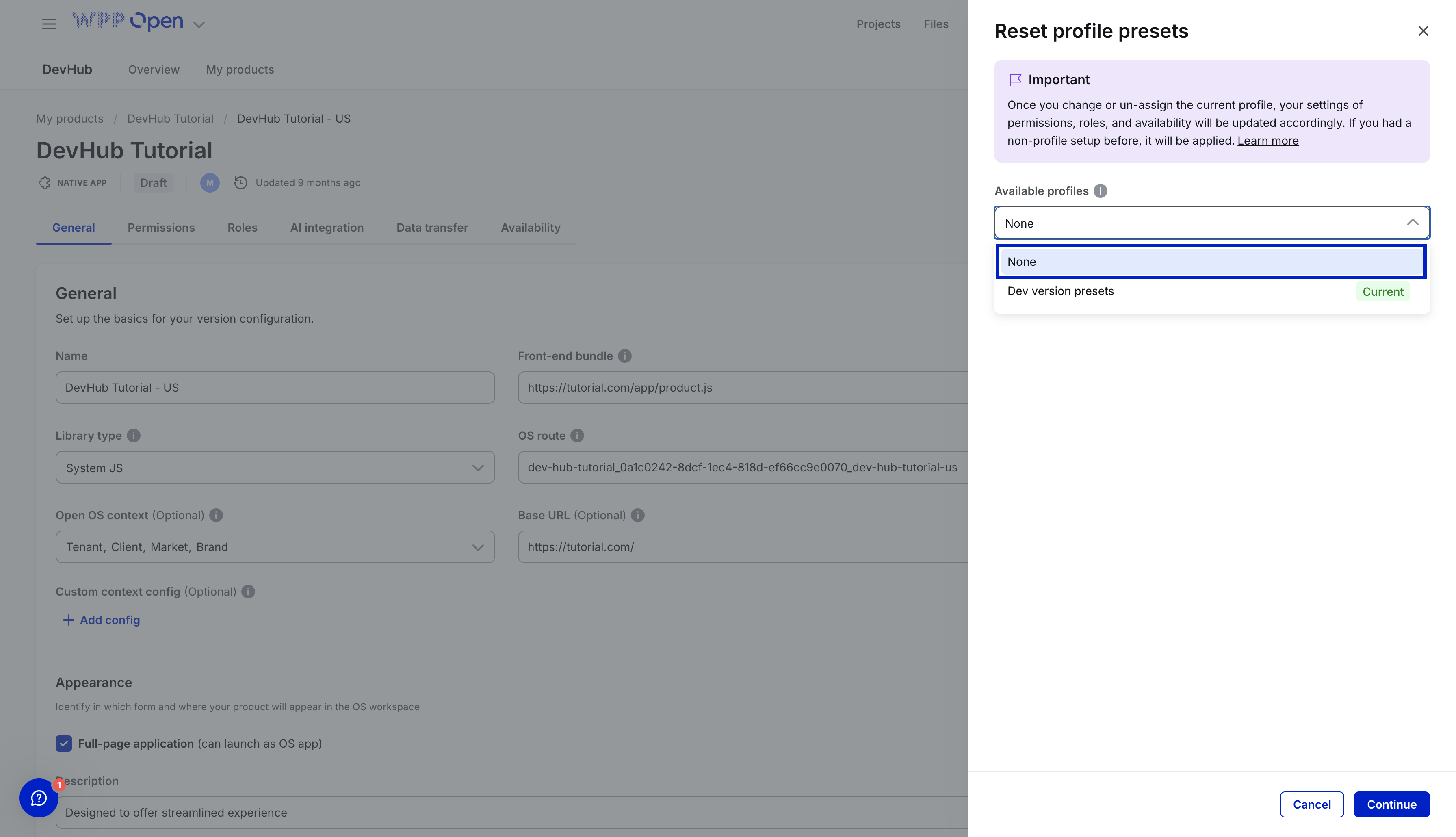
In the opened side panel, select None from the list of available profiles to remove the profile, or select another profile to assign it to this version.
-
Select Continue.
When you unassign the existing profile from the version, the version's auth settings are restored from the previous configuration (if they were filled in before). Otherwise, these settings become blank.
Availability
After successfully configuring the version (all fields from the General tab are filled in on the version level and at least one role containing one or more permissions is created and mapped to OS roles on the profile level), you can Activate availability settings. It activates the version on the chosen workspaces with the workspaces availability statuses retrieved from profiles.