Collaborate on products
Collaboration mode enables you to invite diverse team members and personas to contribute to a product. The product creator assigns roles and permissions, allowing invited members to view and interact with the product.
How the collaboration mode works
As a product creator, use the Invite button from the product dashboard to initiate collaboration. It sends invitations to your team members to collaborate on a product. You invite members from a list of users within our user service.
The product dashboard allows you and your invitee to work on the product content and configuration.
Roles in collaboration
As a product creator, you assign a specific role to each invitee, sharing the rights for product management using DevHub. Each user can have only one role at a time, but you can change or remove their role at any stage of product development. The available roles are:
-
Product owner––a user with the same permissions as the product creator. Product owners have unrestricted abilities for managing the product.
-
Developer––a user invited to collaborate, works on technical configurations for the product, such as adding permissions or providing the app bundle URL.
-
Content manager––a user invited to collaborate, works on the product details, including marketing and product information such as feature descriptions, pricing details, etc.
-
Guest––a user invited in view-only mode, can freely view all content within the product, but can’t make any edits.
These internal DevHub roles control who can access the product within DevHub. They are not for app or operating system access. Their impact is only within DevHub and doesn't affect anything outside of it.
Role-based permissions and UI visibility
| Role name | Role type | Permissions | Differences in UI visibility |
|---|---|---|---|
| Product owner | Internal | Invite others to collaborate. | Active Invite button. |
| Publish the product. | Can view and edit the Product details and Product configuration page. | ||
| Control the availability of product versions for each workspace. | |||
| Activate/deactivate version availability. | |||
| Delete the version, its roles and permissions. | |||
| Delete the entire product. | |||
| Developer | Internal | Edit rights for the Product Configuration section. | Inactive Invite button. |
| View-only access to all other sections. | Can view the Product details page but has NO editing rights on this page. | ||
| Delete the version, its roles and permissions. | |||
| Restricted from activating/deactivating workspace availability for versions. | Can view and edit the Product configuration page. | ||
| Content manager | Internal | Edit rights for the Product Details section. | Inactive Invite button. |
| Restricted from publishing to the Marketplace. | Can view and edit the Product details page. | ||
| View-only access to all other sections. | The product configuration section is accessible but has NO editing rights on this page. | ||
| Guest | Internal | View only access to product dashboard. | Inactive Invite button. |
| Can view the Product details page, but has NO editing rights for this page. | |||
| Can view the Product configuration page but has NO editing rights for this page. |
How to send a collaboration invite
-
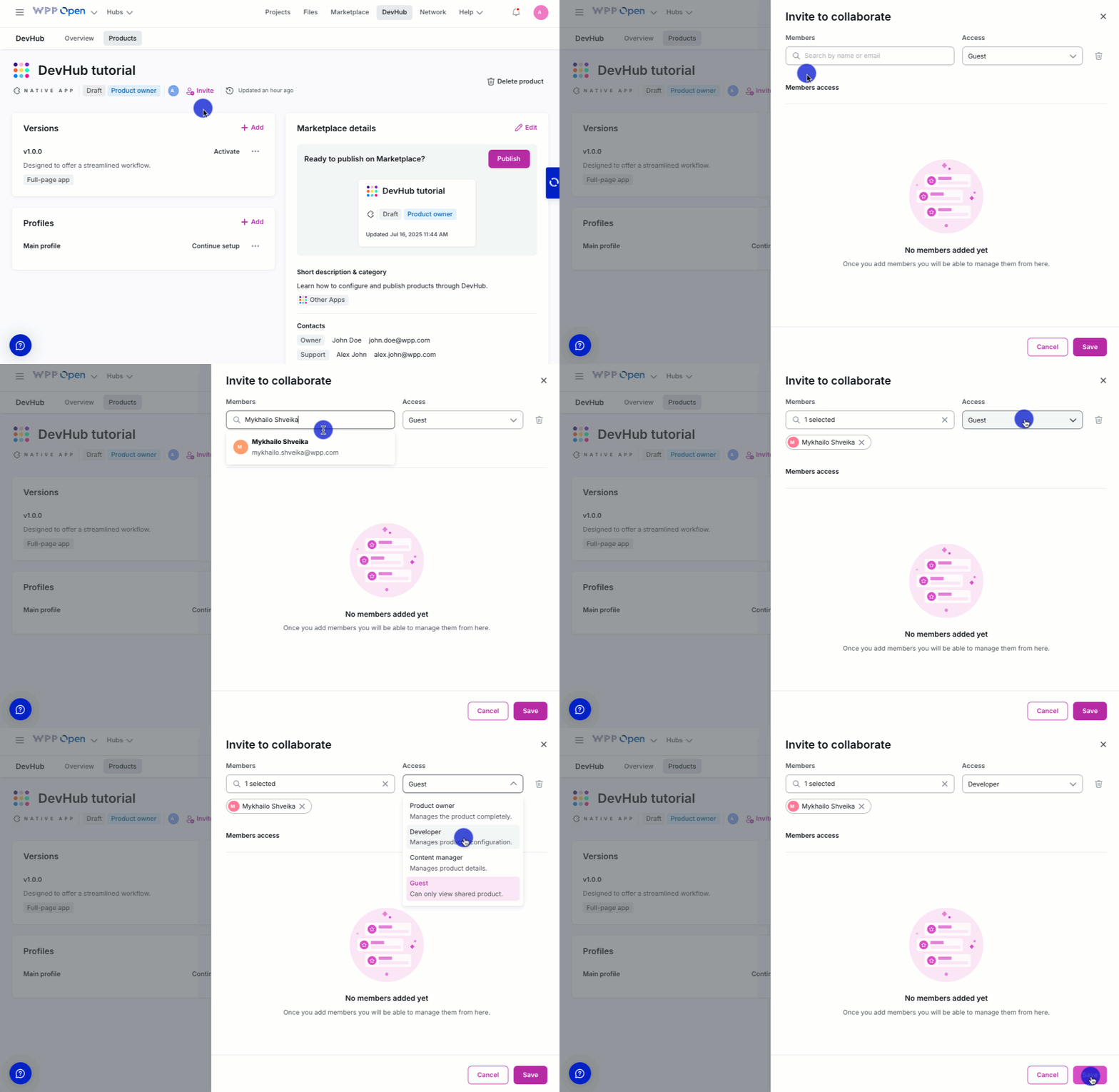
Select the Invite button on the product dashboard to open the "Invite to collaborate" sidebar.
importantThe Invite button is active only for Product creators and Product owners.
-
In the Members field, search for members by their names or email addresses.
tipThe Members field is required and supports bulk invitations.
-
From the Access dropdown, select roles for the members.
-
Save the changes.
Upon successful invitation, the confirmation message New user(s) invited to collaborate appears.
Receiving a collaboration invite
-
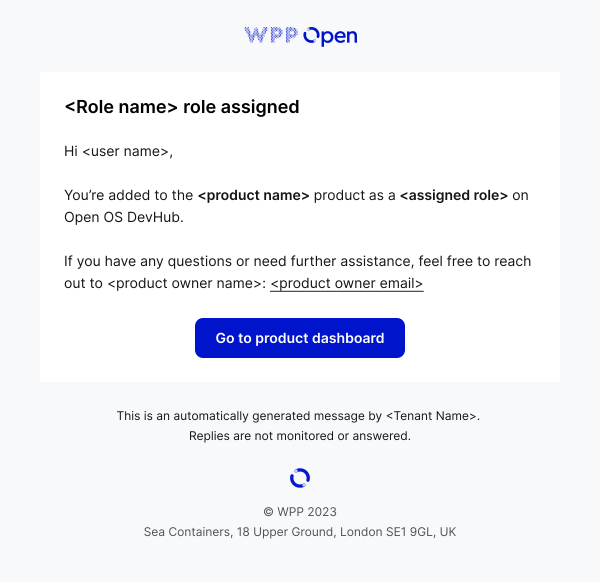
The invitee receives an email notification confirming they have been added to the product for collaboration.
-
Selecting Go to product dashboard redirects user to the product page.
Understanding emails about role changes
User removal
-
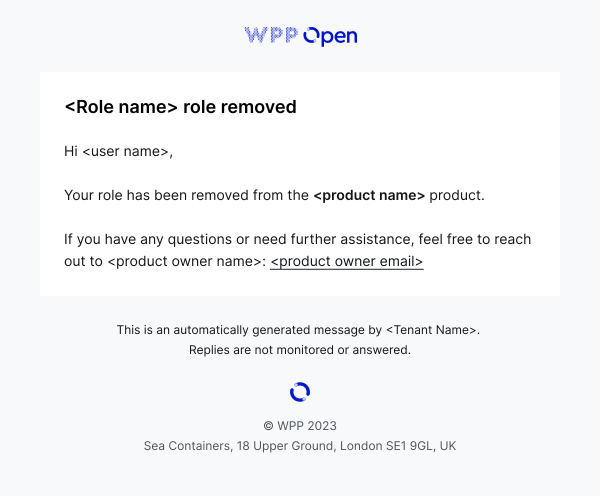
If a user's role is removed, they receive an email notification informing them that their role for the product has been revoked.
User role changes
-
On the product page, when a user's role is changed, a toast message appears stating, User(s) collaboration status updated.
-
Following the role change, users receive two email notifications: one informing them that their previous role has been removed and another notifying them of their assignment to the new role.
Access restrictions after product and user removal
-
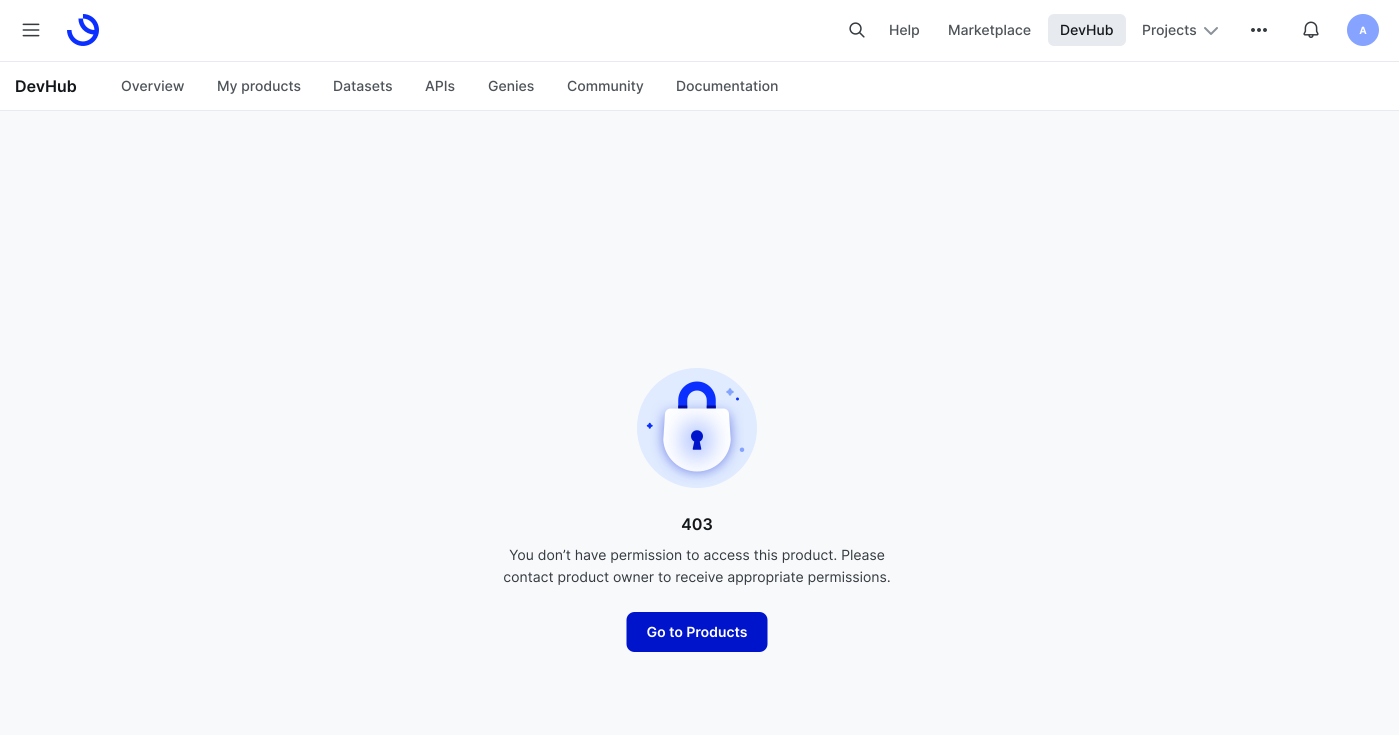
When your role is removed from a product, the product is removed from your My Products page in DevHub. If you select your previous email invitation to access the product, you see a 403 error indicating that you no longer have permission to access it.
-
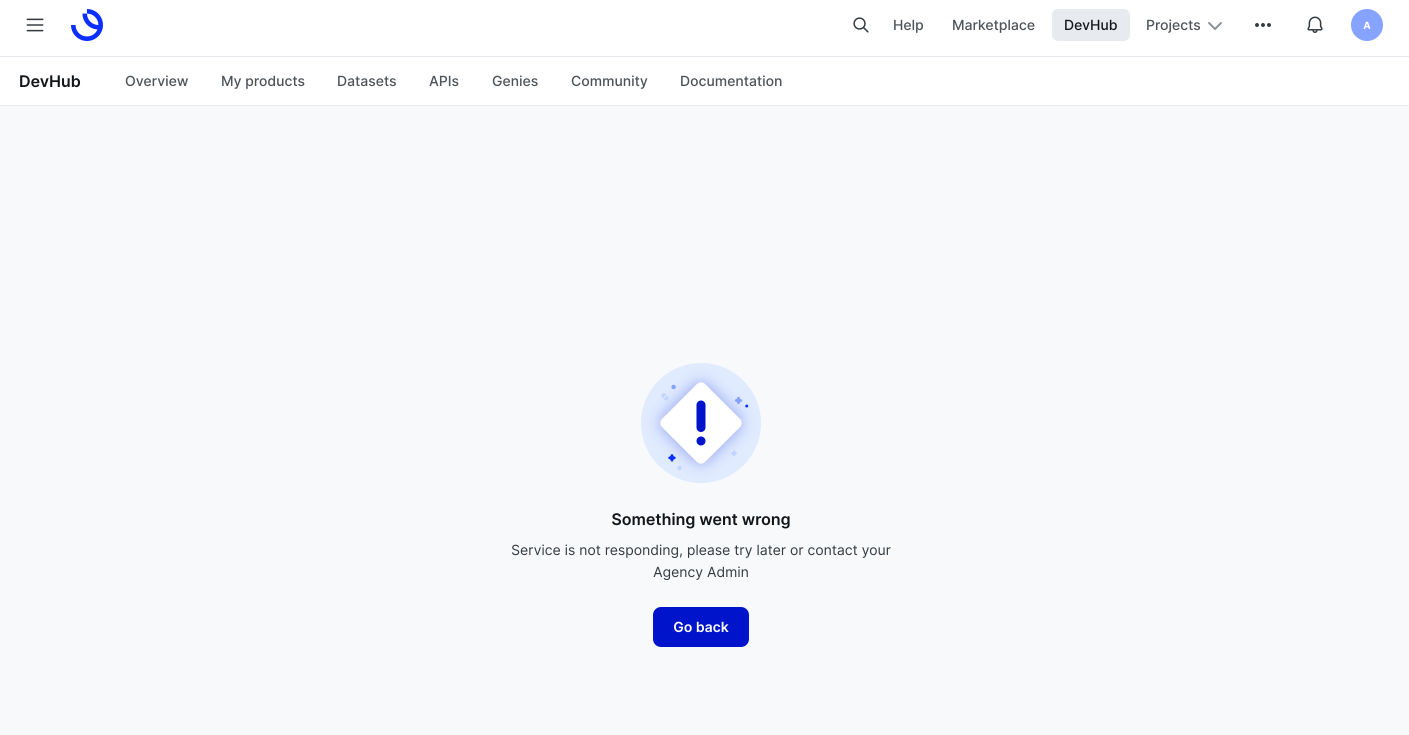
When the product is removed, the screen displays a message indicating that the service is not responding.