Create API products
As an API provider, you create API products to group your APIs and offer them to app developers. Using API products, API apps can access a set of related functionalities or services conveniently within a single product, streamlining the integration process.
This guide helps you to understand how to create an API Product in the Apigee platform. It also describes how to add an API Product to an application in the WPP API Portal.
To create API products
-
Log in to the Apigee Dashboard.
-
In the Publish section, go to API products and select +API product.
-
Fill in the product details.
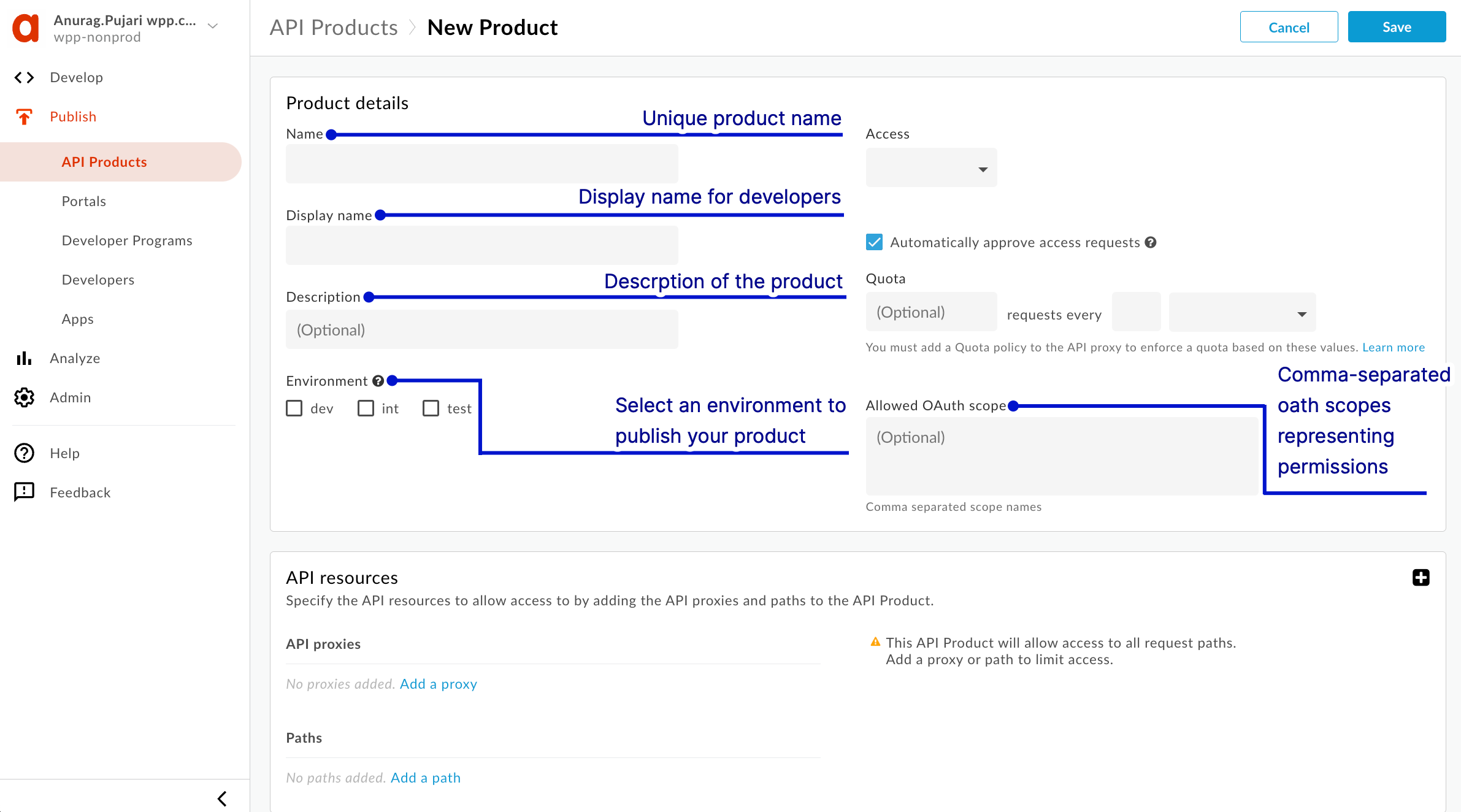
Display name
The display name is used in the UI and you can edit it at anytime. If not specified, the Name value will be used. This field is auto-filled using the Name value; you can edit or delete its contents. The display name can include special characters. –– Google Apigee Docs
Environment
Environments to which the API product will allow access. It is important to mention that not selecting an environment will allow developers subscribing to a product will have access to the APIs in all environments.
Allowed OAth scope
If you are using OAuth with the API product, allowed OAuth scopes that you want the API product to allow (such as Read or other scopes that apps will send with their API calls). Specify multiple scopes as a comma-separated list. –– Google Apigee Docs
-
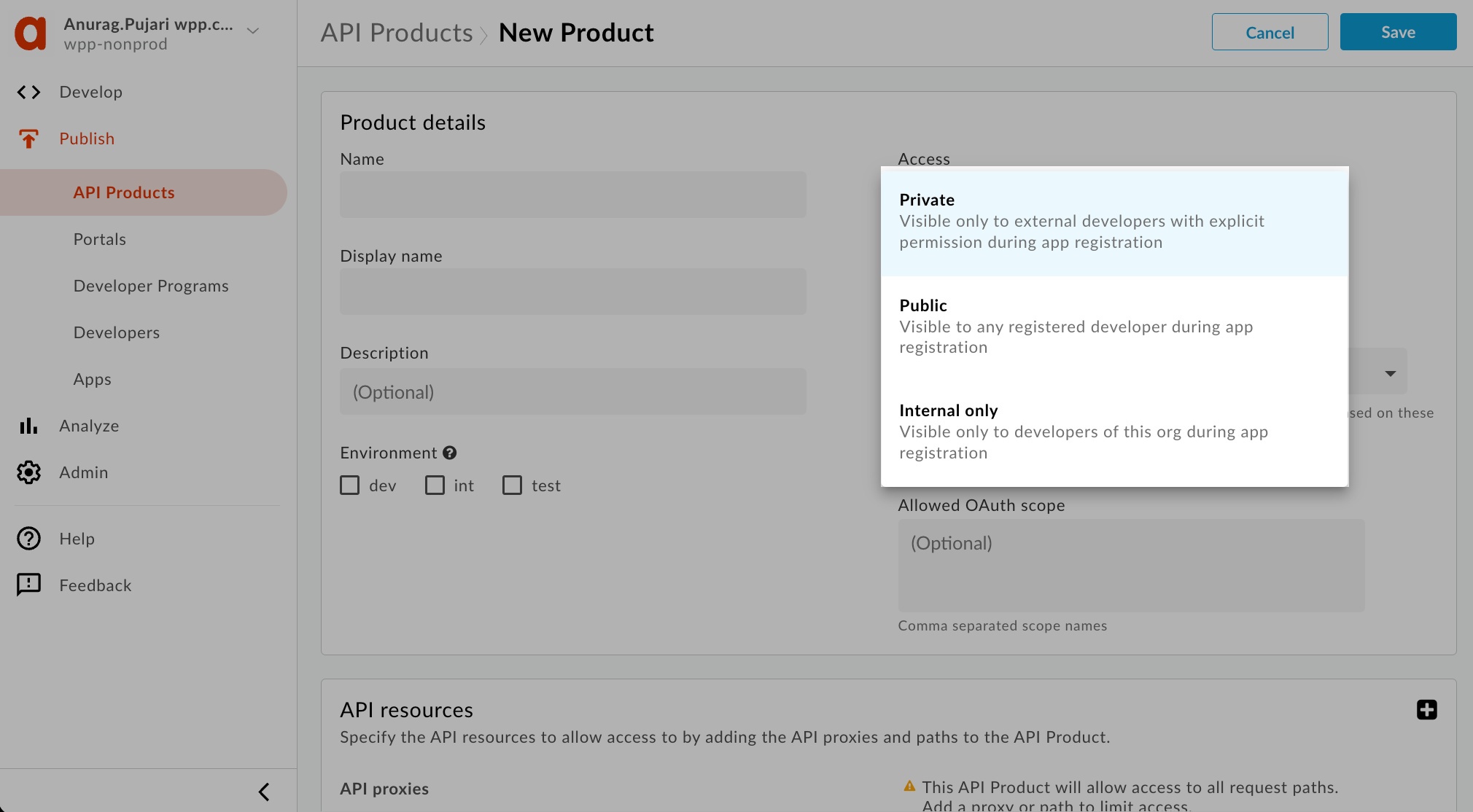
From the Access dropdown, select the type of access you want to assign to your API Product––Private, Public, and Internal Only.
-
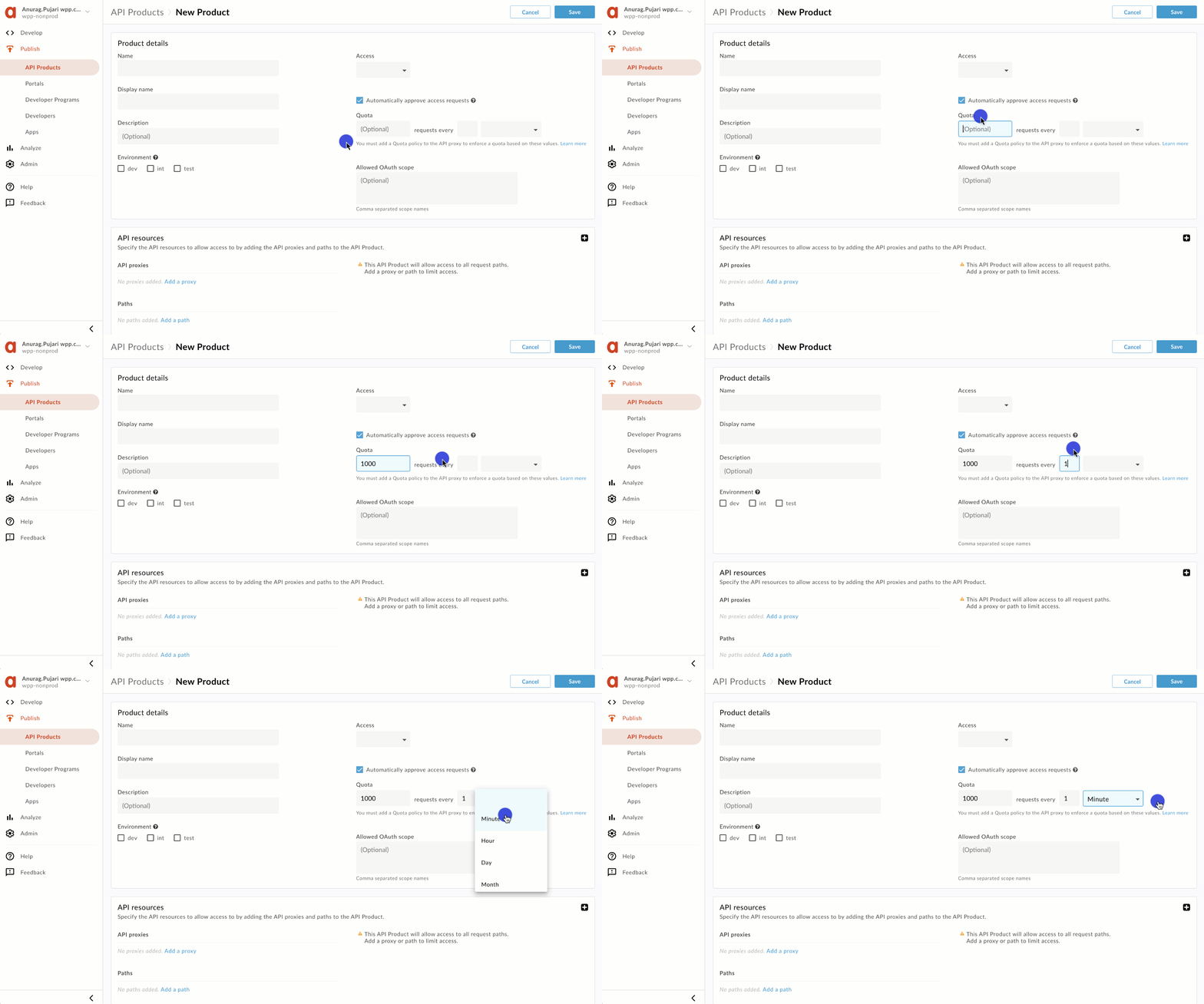
Select a Quota policy from the Quota field. The Quota policy enables you to set a limit on the number of requests that can be made to an API proxy within a specified time window. This helps in controlling the rate at which clients can make requests.
-
Select Add a proxy to add proxies to your product.
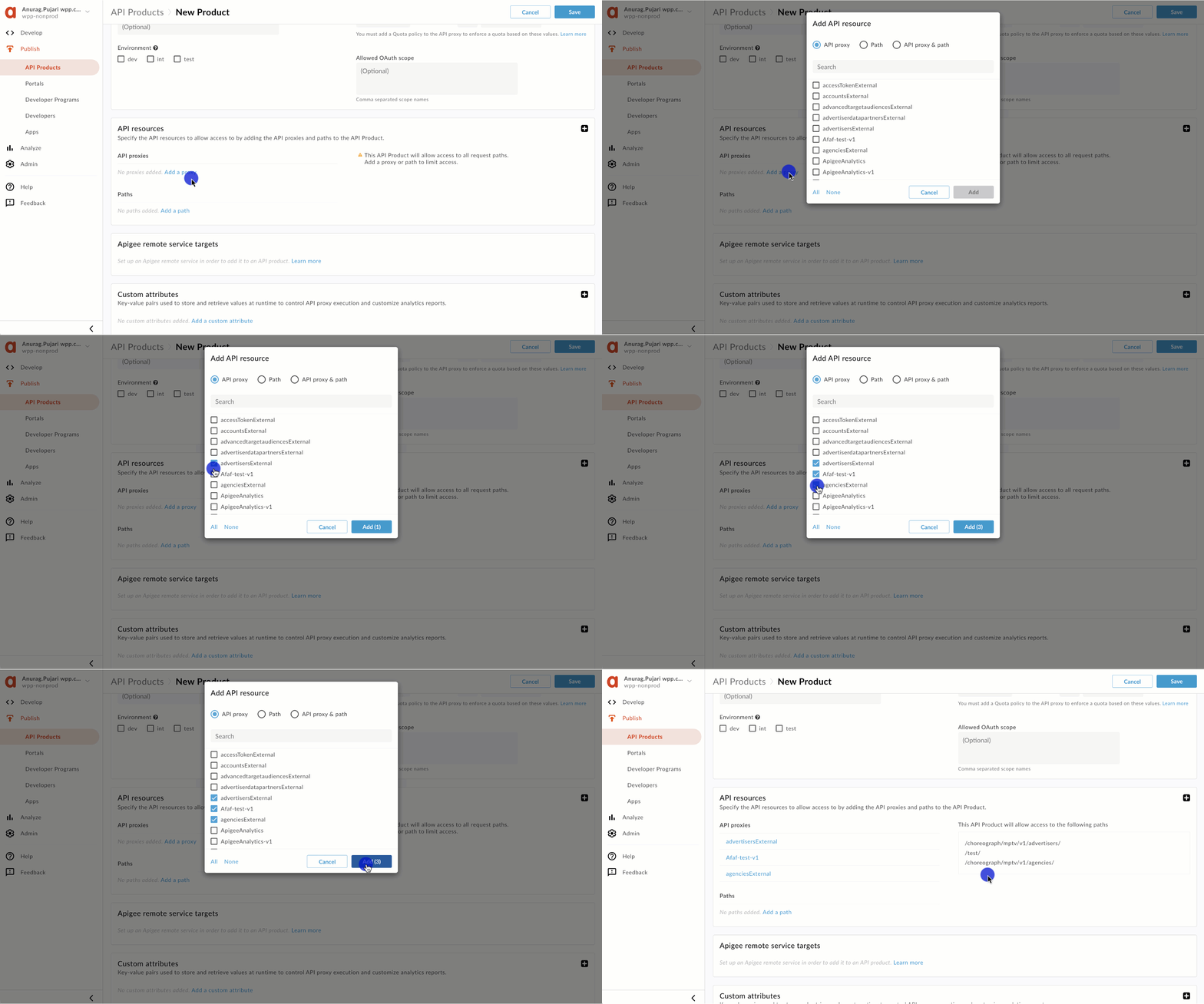
You can add a resource path to your API proxy in the path field. You can add an API proxy or Path or both API proxy and path. The specified path is appended to the base path of the API proxies. The combination of the base path of the API proxy and the path specified in the API product forms the full URL path.
Example
API Proxy Base Path: /products
API Product Path: /v1
Full Path for API requests with this API product: /products/v1
- Select Save.
Your product is now available in the API products section.
Adding API product to your app
-
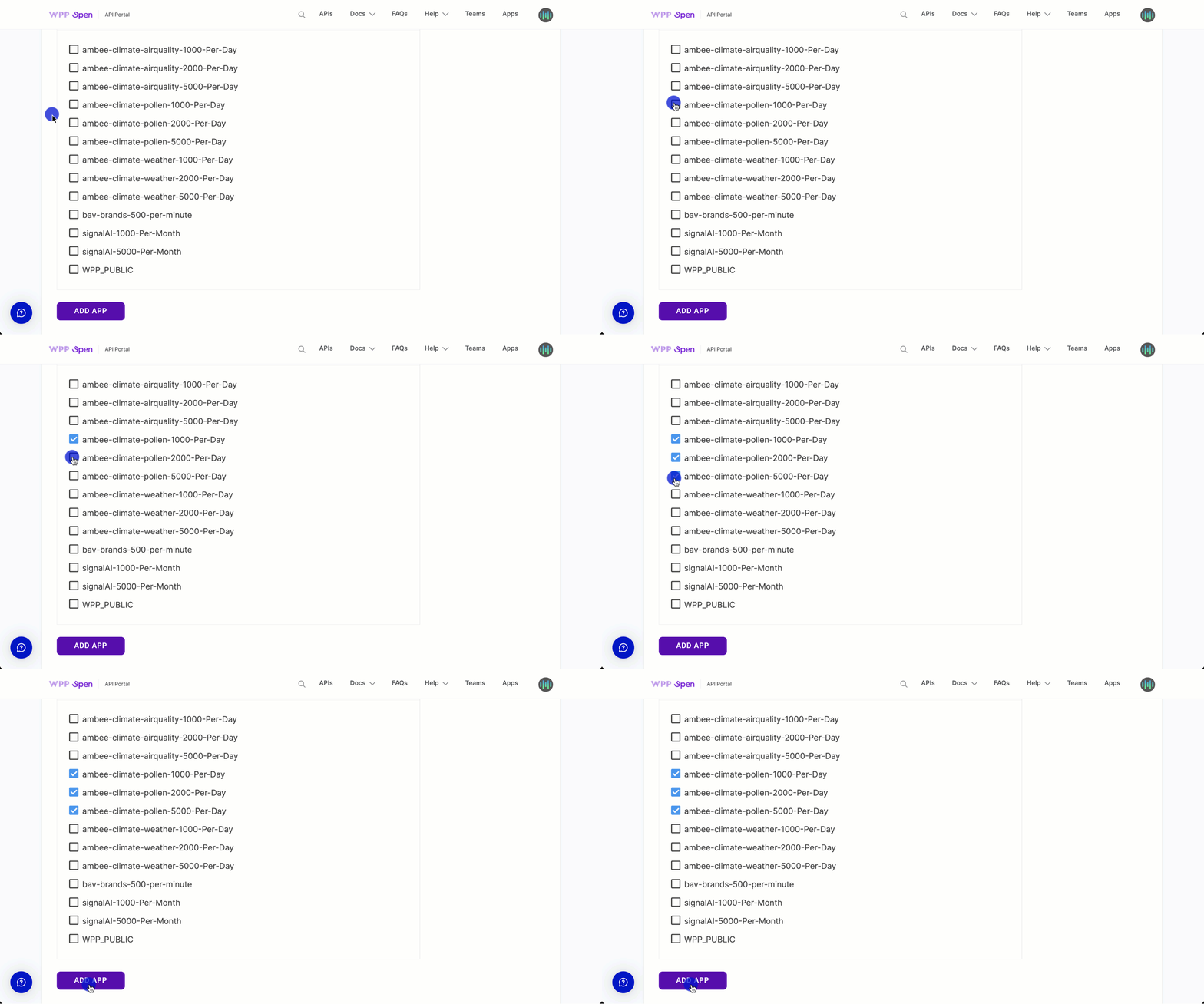
Go to WPP API Portal > Apps > Add app.
-
From the list of APIs, select your API product and select ADD APP.