Overview of Orchestration
Orchestration allows Open OS users to organize, plan, and manage projects.
Workflows in Orchestration enable teams to visually represent the steps and sequence of activities needed to complete a project.
Link projects to Workspace structures
While creating a project in Orchestration, you can link the workspace structures such as Clients, Market and Brands to your project. Selection of hierarchy is optional. However, if you choose to link the project to the hierarchy, it comes with the following features:
-
Add only those products to the project that have a compatible OS Context. For instance, if a project has a client, a project owner can add only those products to the project where a client value is required.
-
When a product is launched from a project, the corresponding hierarchy data is passed to the product through a context object.
To explore more, please take a look at our documentation on Workspaces.
Organize projects using Workflows
Workflow provides a high-level overview of a project's goals, deliverables, and timelines and helps teams stay aligned and on track throughout the project lifecycle.
Workflows are comprised of phases––a stage in the project with objectives, deliverables, and outcomes. You complete the activities and tasks in each phase before moving to the next one.
Add applications, and activities, assign members to tasks, assign due dates to the phases, apps and activities while setting up a phase. You can add and update task statuses, which indicate the current phase of a project. These statuses include To Do, In Progress, Completed, and Archived.
Users can add multiple phases depending on their needs. Please take a look at our documentation on Tasks to understand about tasks and statuses.
Permission hierarchy to work on a project
Each person inside WPP can see their projects in the Projects widget, however only Platform Admin, Workspace Admin and Internal users are allowed to create a project.
Project Level Permissions
Workspace admin assigns the 'internal' user role. Internal users can create new projects, and the creator automatically becomes the owner.
Project owners perform the following actions:
- Invite members to collaborate.
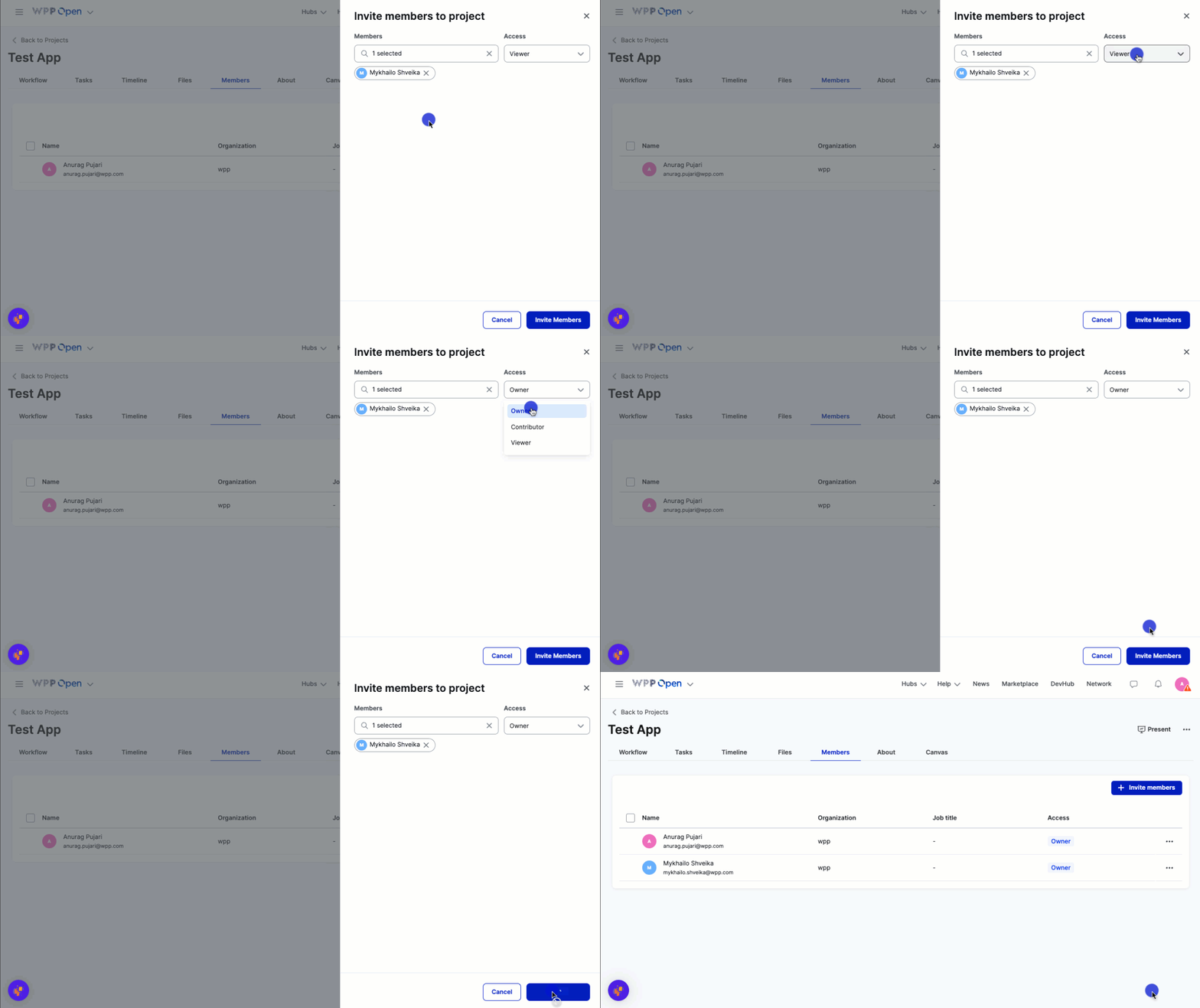
- Assign the following roles to members:
- Project owner––full capabilities,
- Contributor, and
- Viewer––view-only rights.
- View the project overview, workflow, and members.
- Update the project details.
- Assign members to the project.
- Create and manage the workflow.
- Configure what data is shown in the workflow & use pre-defined viewing presets.
- Search for workflow templates and check their details.
- Create, view, and move activities on Canvas as well as edit, delete activity, add an external link or application to an activity.
- Save the project as a template.
- Assign members to the applications.
Canvas
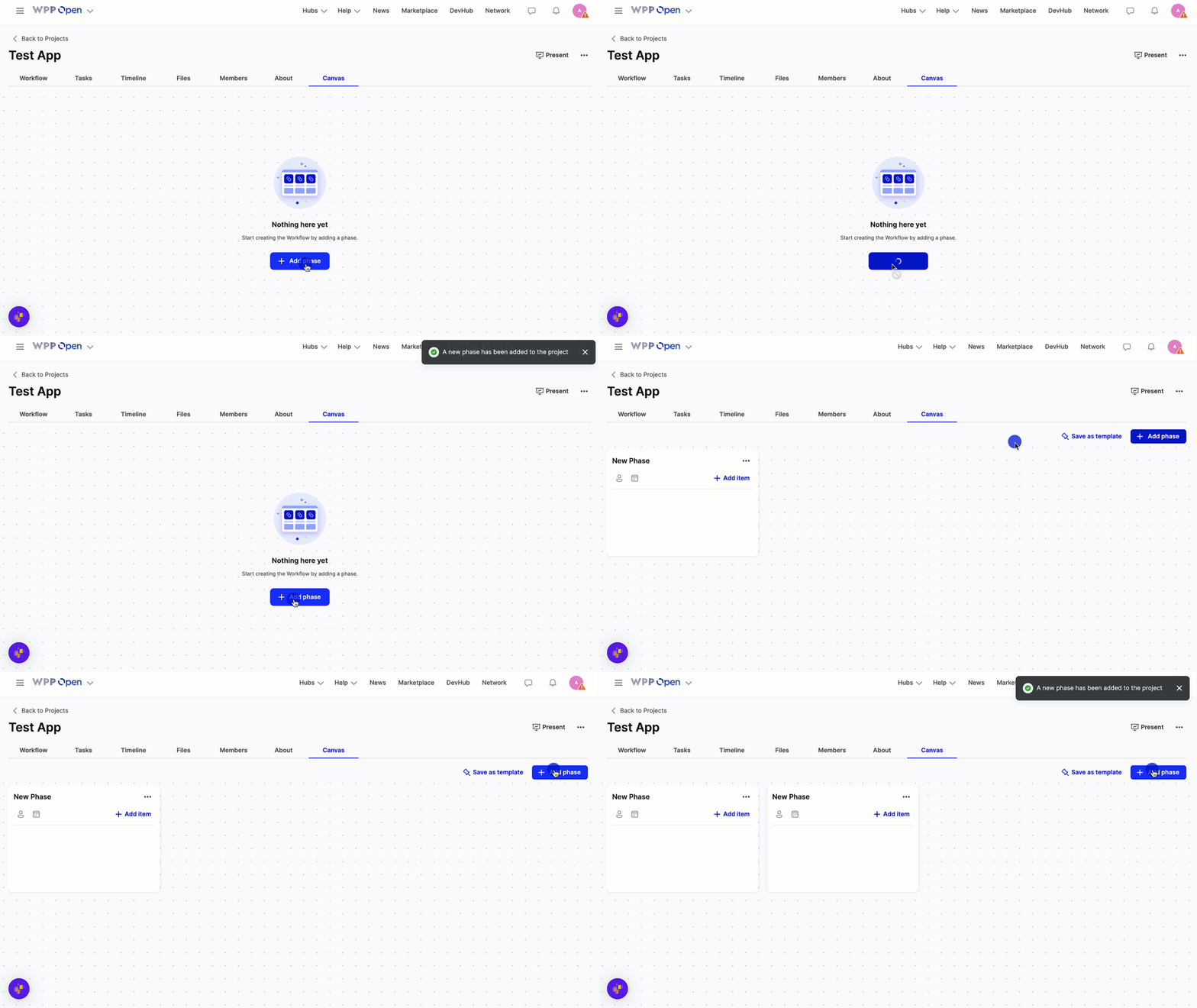
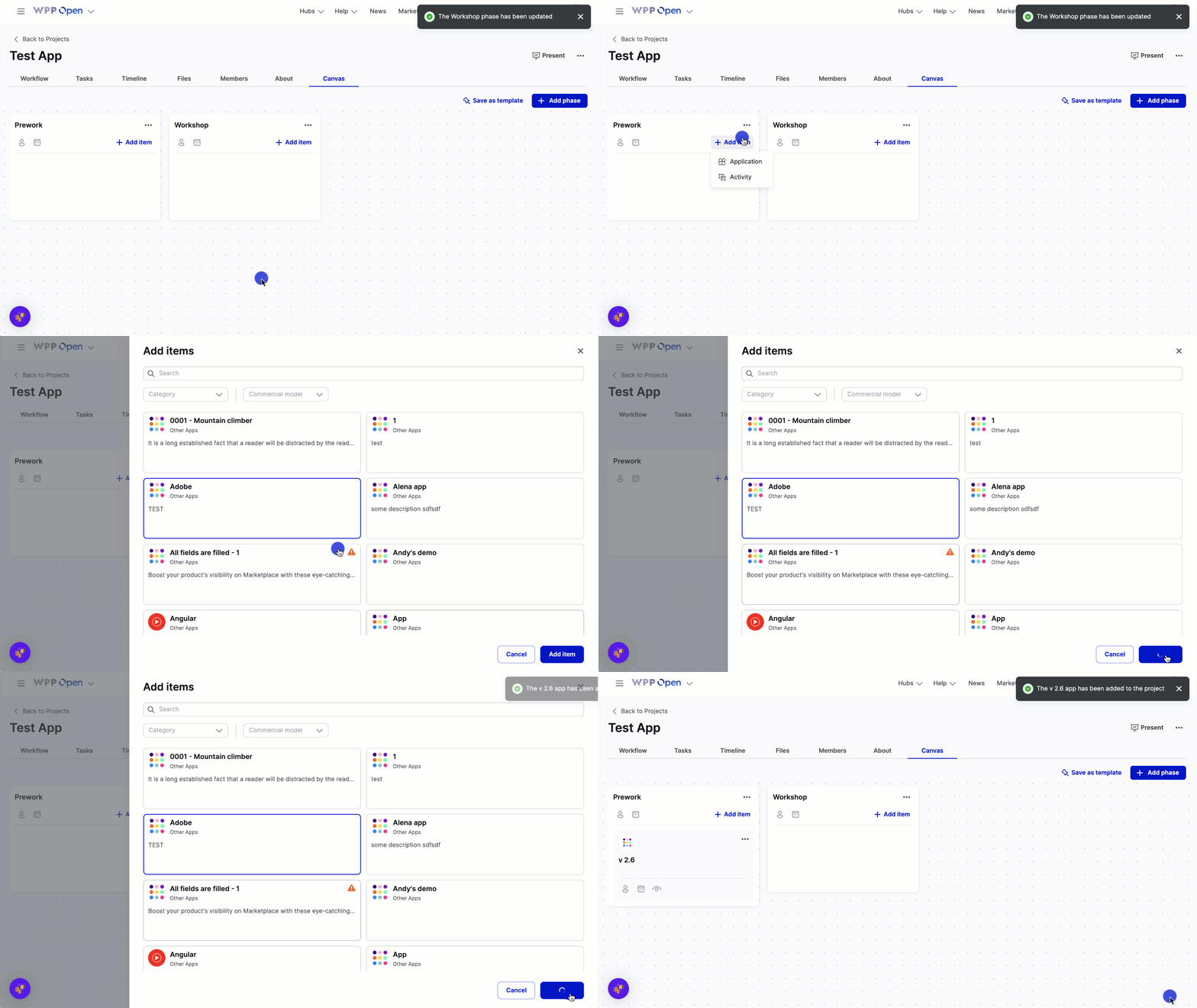
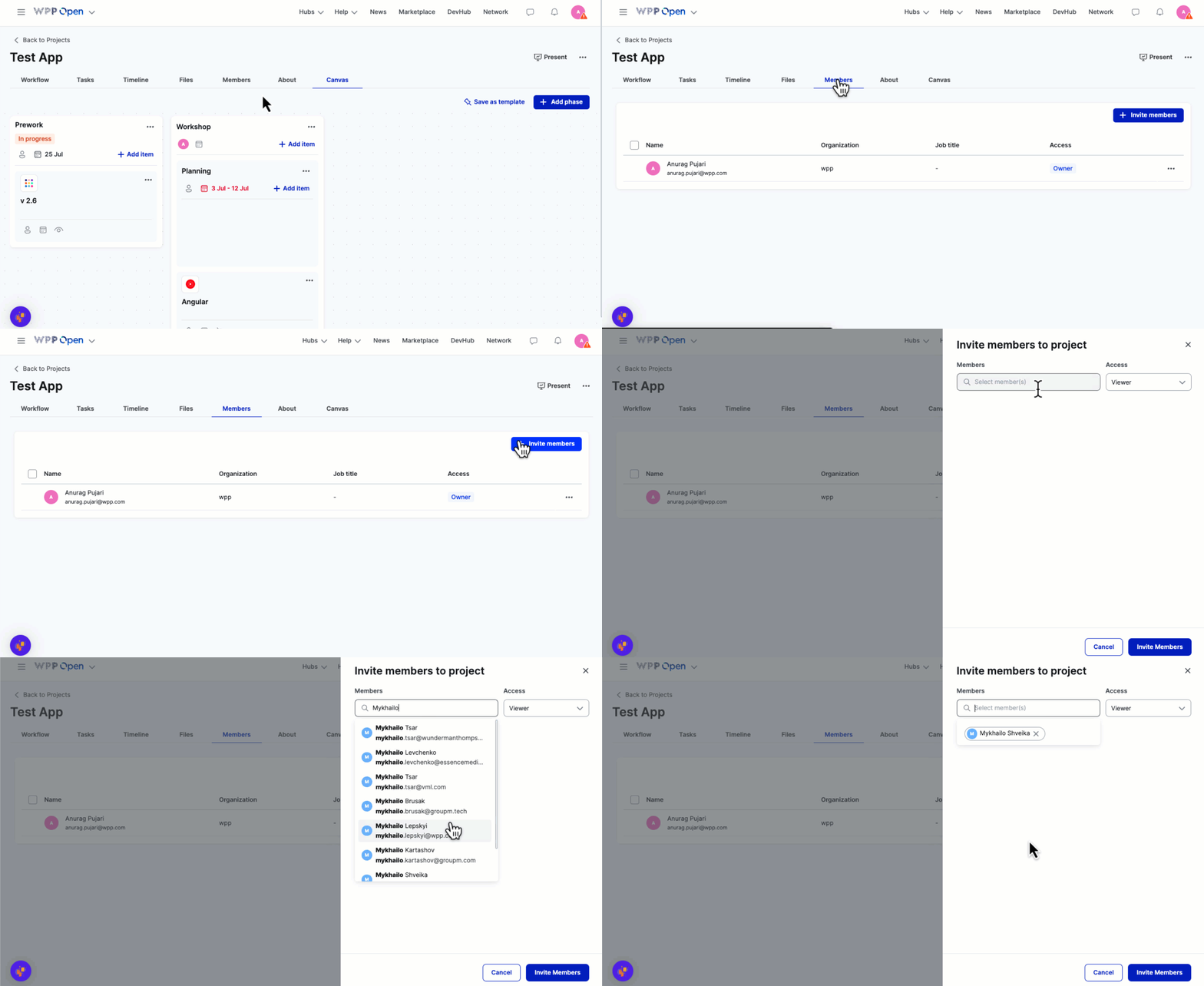
The Canvas allows configuring the project workflow. It is a visual representation of the project's phases and allows project owners to perform the following operations:
-
Add or remove phases to the workflow
-
Add applications to phases
-
Assign members to each phase––can add members to each activity and application separately.
-
Provide OS meta roles to invited members.
Please refer to our documentation on Canvas to understand more about adding activities, assigning due dates, assigning members, setting up status and others.
Assign auto roles in projects using Orchestration
If an application utilizes AlphaZulu for authorization, Orchestration can automatically assign the appropriate roles to users invited to the project.
Setting up auto-roles:
-
Meta Role Assignment: Product teams set up their products in DevHub and map application roles to one or more of the OS meta roles.
-
Automatic Role Assignment: When users are invited to a project, they are automatically assigned roles based on these meta roles.
-
Project Role Types: Currently, the available project role types are Owner, Contributor, and Viewer.
Handle product context
When a product is launched from a project, Open OS passes the Context object to the product. It has workspace-specific data, such as:
Project: project object provides the identifier of the project. The project value is null if app is not launched from inside a project. It
also provides items associated with the application instance.
Additional: additional object provides additional project app launch context information.
For detailed information of the key values of OS context, please take a look at our documentation on OS context key values explanation.
Permissions
Products should use the additional.projectAzId for authorization calls to verify if a user has the required permissions. This ensures that the authorization requests are specific to
the project's context, which allows the system to verify and grant the necessary permissions based on the project's configuration and associated user roles.
Querying Alpha Zulu for app permissions
Here's how you can get user permissions from the Open Authorization API using projectAzId:
POST https://alpha-zulu-prd-one.os.wpp.com/api/v20/users/permissions/query
Include the following details in the request body:
{
  "filters": {
    "limit": 100,
    "offset": 0,
    "account_id": "projectAzId",
    "user_id": "requestUserId",
    "permission_codes": ["your_app_permission_codes"]
  }
}
A typical response might look like this:
{
  "total_count": 0,
  "data": [
    {
    "account_id": "3fa85f64-5717-4562-b3fc-2c963f66afa6",
    "permissions": ["READ", "EDIT", "DELETE"]
    },
    {
    "account_id": "2961f676-145e-11ee-be56-0242ac120002",
    "permissions": ["READ", "ADD_REVIEW"]
    },
  ],
  "limit": 0,
  "offset": 0
}
- For detailed information on the query parameters and headers, please take a look at the documentation on Configuration.
- To retrieve user permissions on stage, please use the endpoint
POST https://alpha-zulu-ch-stage.os-dev.io/api/v20/users/query. - Use our Swagger documentation and test the permission APIs.