Managing Master Data
Master Data is a centralized place for managing common dictionaries in WPP Open. It contains important data and records, including Agencies, Clients, Brands, Industries, Markets, and Geographies. Also, Master Data can be used by external applications and agencies.
To access Master Data, select Master Data from the Platform Configuration dropdown.
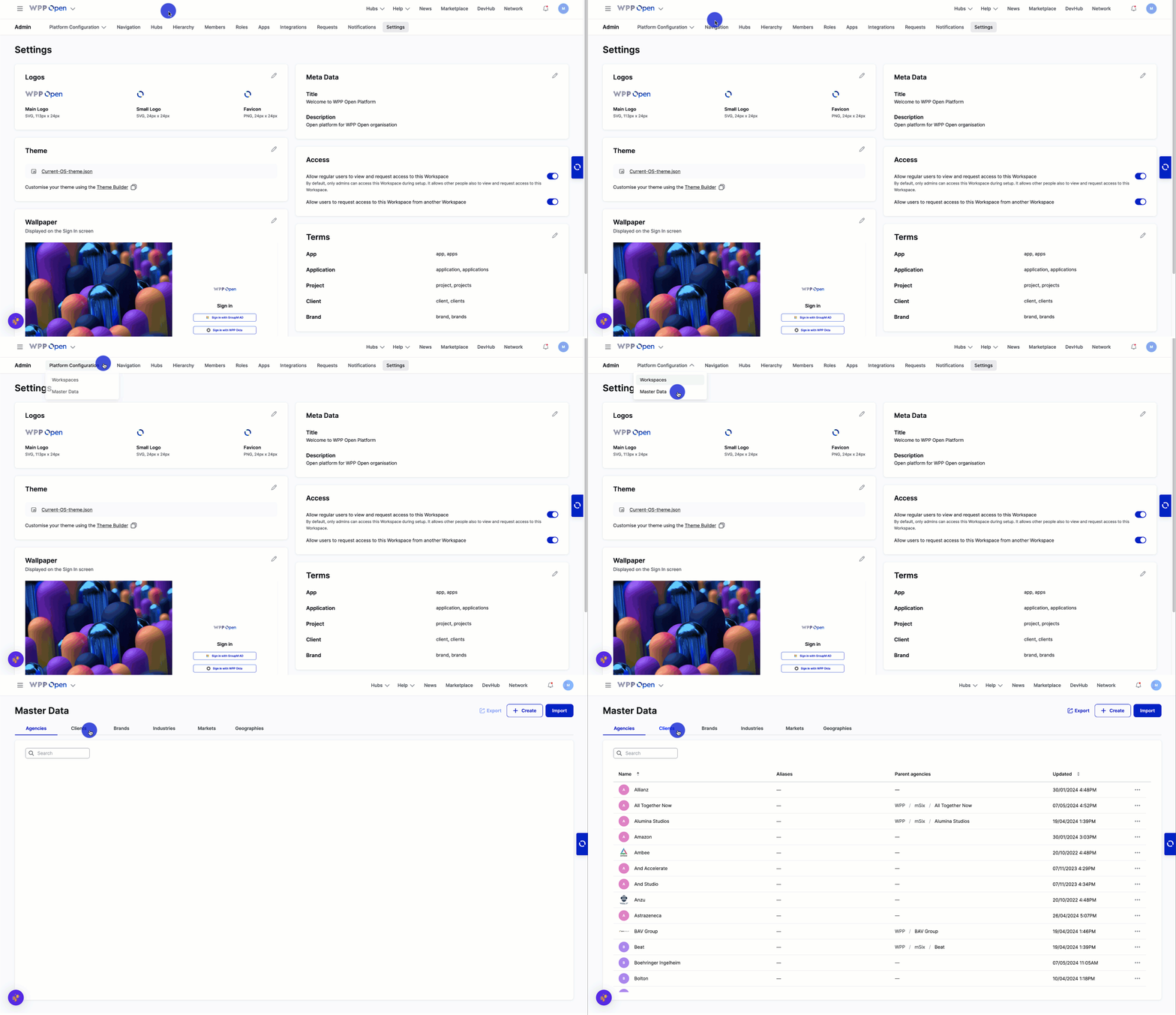
Master Data is only available for the support team. The Workspace Admin doesn’t have access to the Platform Configuration tab and Master Data.
Master Data is organized into several key entities:
- Agencies
- Clients
- Brands
- Industries
- Markets
- Geographies
Each entity has a dedicated page. To switch between entities, use the navigation tabs.
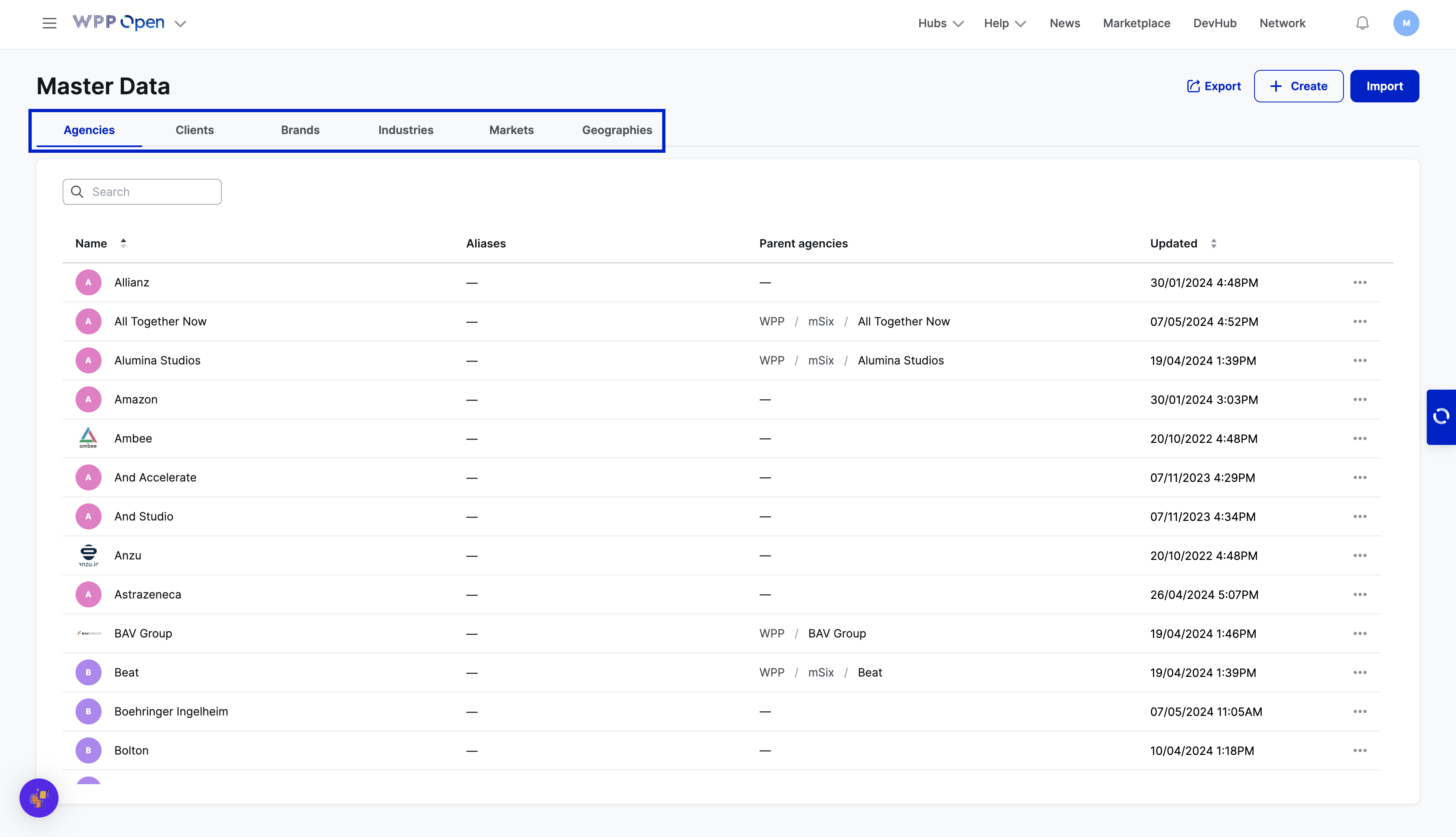
Dedicated pages for Agencies, Clients, Brands, Industries, Markets, and Geographies share a similar grid structure and always contain the following columns:
- Name (logo is displayed if previously added; otherwise, a default logo is shown)
- Aliases (synonyms that are necessary for variations in spelling, such as AirBnB/Airbnb)
- Updated (time created or last updated)
Other columns displayed on dedicated pages may differ. For example, Agencies, Clients, Brands, and Industries feature the Parent entity to showcase the parent-child relationship.
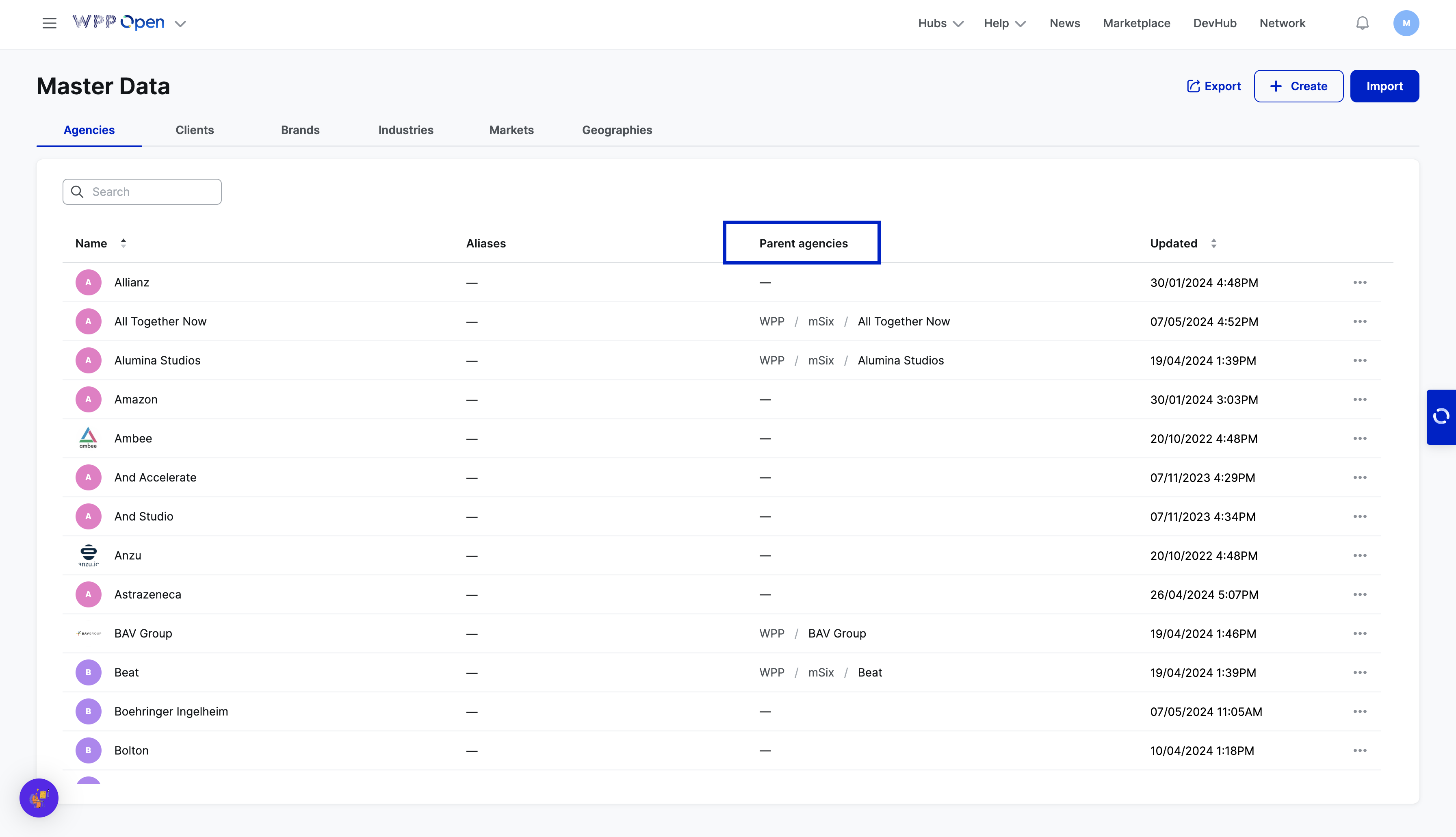
In the Parent entity column, primary or overarching agencies, clients, brands, or industries are displayed.
Aliases
All entities have aliases that are alternative names or synonyms. They are used to account for different spellings or variations in how an entity's name might be presented or recognized, such as "AirBnB" also being listed as "Airbnb." This helps to avoid duplications within the system and link all variations of the name to the same entity.
Parent entities
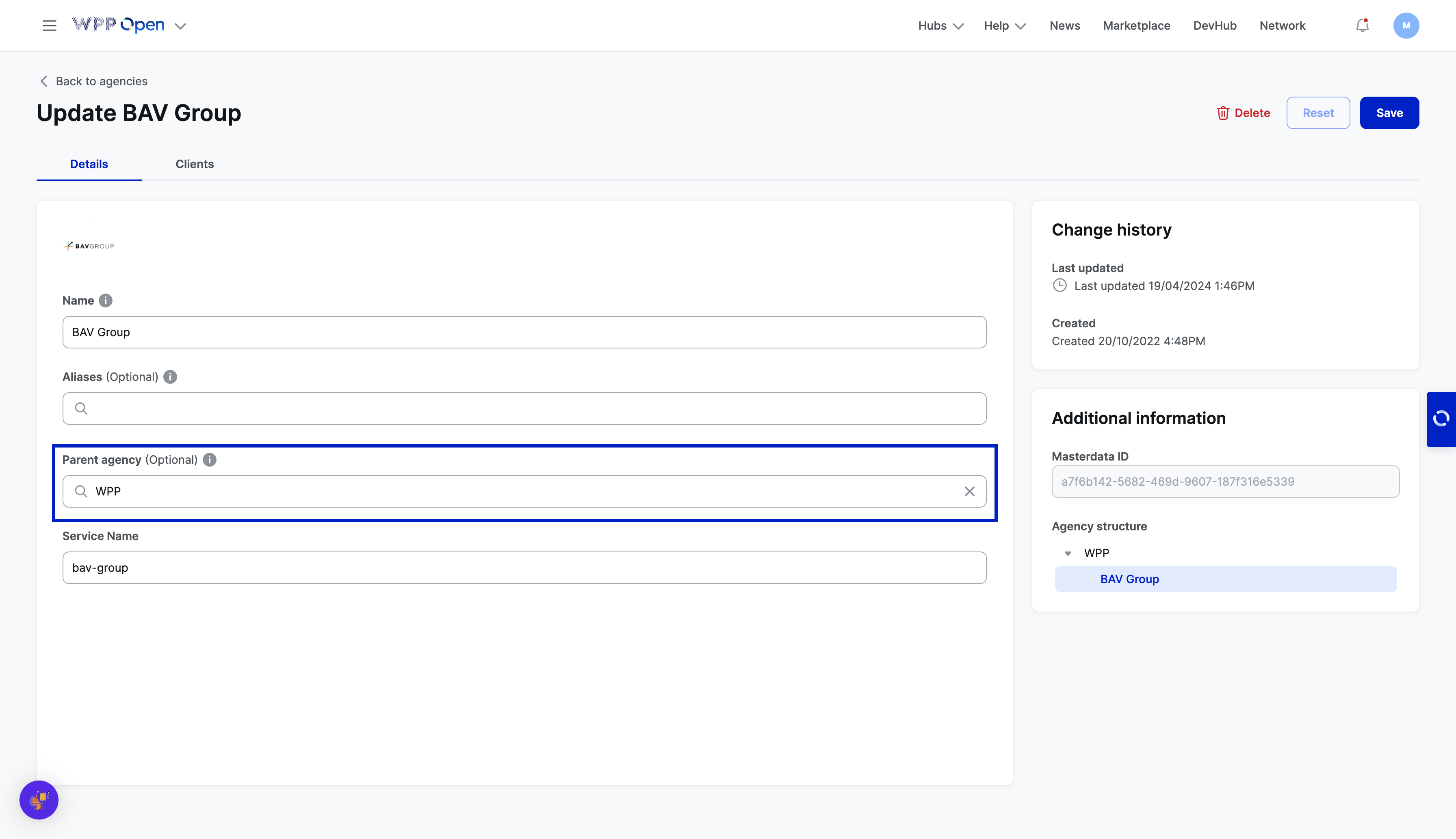
Parent entities are primary or overarching agencies, clients, brands, or industries displayed both in the column on the main tab and on the dedicated page. For example, the Parent Agency for BAV Group is WPP.
Agencies
On the Agencies tab, all the Agencies with their Names, Aliases, Parent clients, and last Updated date are displayed.
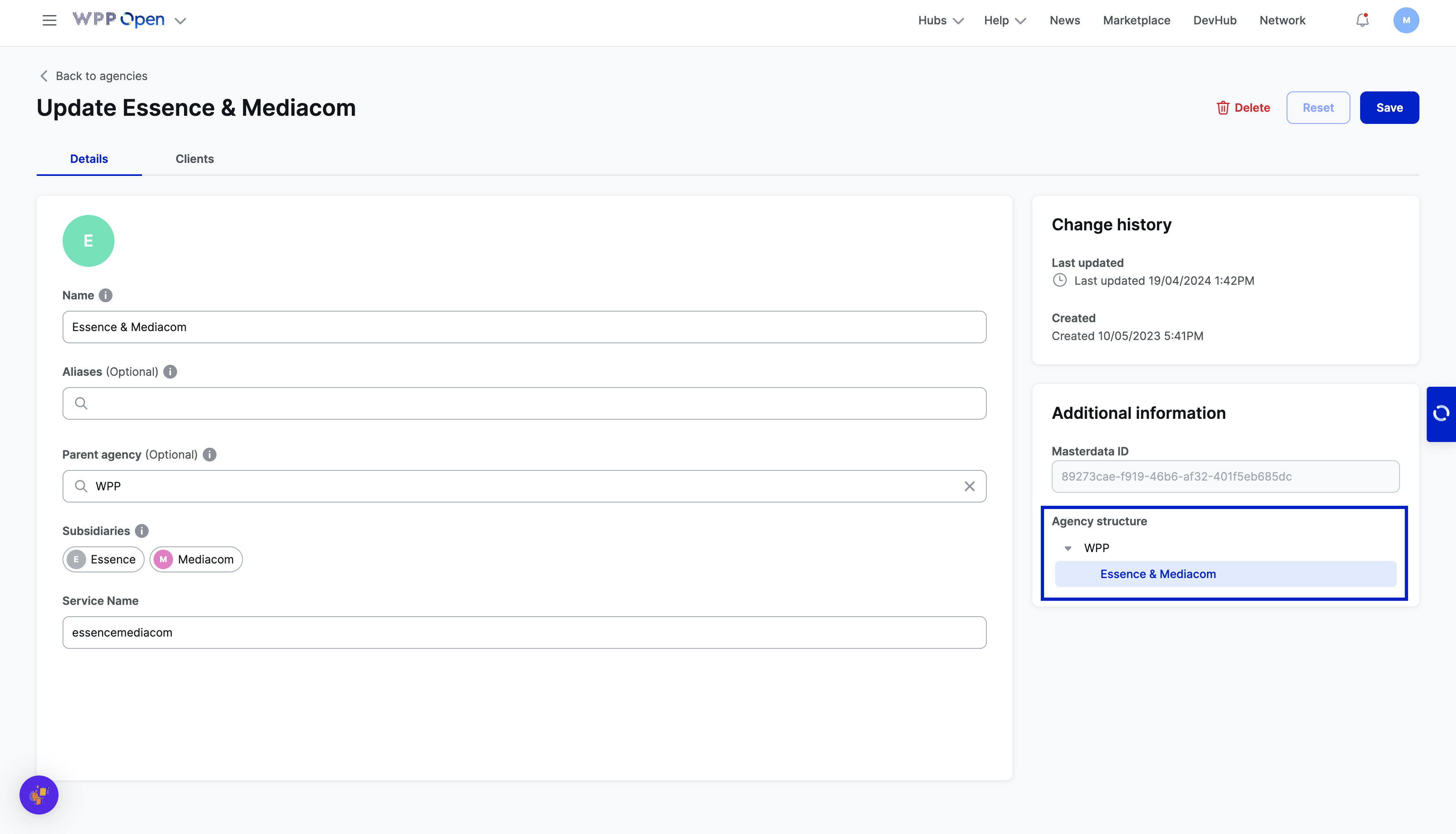
Agencies have a connection with clients, meaning an agency can work with a certain number of clients. Also, the dedicated page for Agency has the following attributes:
- Name
- Aliases
- Parent Agency
- Subsidiaries
- Service Name (service ID)

Also, there is an Agency structure on this dedicated page, and Essence & Mediacom is displayed under WPP. This hierarchy supports any level of nesting and is a part of the generic functionality.
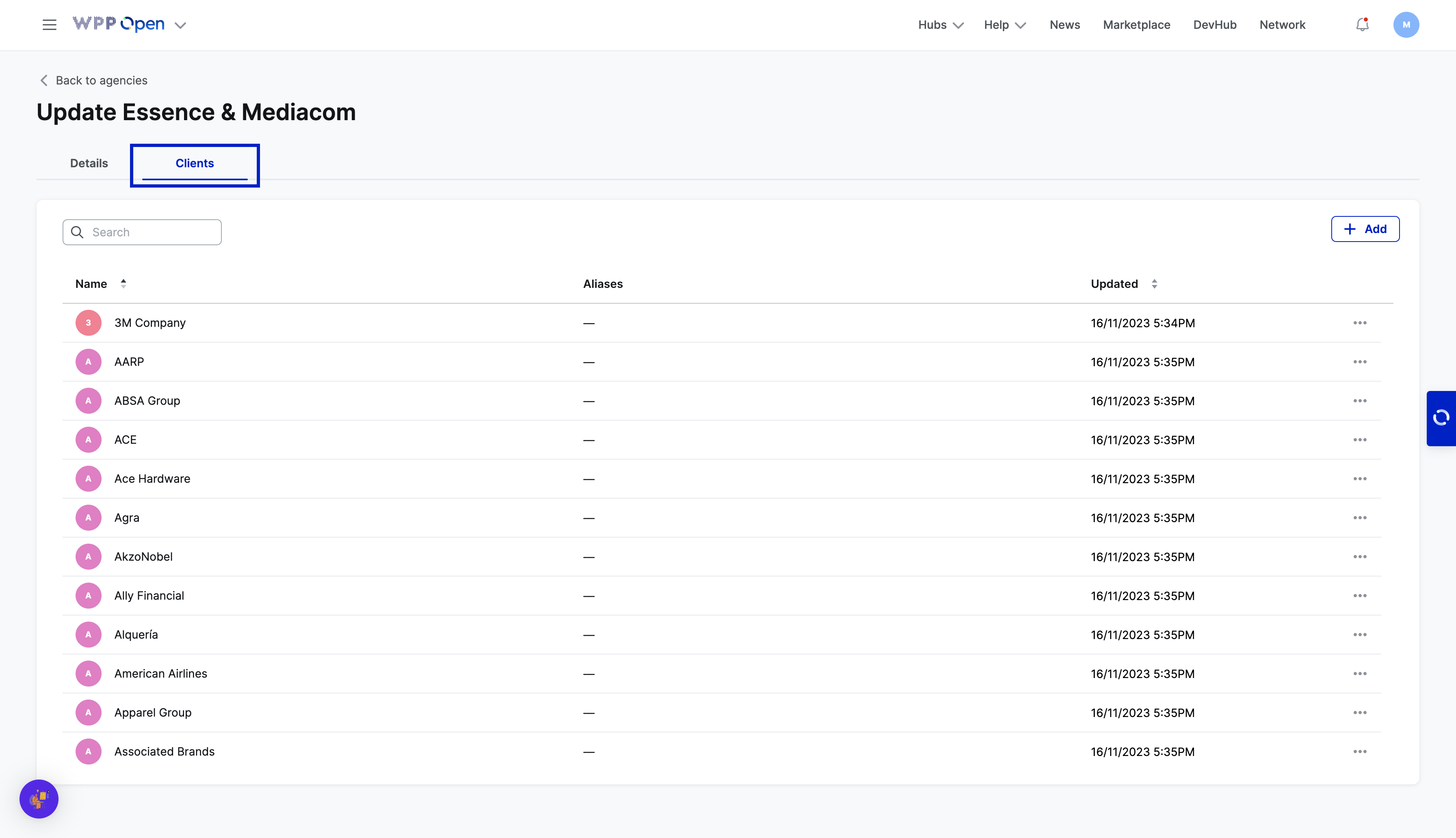
When selecting the Clients tab on the Agency page, you can see to which clients this Agency is connected.
Clients
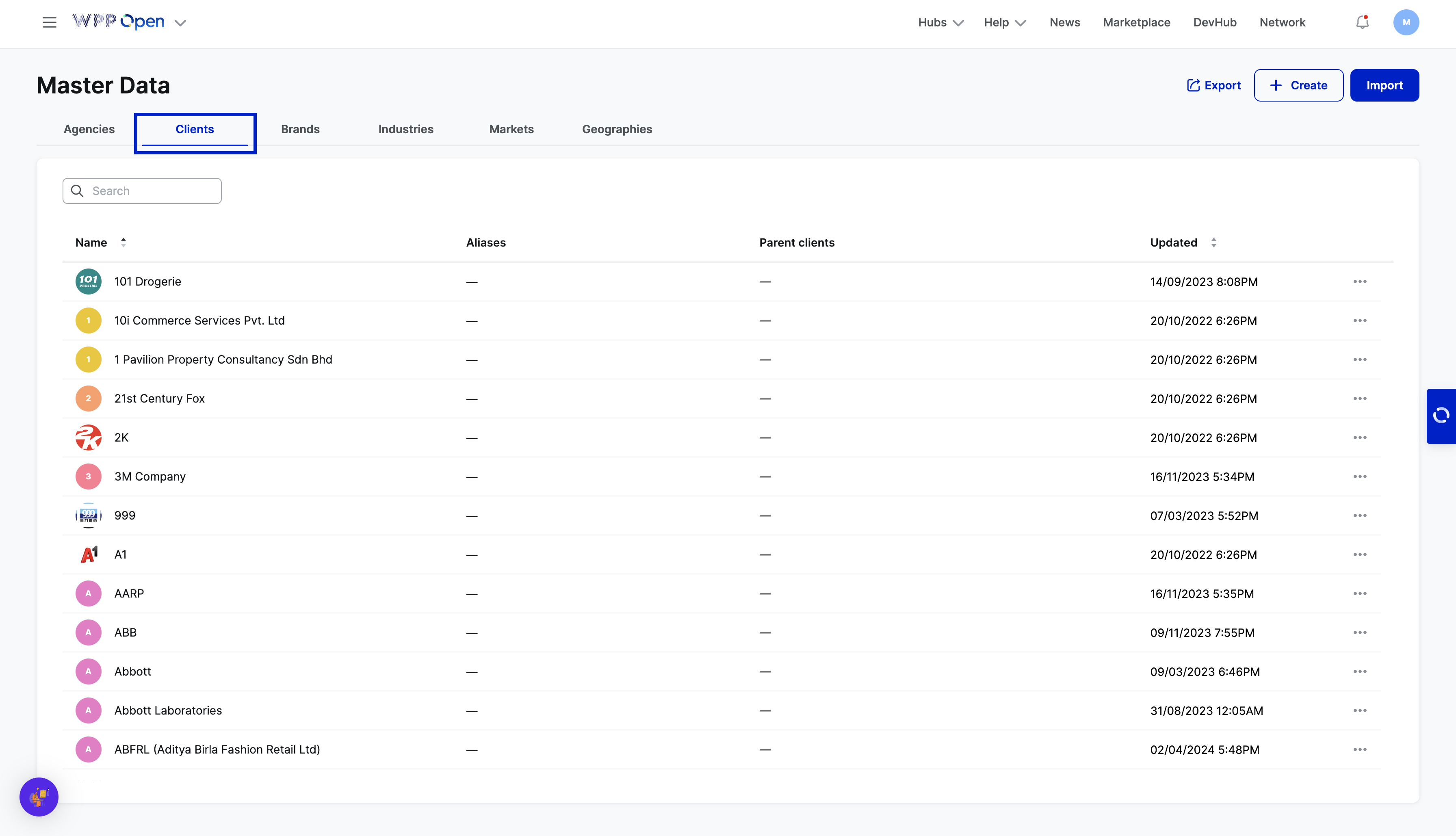
On the Clients tab, all the Clients with their Names, Aliases, Parent clients, and last Updated date are displayed.
Any dedicated Client page has the following attributes:
- Name
- Aliases
- Parent Client
- Brand
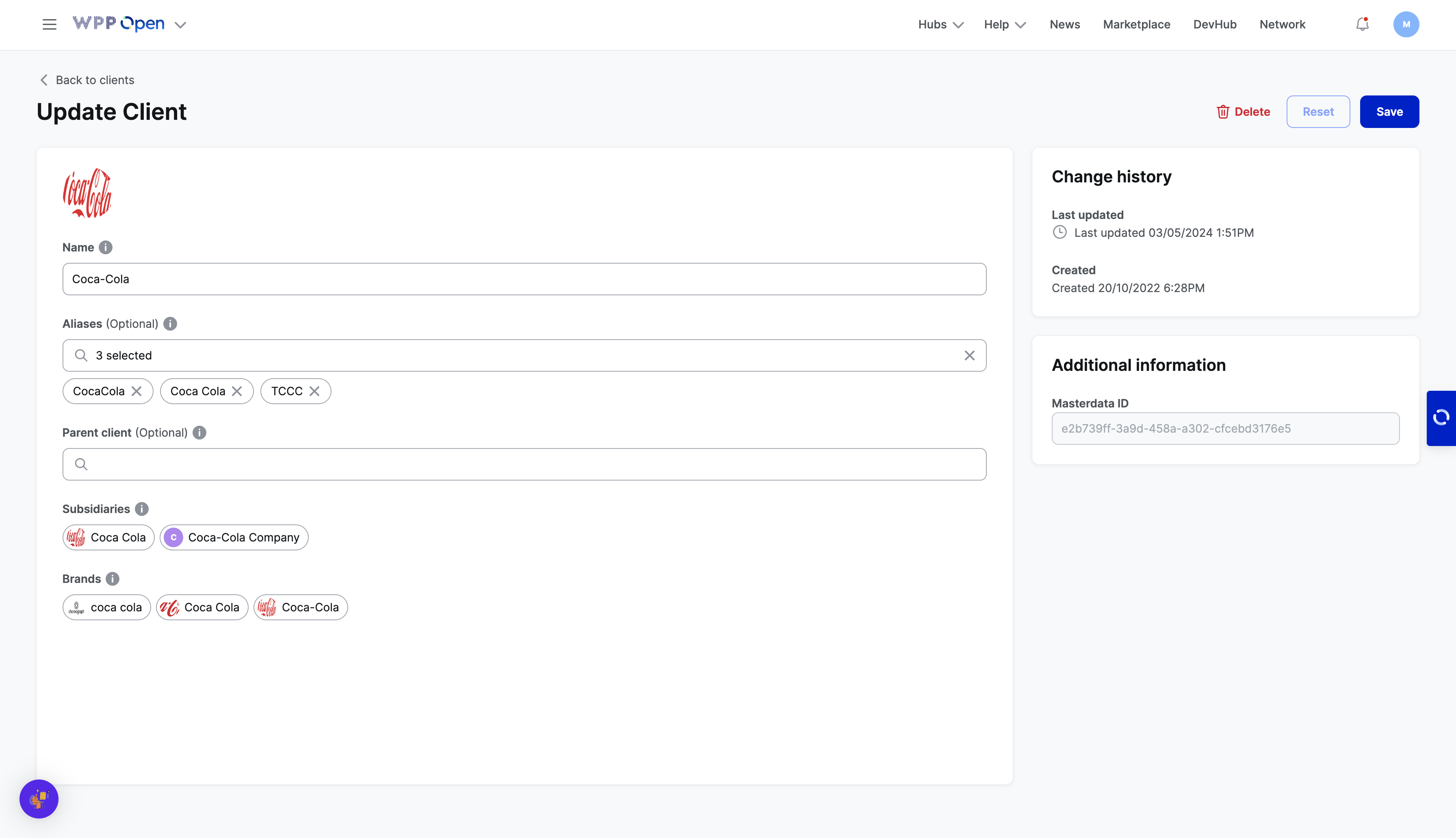
Clients can be linked with Brands on the dedicated Brand pages.
Brands
On the Brands tab, all the Clients with their Names, Aliases, Client, Parent brands, and last Updated date are displayed.
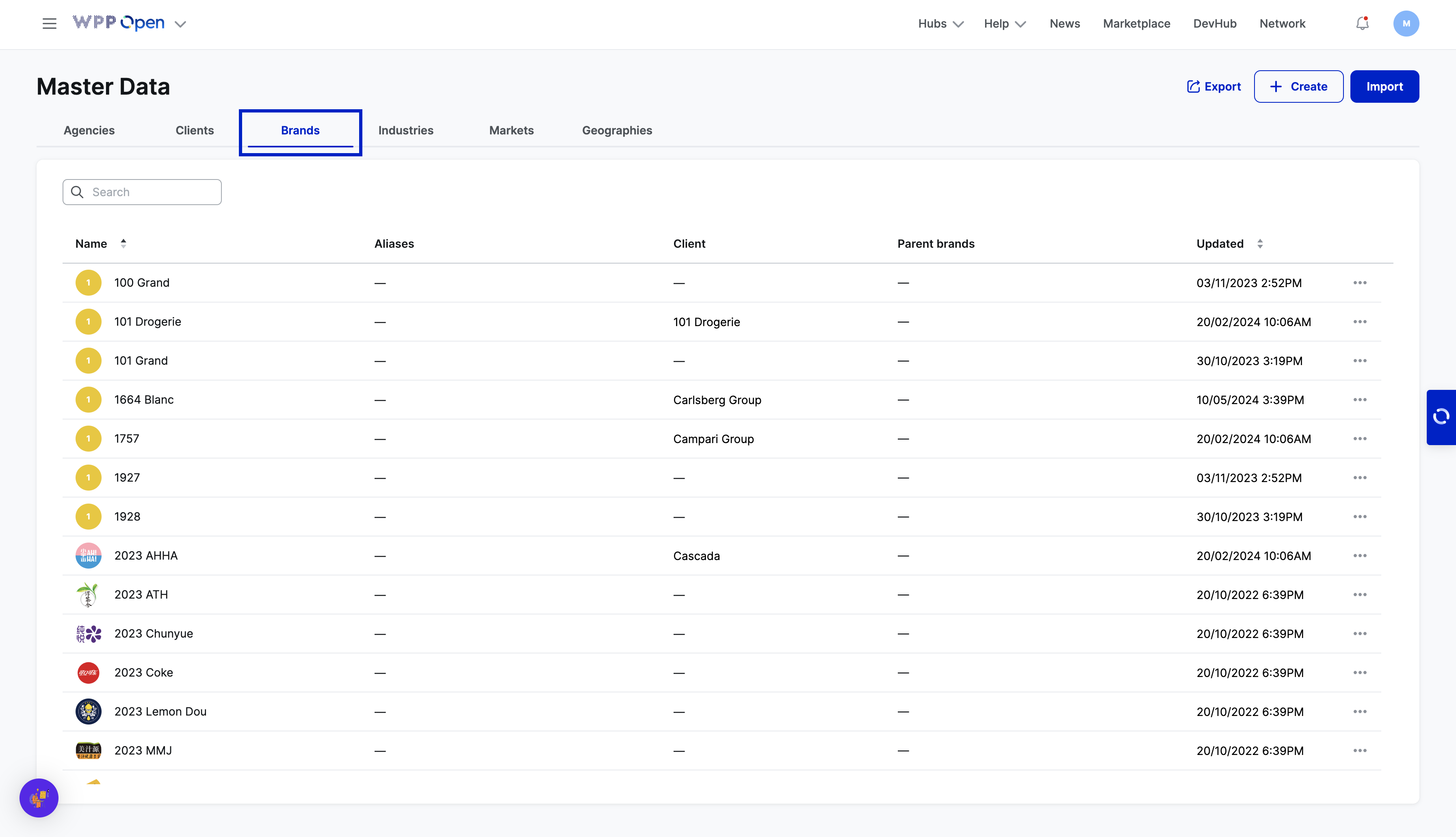
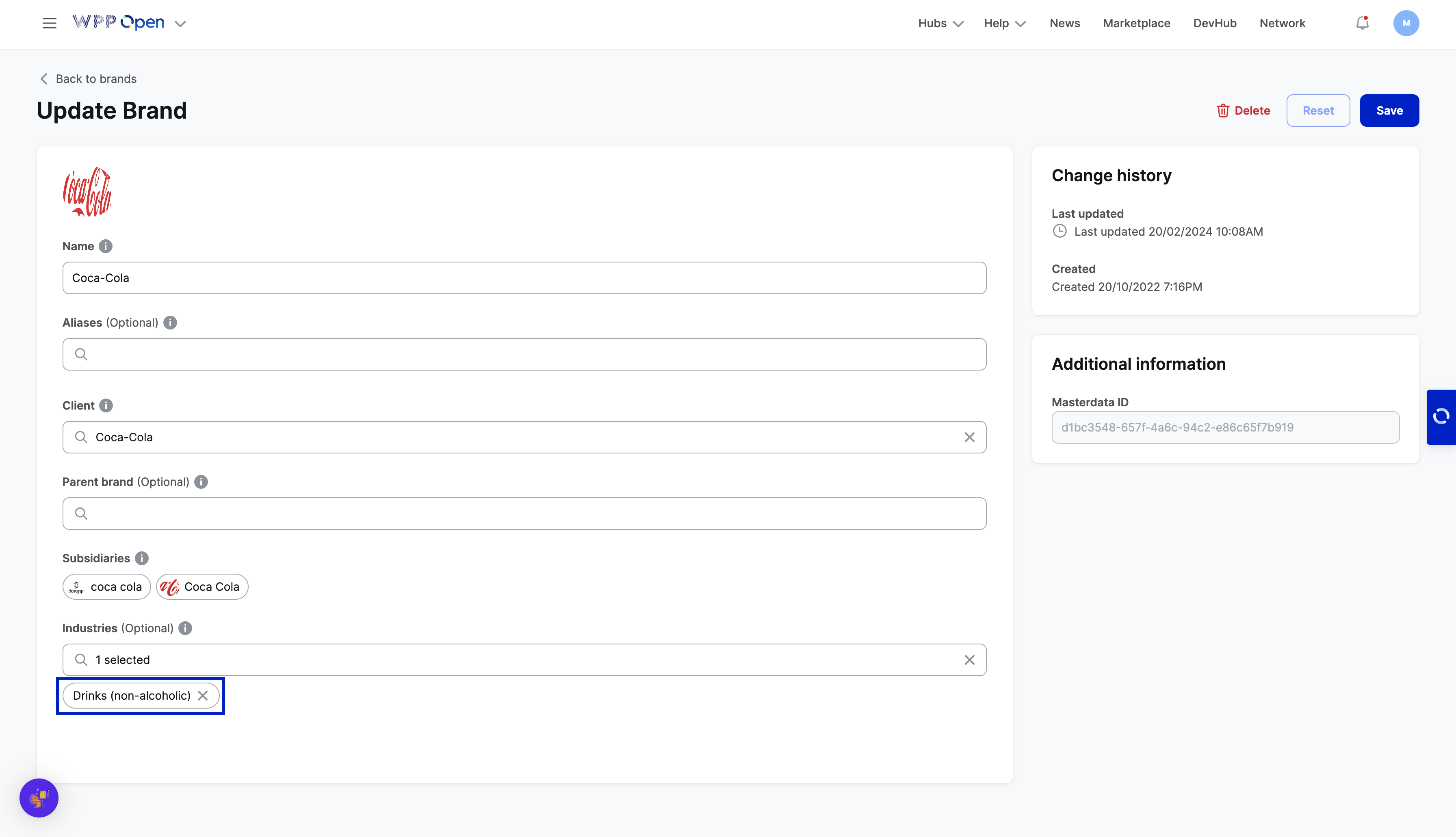
The dedicated page for Brands contains a Client column to link a brand to its respective client, showing their relationship. Also, Brands belong to one or more industries. For example, the Coca-Cola brand falls under the Drinks (non-alcoholic) industry. Clicking on the industry leads to its dedicated page, providing cross-links between them.
Industry
On the Industry tab, all the Industries with their Names, Aliases, Parent industries, and last Updated date are displayed.
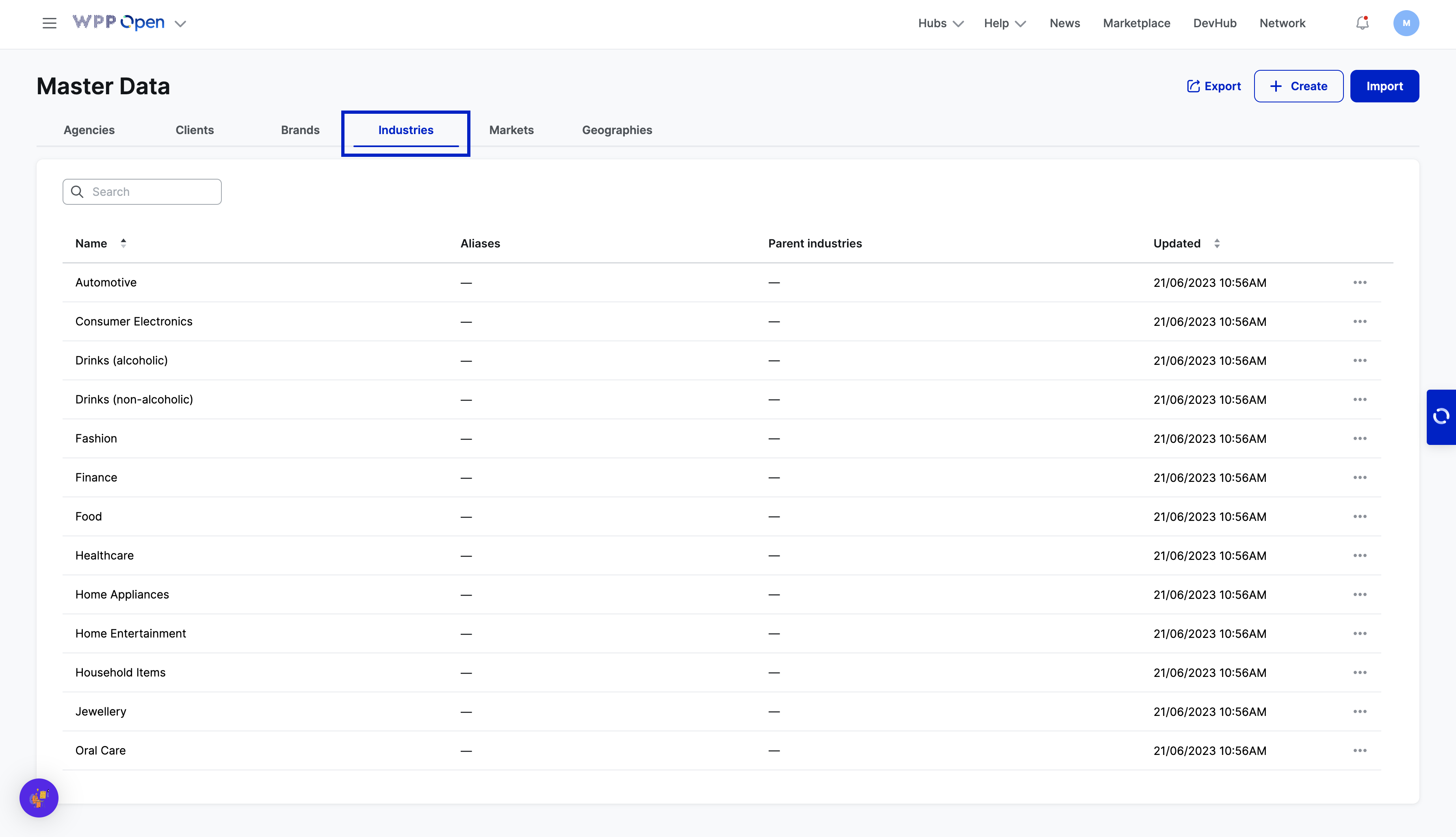
The dedicated page for Industry contains the fewest fields, as it only includes Name and Aliases.
Markets
On the Markets tab, all the Markets with their Names, Aliases, ISO Alpha 2 (two-letter country code), ISO Alpha 3 (three-letter country code), Geographies, and last Updated date are displayed.
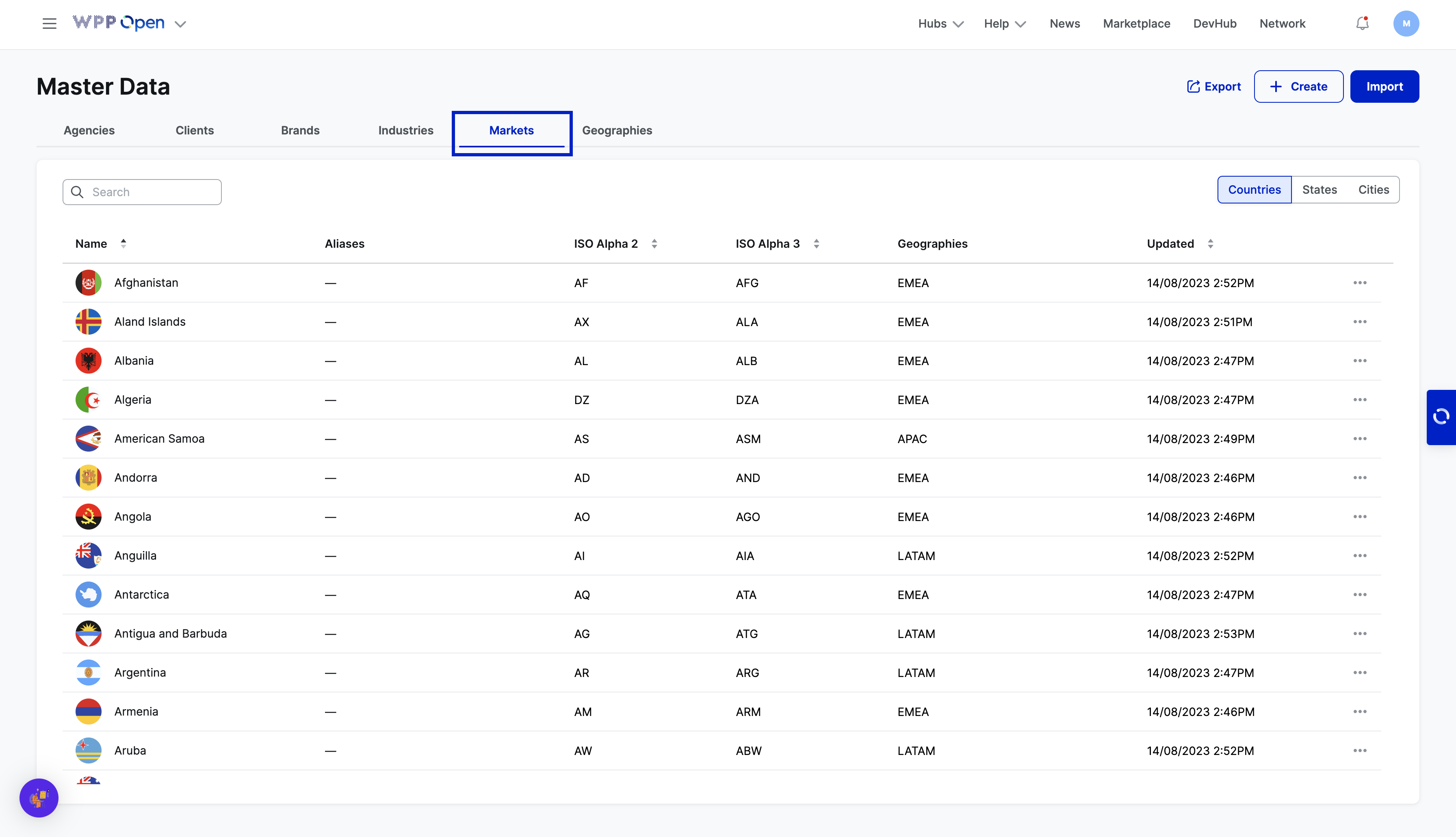
Markets are divided into three groups:
- Countries
- States
- Cities
These groups are interrelated.

Select + Create to create a new Market (Country, State, or City).
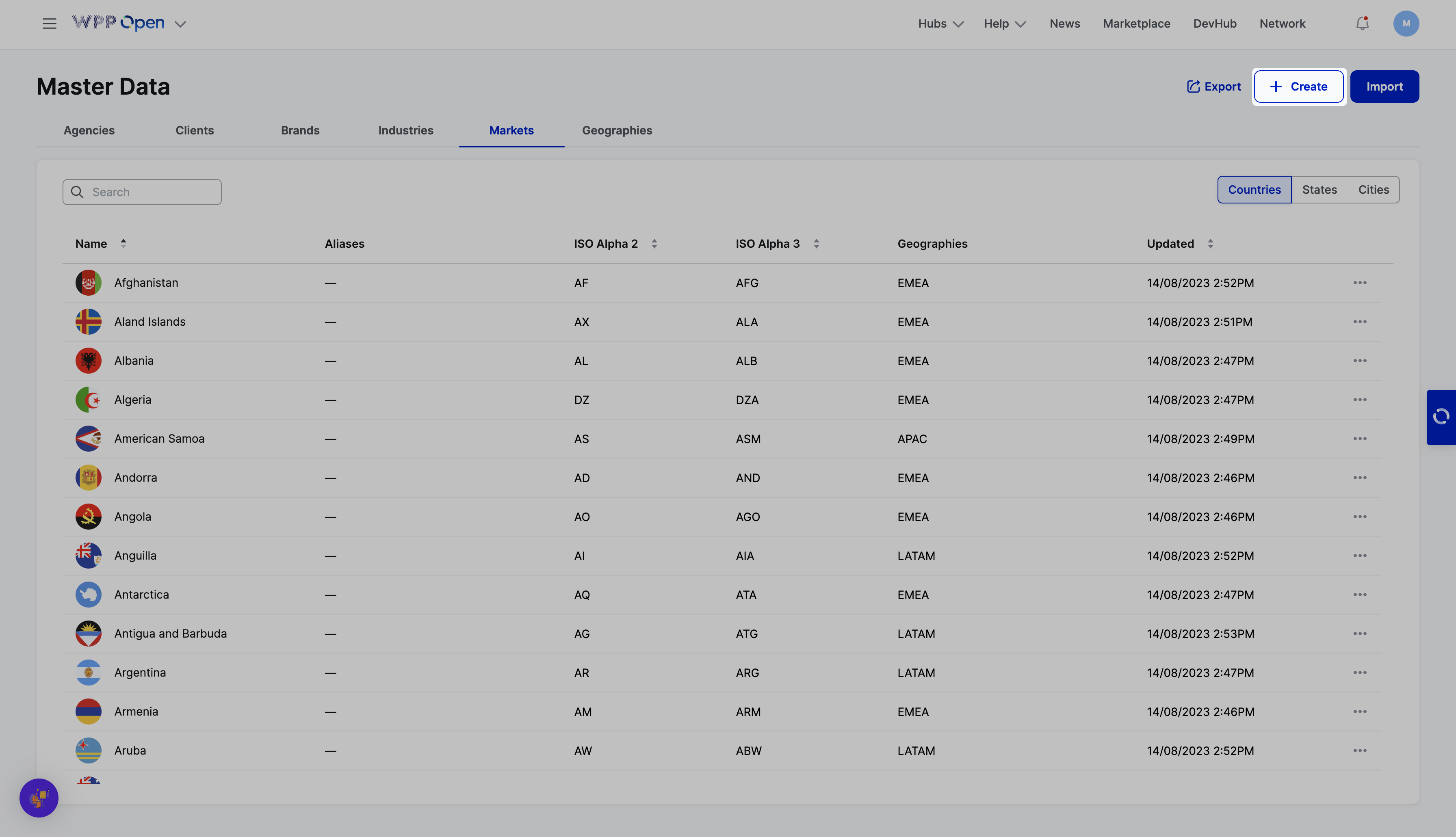
When creating a State, it’s necessary to specify which country it belongs to.
Geographies
Geographies unite any group of markets. An example of a geography is the Benelux countries (Belgium, Luxembourg, the Netherlands) or APAC (Asia Pacific).
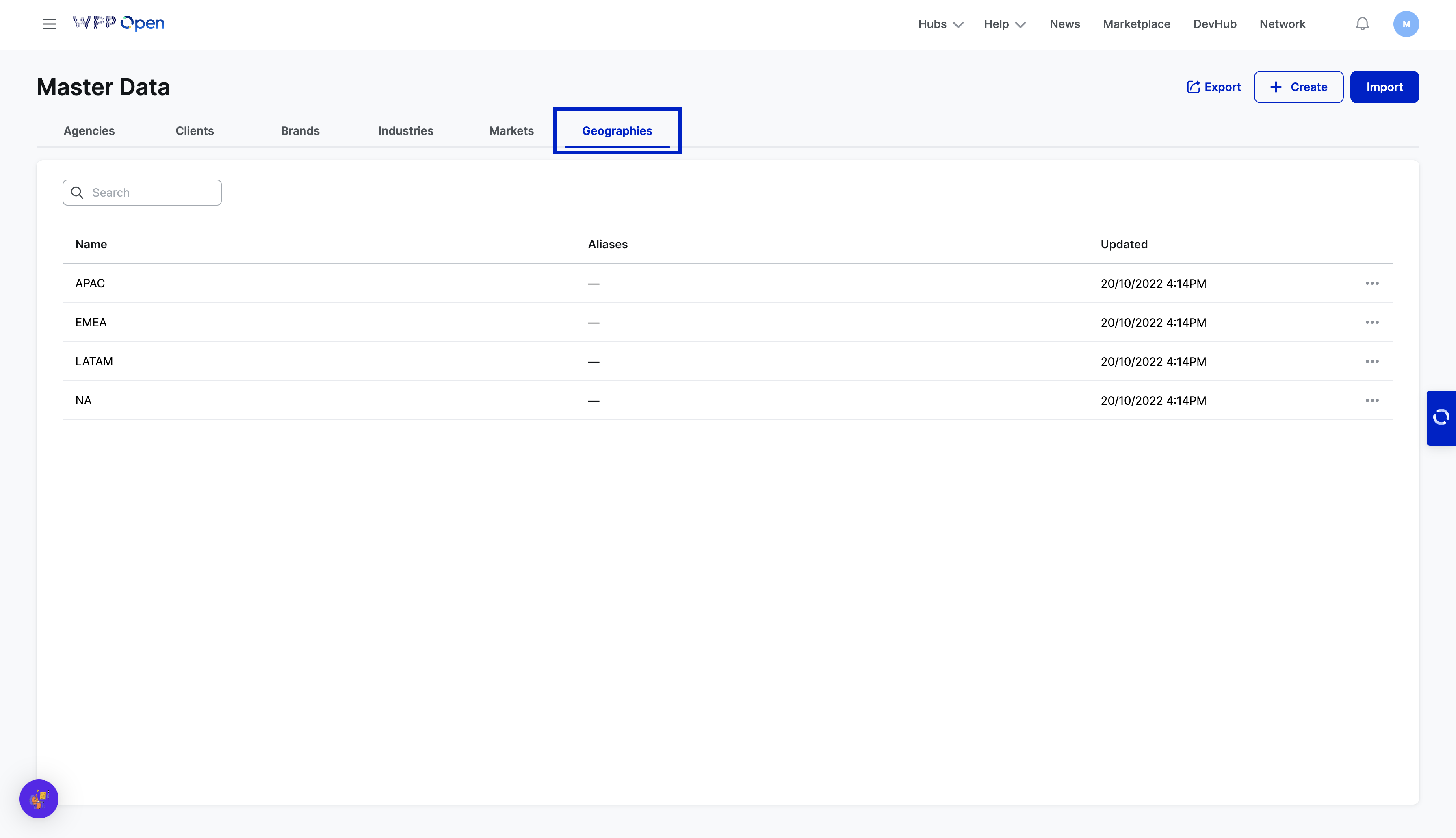
Geographies can contain markets, which include countries, states, or cities.

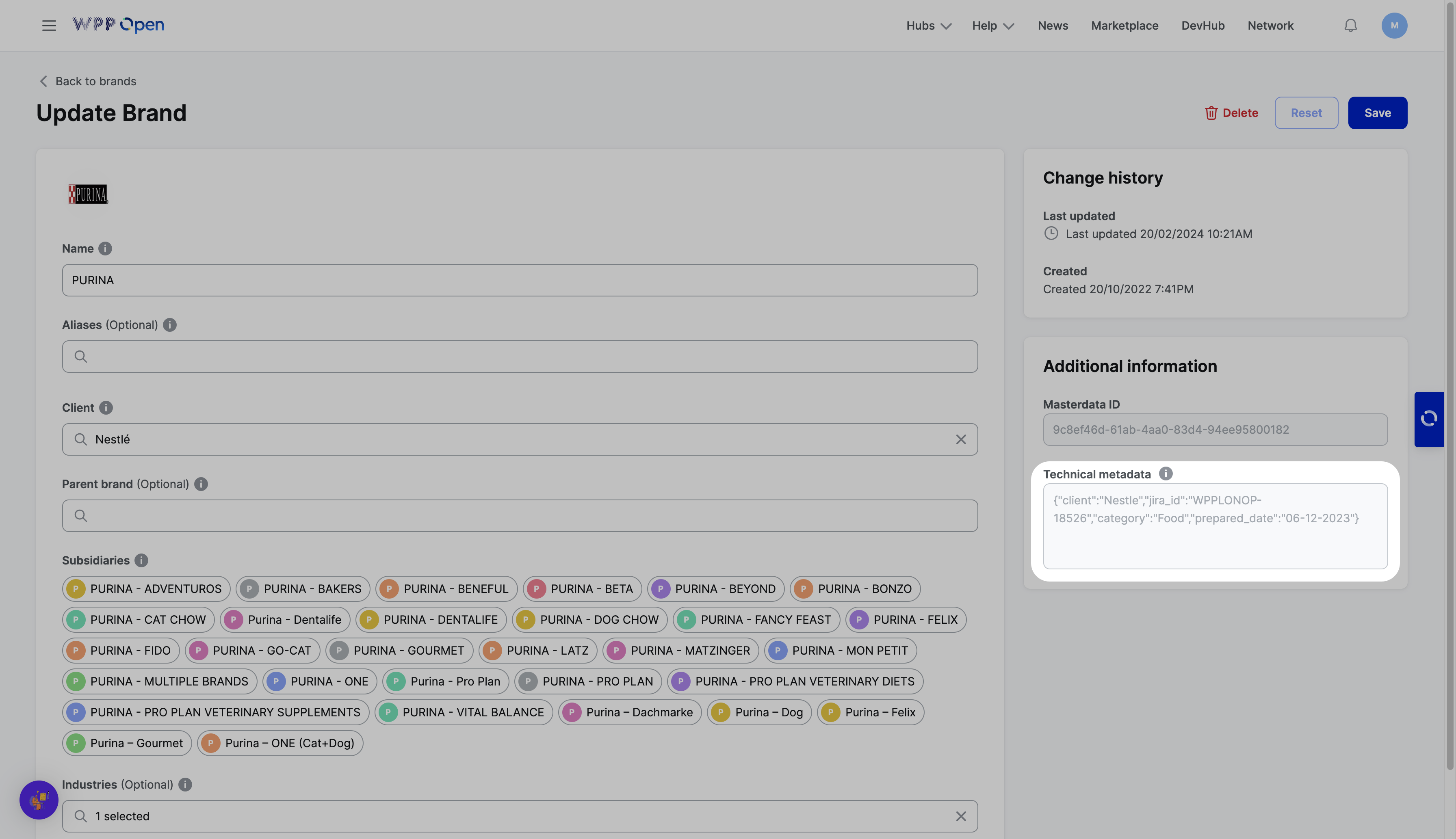
All entities contain an information panel on the right that displays the Last Updated and Created dates. This panel may also include Technical Metadata. Typically, Technical Metadata (useful information in JSON format) appears when importing certain entities. Later, this metadata can be used to fill in different fields like Client or Industries.
Additional functionality
-
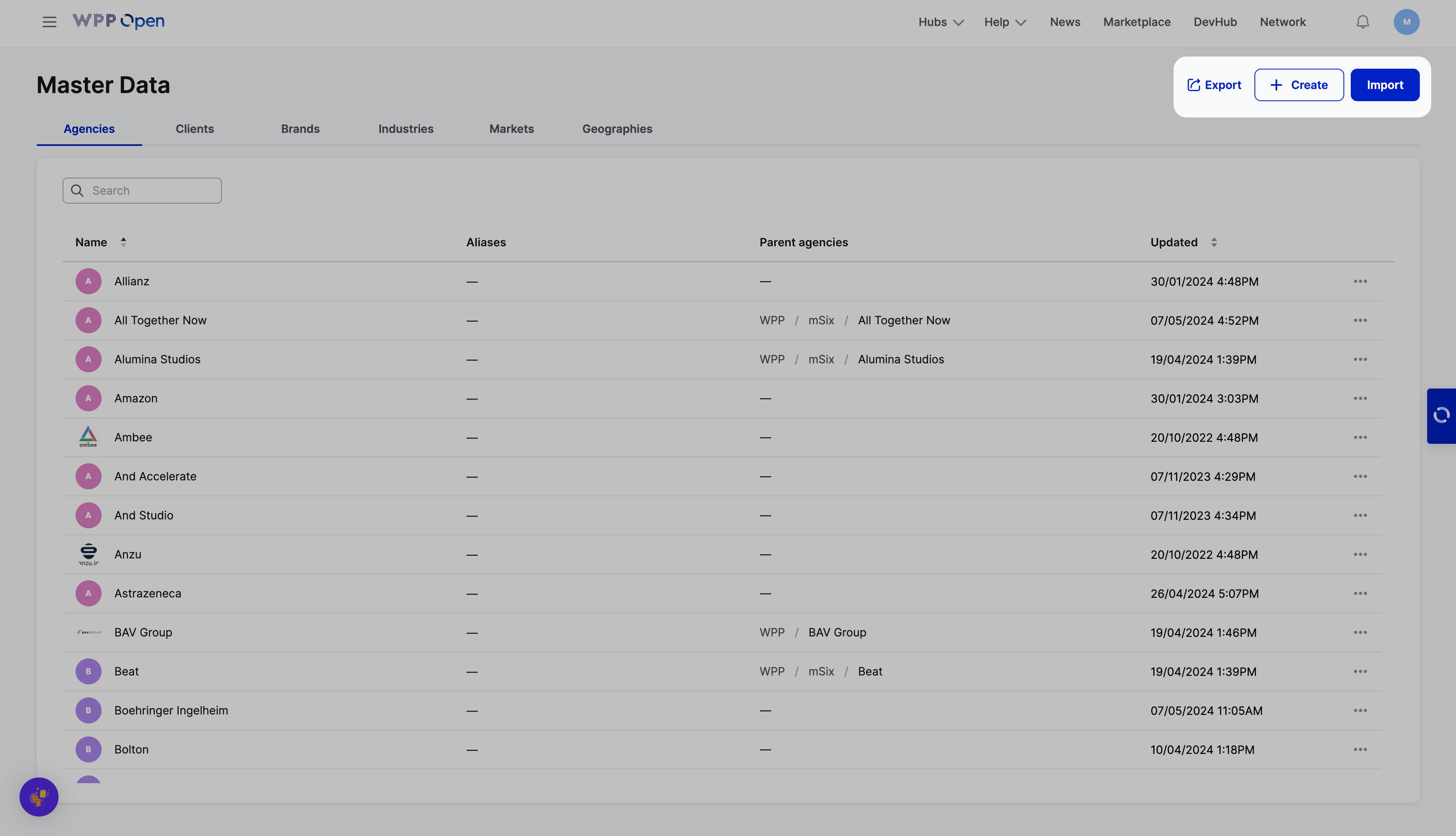
Export: Clicking Export exports everything visible on the UI with the current filters into a CSV file.
-
Import: Clicking Import improts a file in a CSV format.
-
Merge: Selecting two records of any entities and clicking Merge opens the Merge entities page.
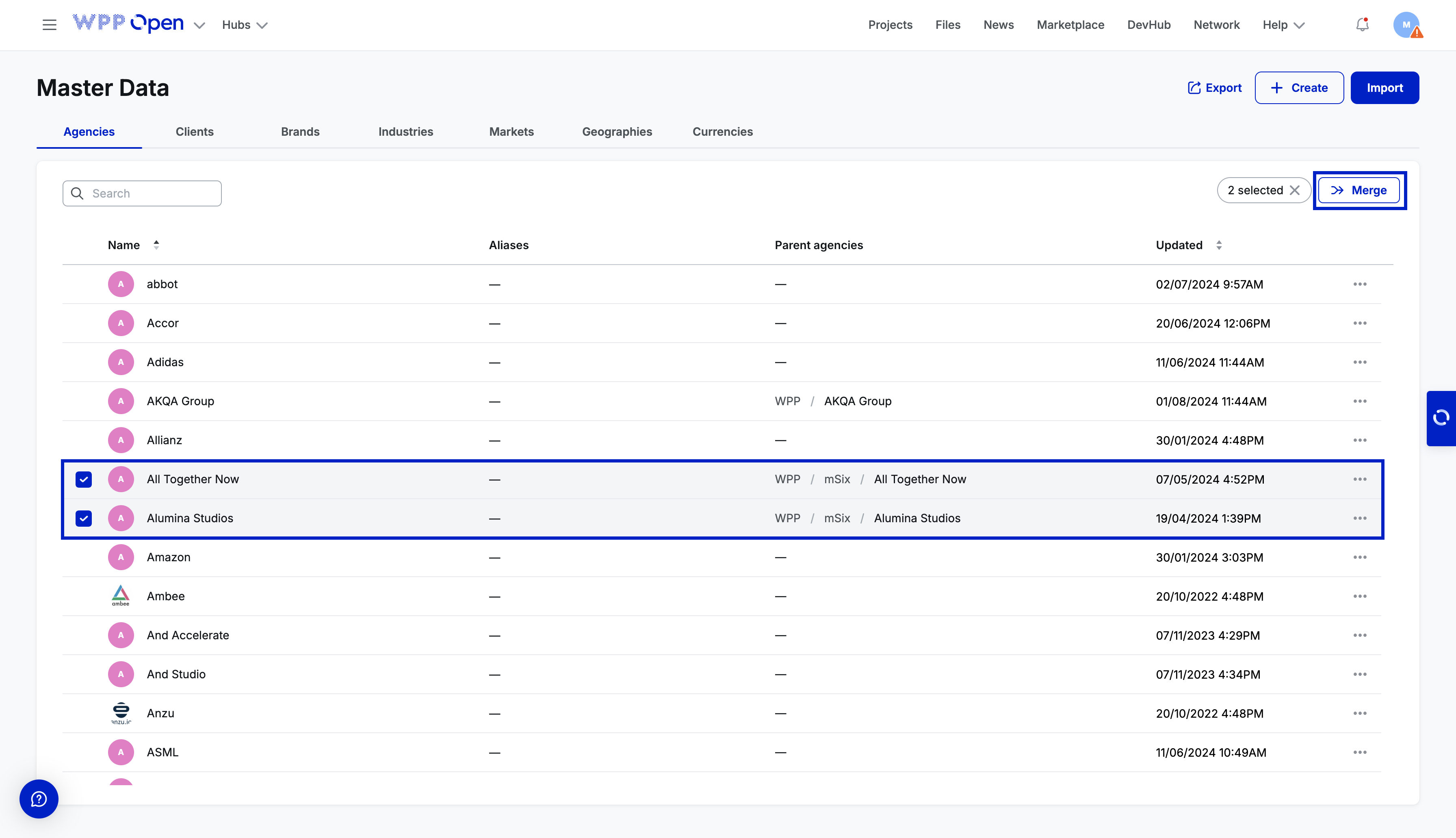
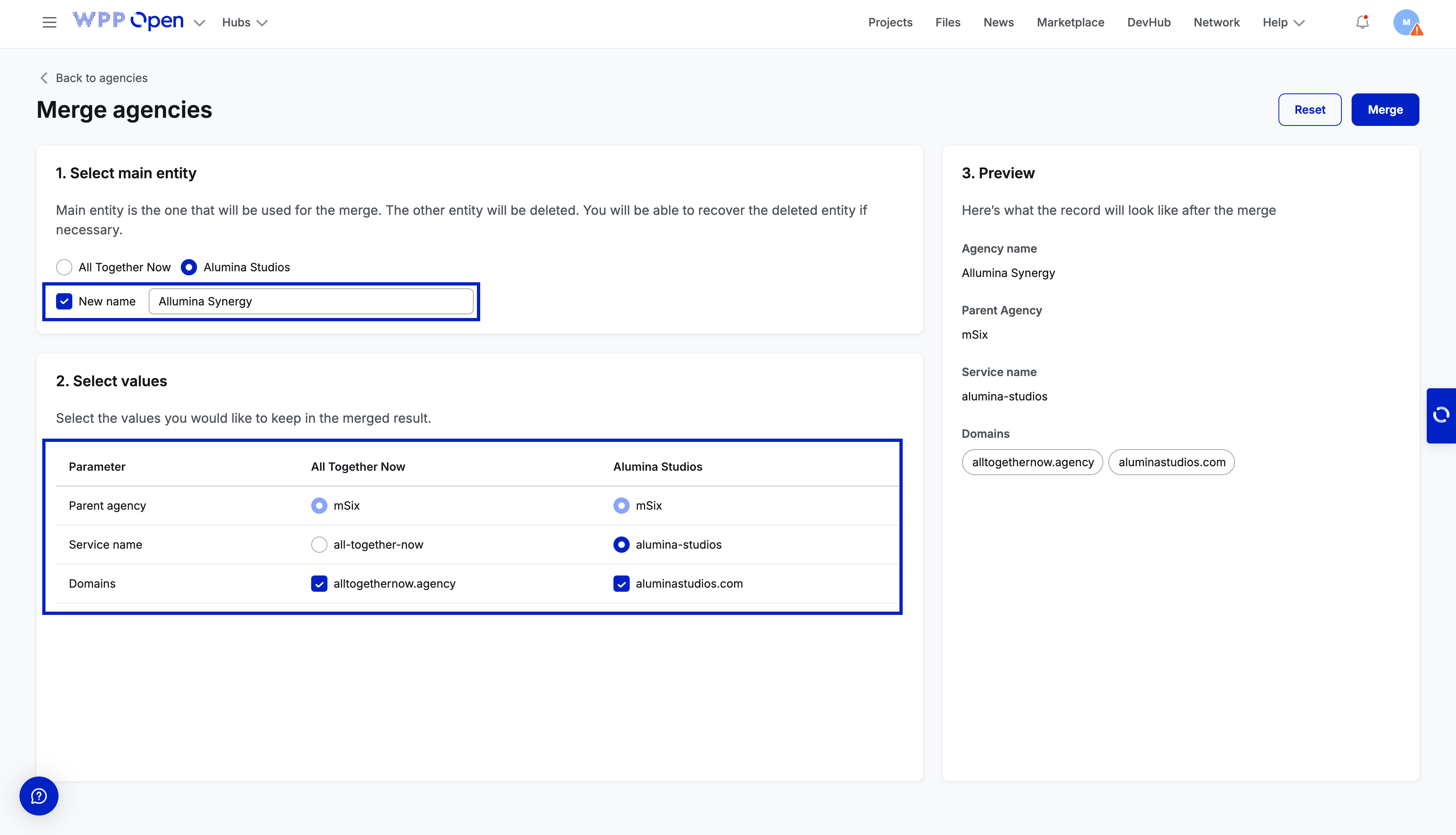
On the Merge entities page, select the main record to be used for the merge (the other record will be soft-deleted). Optionally, specify a new name for the record and values to be kept in the merged result.
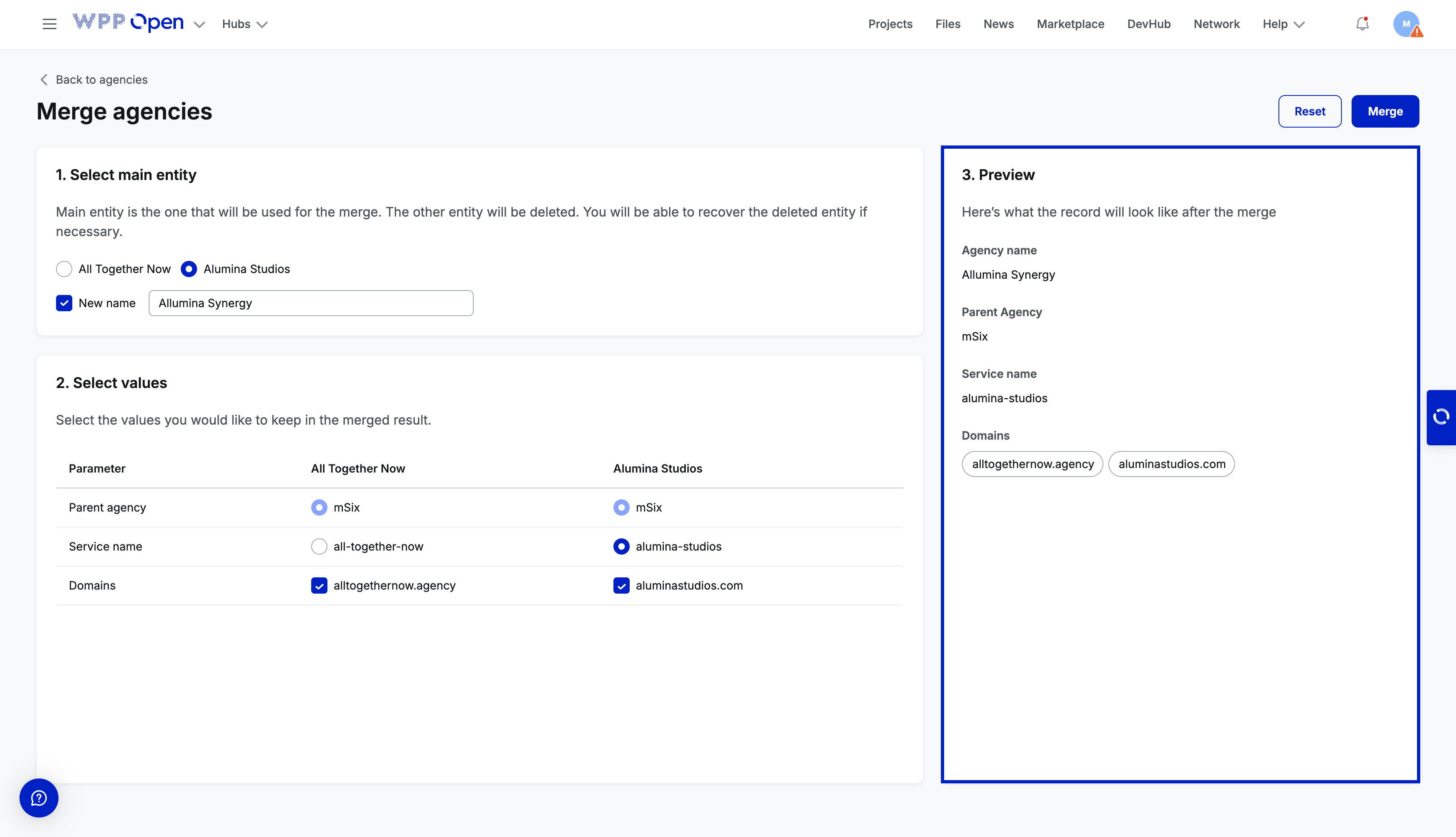
The preview of a new record is displayed on the right.
After clicking Merge, a success message appears at the top-right, confirming a new record creation. The old record, not selected as the main one in the merge, is soft-deleted and removed from the grid. However, the link to it appears at the top of the new record page:
 note
noteHard deletion is not possible through the UI but can be done via the API. If the record is removed from the grid, it is still accessible in the database via ID. Any link to this record in an external service continues to work via
get by ID.
Change history
Change history is available for records within all entities. It allows users to switch between different versions, with comparisons always made against the previous version.
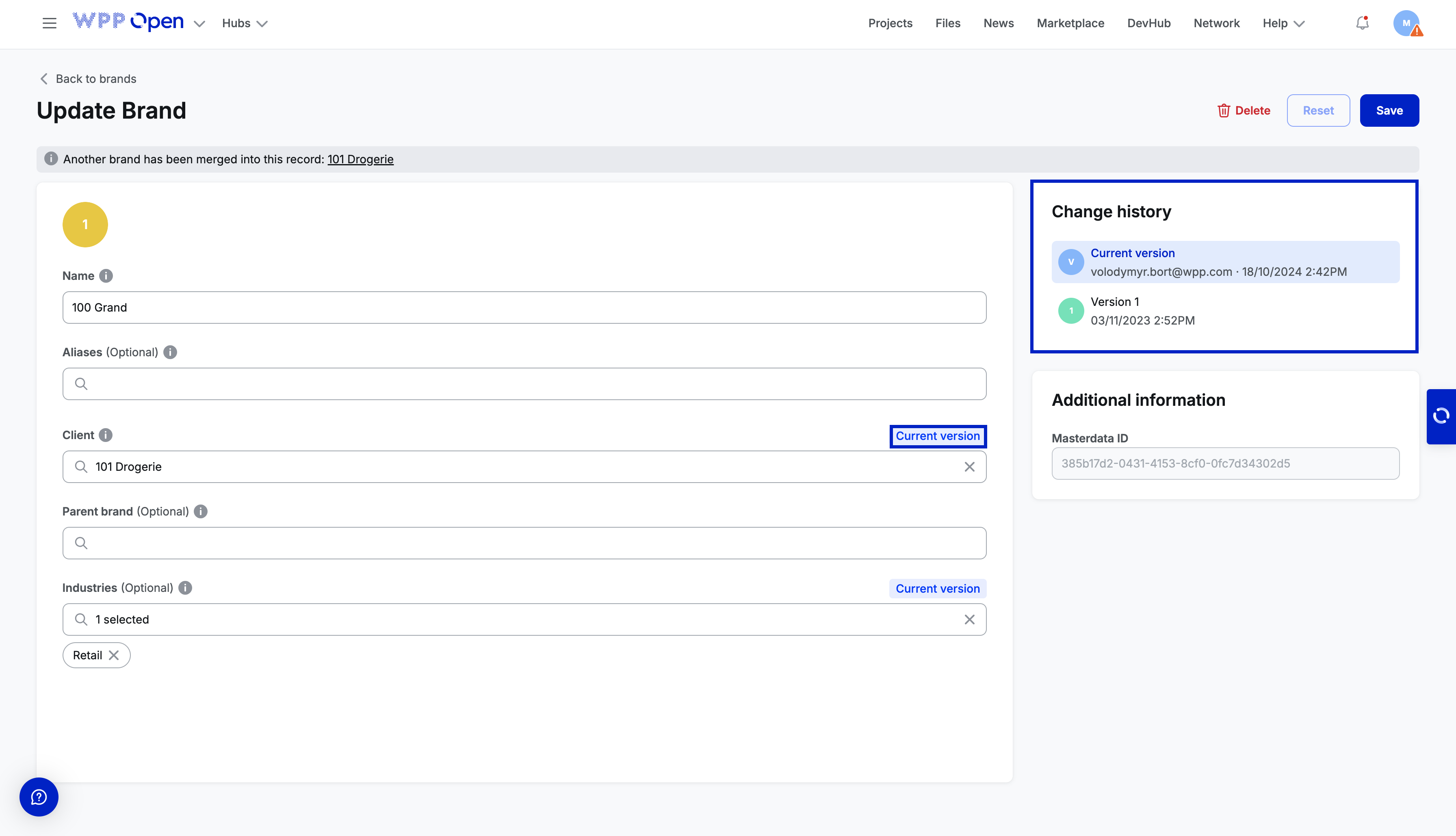
The Сurrent version label highlights the fields that were modified compared to the previous version. Additionally, the change history shows who made each change and when it occurred.