Migration
This guide explains transitioning between different Design System (DS) versions. Starting from v2.0.0, we commit to long-term support for each version–you can upgrade, explore, and use different iterations of the WPP DS with ease.
Whether you want to access older versions or stay up-to-date with the latest enhancements, this guide will help you make these transitions effortlessly.
Versioning of component libraries
Starting from v2.0.0, we maintain multiple versions of component libraries to accommodate unique project requirements and enable customizations. We adopt this approach because of the following:
- Different projects may have unique requirements or customizations specific to their use of the component library. Maintaining older versions allows us to support these customizations without affecting other projects.
- Introducing updates to a component library organization-wide can be risky. To mitigate these risks, we adopt a controlled approach by maintaining multiple versions that reduce the potential for unintended issues and system-wide disruptions.
Updating design libraries in Figma
Design libraries––Components, Icons & Images, and Foundations are available on the Designers page. Our libraries are responsive (for screens 1280 px and wider) and adapted for design in Figma. You can find Design System v2.0.0 onwards on our Releases page.
To update design libraries
-
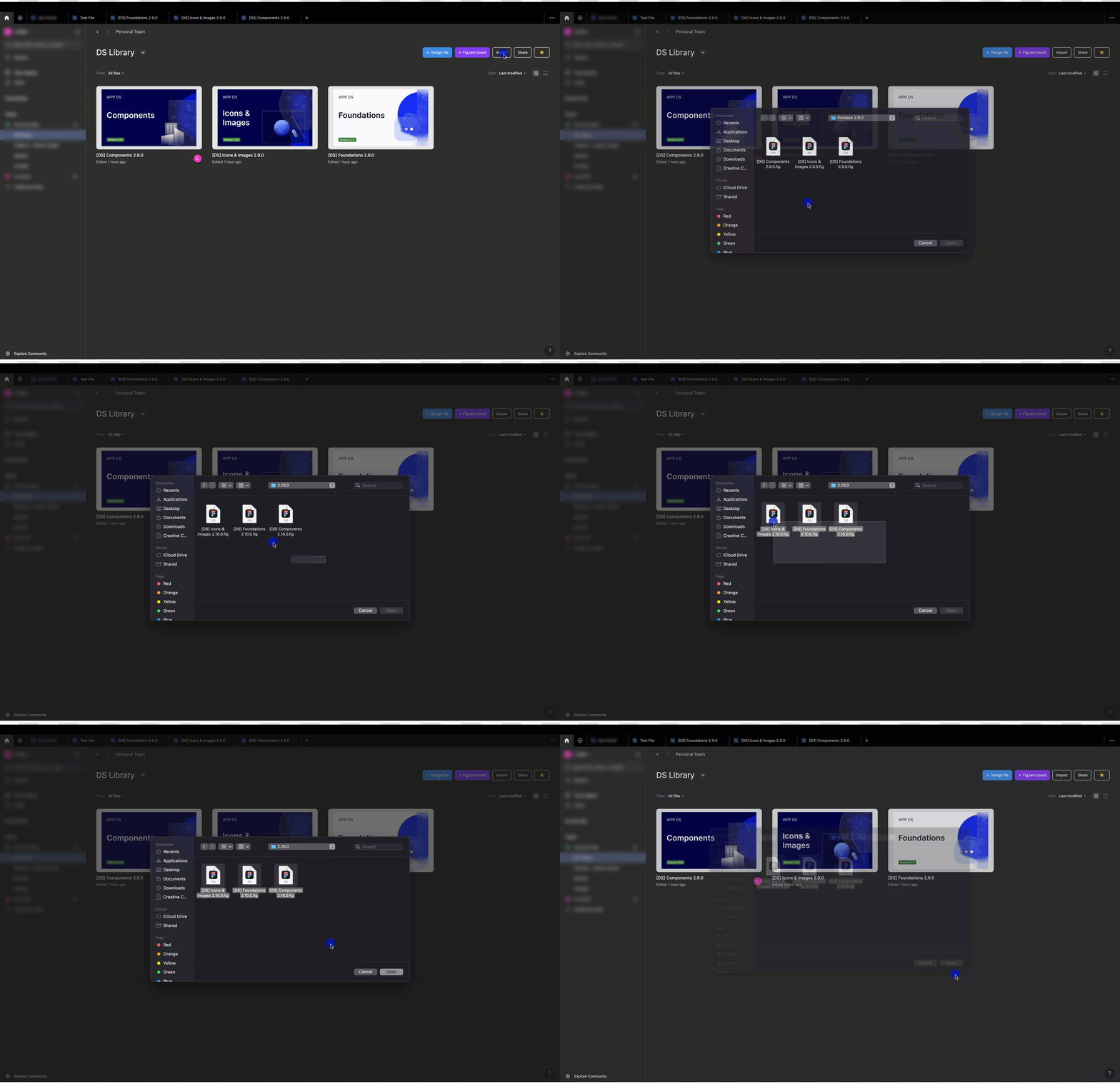
Import library files to Figma.
-
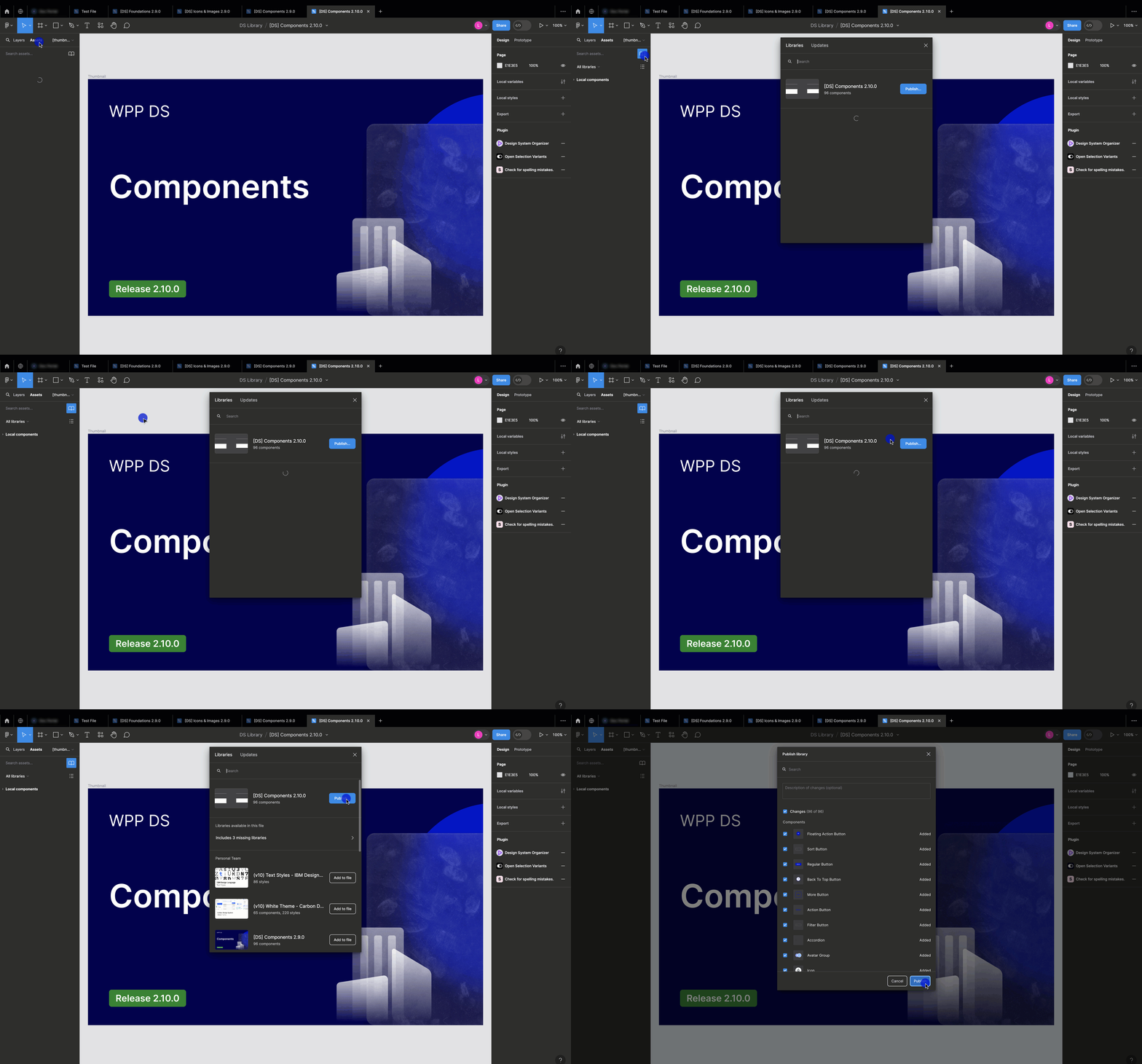
Select the library icon in the Assets panel and publish the imported files to the Design System library.
-
Select the library files, and then select Swap library. You'll see a preview of the existing library's styles and components.
-
Select Choose library and select the library files from the Design System library.
-
Select Swap library.
Figma will replace any matching styles and components in your current file with instances from the selected library.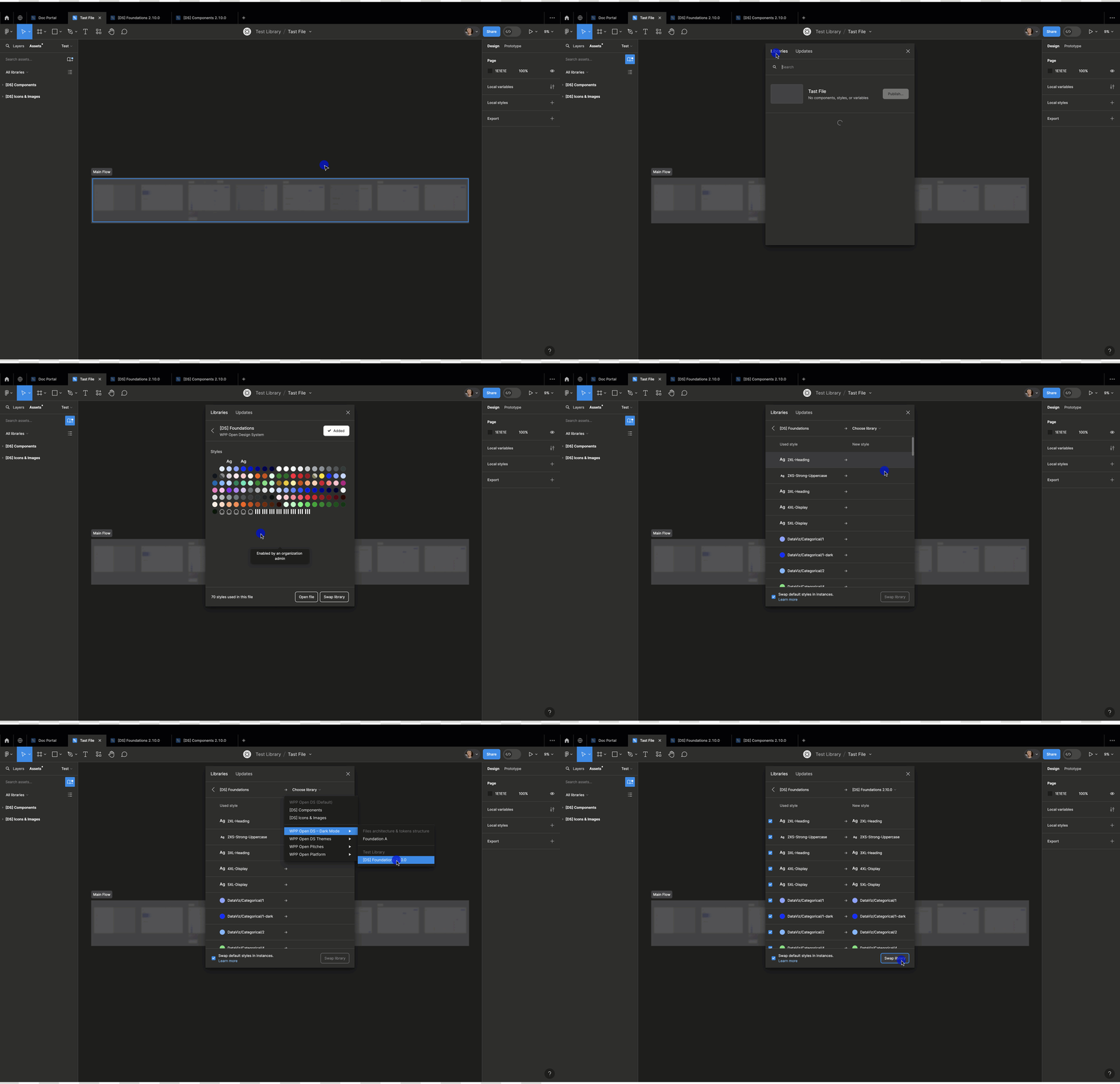
Make sure that all the libraries are interconnected with each other. For instance, Foundations 2.9.0 has to be linked with Icons&Images 2.9.0 and Component 2.9.0. The same with other libraries.
Updating component library versions
Staying up-to-date with the latest design system version is paramount for creating consistent, user-friendly applications. Here are the steps and best practices to seamlessly upgrade your design system.
To update versions
- Locate the "package.json" file: In your project's root directory, find the "package.json" file. Open this file in your text editor.
- Find the library in "dependencies": Inside package.json, you'll find a section called dependencies. The code block of the dependencies section may look like this:
  "dependencies": {
    "@emotion/react": "^11.11.1",
    "@emotion/styled": "^11.11.0",
    "@mui/material": "^5.14.11",
    "@wppopen/components-library": "^2.4.1",
    "@wppopen/components-library-react": "^2.4.1",
    "next": "latest",
    "react": "latest",
    "react-dom": "latest"
  },
- Find the line that specifies the library you want to update. It may look like this:
"@wppopen/components-library": "2.4.1"
- Update the version number: To update the library to a new version (e.g., 2.5.0), edit the line to look like this:
"@wppopen/components-library": "2.5.0"
- Run "npm install": To update the library to the new version, run the following command in your terminal:
npm install
Downgrading versions
The procedure for downgrading a component library version is similar to that detailed in the section above. However, downgrading component libraries is not advisable due to the following reasons:
Loss of Bug Fixes: Newer versions often include critical bug fixes that address known issues and vulnerabilities. Downgrading may expose your project to these unresolved problems.
Security Risks: Downgrading can lead to security risks as you miss out on important security updates and patches included in newer versions.
Compatibility Issues: Newer versions are optimized for compatibility with current tools and technologies. Downgrading may cause compatibility issues, disrupting your project's functionality.
Setting up multiple component library versions
In certain scenarios where your project requires a gradual migration from one version to another, you can set up multiple component library versions in your project. Gradual migration, also known as phased or incremental migration, refers to the process of updating or transitioning a project from one version to another in a step-by-step manner rather than making a sudden and complete switch.
You can set up multiple versions of a component library within a single project using aliases.
- We recommend to avoid incorporating multiple component libraries into a single project. Doing so may lead to compatibility issues, increased maintenance complexity, and other potential issues.
- You can use package managers such as npm, yarn, or others to set up multiple versions of component libraries. Even though the commands listed here are for npm, you'll find similar commands in other package managers.
To set multiple component library versions
To install a package with a custom alias, use the following npm command:
npm install <custom-alias>@npm:<package-name>
Replace custom-alias with your desired alias and package-name with the name of the package.
Here is the example of installing 'react' with the alias 'my-react':
npm install my-react@npm:react
- Aliasing works only within your project and doesn't affect transitive dependencies.
- Custom aliases must follow the naming conventions specified in validate-npm-package-name to avoid naming conflicts.